Participant
January 30, 2018
Answered

Split footnotes across pages

  • January 30, 2018
  • 5 replies
  • 9724 views


I'm using InDesign CC 2017 and cannot get the split footnote across pages option to work.  It's an MS Word document with long footnotes that I've placed in InDesign.

Any suggestions?

    This topic has been closed for replies.
    Correct answer Cari Jansen

    If the "Allow Split Footnotes" option isn't working for you, then check the paragraph formatting settings for the footnotes.

    If you've applied a paragraph style:

    1. Select the Style name in the Paragraph Styles panel (Type > Paragraph Styles), and select Style Options form the panel menu.
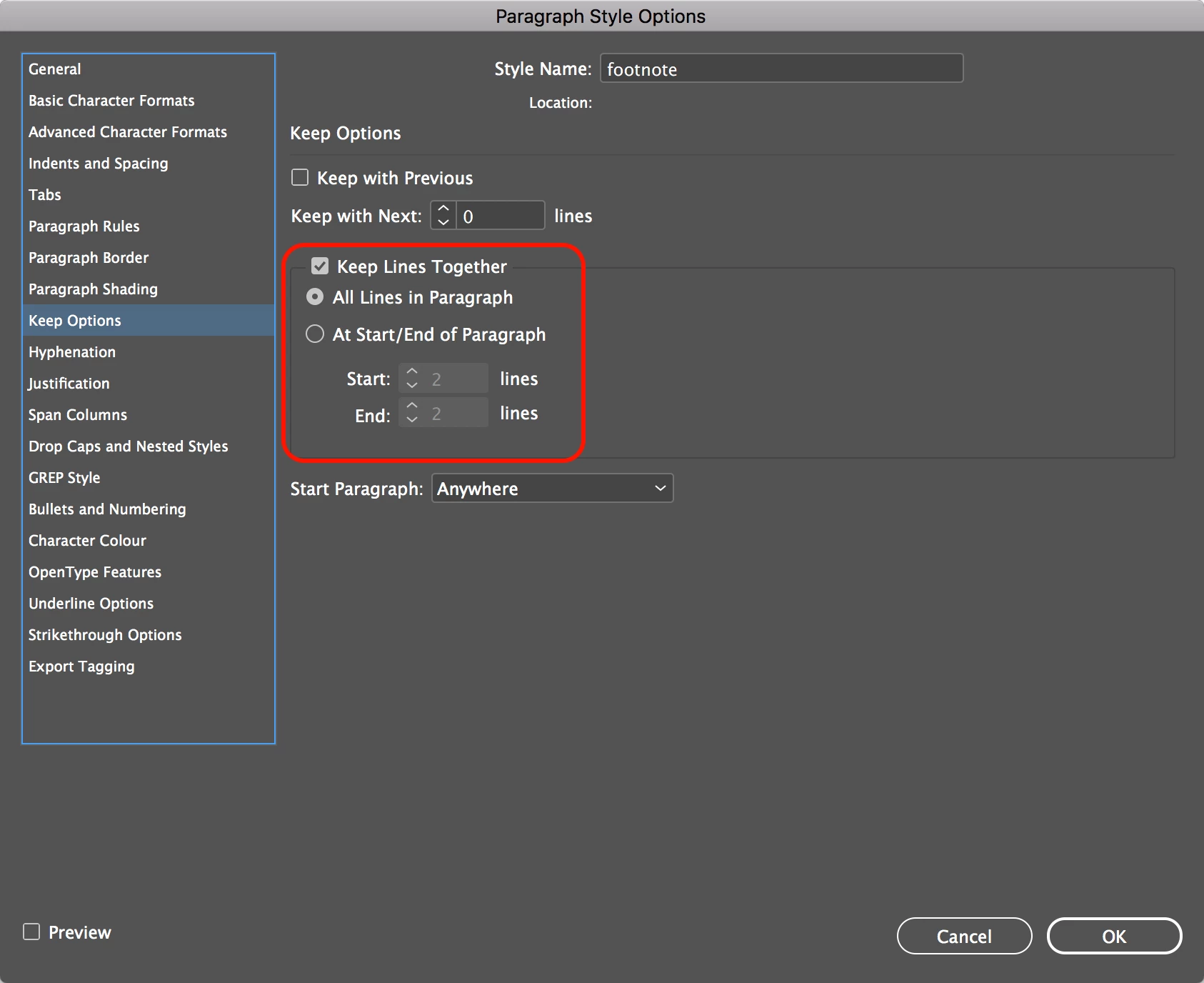
    2. Click Keep Options in the category list on the left, and check if by any chance Keep Lines Together and All Lines in Paragraph are selected.  This setting will overwrite the 'Allow Split Footnotes' option in the Document Footnote Options dialog box.
    3. Disabling the setting should fix the issue.

    Else, click in the footnote paragraph that is not splitting, and from the Paragraph panel menu (Type > Paragraph), select Keep Options, and check the same settings as mentioned in step 2 above.

    5 replies

    katlynd59533551
    Participant
    April 14, 2021

    Something that worked for me was in the Footnote options > layout > de-select 'span footnotes across columns'

    Participant
    November 1, 2020

    Hey,

    In order to have contiunous footnotes, the text boxes on must be linked.

    (whether they are on the same spread, or different spreads, they must be linked.)


    This simple fix resolved the issue for me, along with making sure the 'Allow Split Footnotes.' option is ticked.


    Hope this helps

    Barb Binder
    Community Expert
    Community Expert
    January 31, 2018

    Can you share a screen shot or two of the InDesign spreads?

    ~Barb

    ~Barb at Rocky Mountain Training
    Cari JansenCorrect answer
    Legend
    January 31, 2018

    If the "Allow Split Footnotes" option isn't working for you, then check the paragraph formatting settings for the footnotes.

    If you've applied a paragraph style:

    1. Select the Style name in the Paragraph Styles panel (Type > Paragraph Styles), and select Style Options form the panel menu.
    2. Click Keep Options in the category list on the left, and check if by any chance Keep Lines Together and All Lines in Paragraph are selected.  This setting will overwrite the 'Allow Split Footnotes' option in the Document Footnote Options dialog box.
    3. Disabling the setting should fix the issue.

    Else, click in the footnote paragraph that is not splitting, and from the Paragraph panel menu (Type > Paragraph), select Keep Options, and check the same settings as mentioned in step 2 above.

    amaarora
    Community Manager
    Community Manager
    January 31, 2018

    Hi,

    You can see if Type->Document Footnote options->Layout-> Allow Split footnote option help you out.

    -Aman

    JackFigelAuthor
    Participant
    January 31, 2018

    Yes, I have already tried this and turned it ON.  It doesn't work.