

Mike_Gondek10189183
Community Expert
Community Expert
May 18, 2022
Answered

STOP Collapsing Menus

  • May 18, 2022
  • 3 replies
  • 263 views

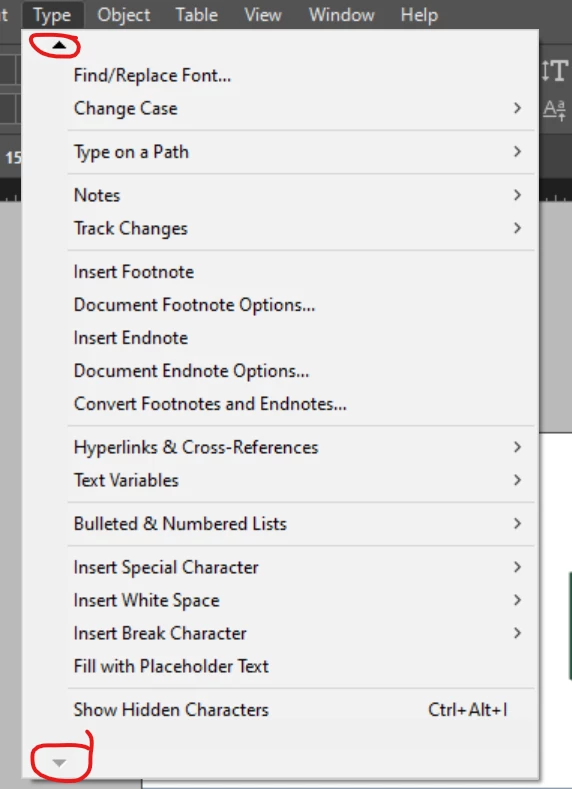
How do you show the full menus not collapsing, basically how to get rid of these elevator buttons.


Is there a preference to show the options alphabetically permanently? CTRl ALT SHIFT is nice, but holding that down all day long is giving me contracture.
 

This topic has been closed for replies.
Correct answer Laubender

You can get the hidden items in the menu back if you choose Show All Menu Items at the bottom of the Type menu.


Regards,
Uwe Laubender
( Adobe Community Professional )

3 replies

Geоrge
Legend
May 19, 2022

Some offtop from me here: try to memorize all shortcuts of all actions that you are using in your work. Memorize every day, every night and through some time you will forget about where is menu.


Remember, never say you can't do something in InDesign, it's always just a question of finding the right workaround to get the job done. © David Blatner
Community Expert
May 19, 2022

Hi Mike,

you could disable the view for some of the options you do not need.

Perhaps "Notes" or Text Variables" or others depending on your document and workflow.


Edit > Menus…


Regards,
Uwe Laubender
( Adobe Community Professional )

LaubenderCommunity ExpertCorrect answer
Community Expert
May 19, 2022

You can get the hidden items in the menu back if you choose Show All Menu Items at the bottom of the Type menu.


Regards,
Uwe Laubender
( Adobe Community Professional )

Brad @ Roaring Mouse
Community Expert
Community Expert
May 19, 2022

Those normally only show up when the full menu cannot display completely on your defined monitor size.

If you have more room on your monitor below the menu than what shows in your screen grab,  I don't know what is causing it to happen for you.