Robert at ID-Tasker
Legend
September 21, 2023
Answered

Strange behaviour when trying to rotate around (0,0) point ??

  • September 21, 2023
  • 4 replies
  • 3165 views

(0,0) is set in TOP LEFT corner of the page...


https://youtu.be/9XABq_EgBOo


It's not shown on the Video - but it's like rotation point is in the middle of the Left edge of the first page ?? But it's still dancing ??


What is even worse - objects on the 2nd spread - behave like (0,0) point is still on the 1st Page / Spread ??


This is part to set TransformReferencePoint:

myInDi.ActiveDocument.LayoutWindows.Item(1).TransformReferencePoint = Array(0, 0)

And this is to rotate:

myInDi.ActiveDocument.Selection.Item(a).RotationAngle = myInDi.ActiveDocument.Selection.Item(a).RotationAngle + myLAngle


It's in a loop so when only one item is selected - a=1.


Doesn't matter what RulerOrigin I set, doesn't matter if I manually move (0,0) point in the InDesign - when I'm trying to rotate object via scripting - it's like (0,0) point is in the middle of the left edge of the first page???


If I try to rotate by Object's reference point - it's perfectly fine.


What am I doing wrong? Or it's fine in JavaScript?

 

This topic has been closed for replies.
Correct answer Marc Autret

On my phone it opens on the 1st page? 


Checked page 26 - but the problem is - I'm not using Transform and Matrices - I'm just changing RotationAngle directly after setting ReferencePoint to (0,0).


So the bug is there, when doing it the "old" or rather simple way.


I'll have to add few extra Rules to my tool to let user to set up Matrices and the rest and try again later today. 


Once again - big thanks to @Marc Autret for the PDF.


Hi Robert,


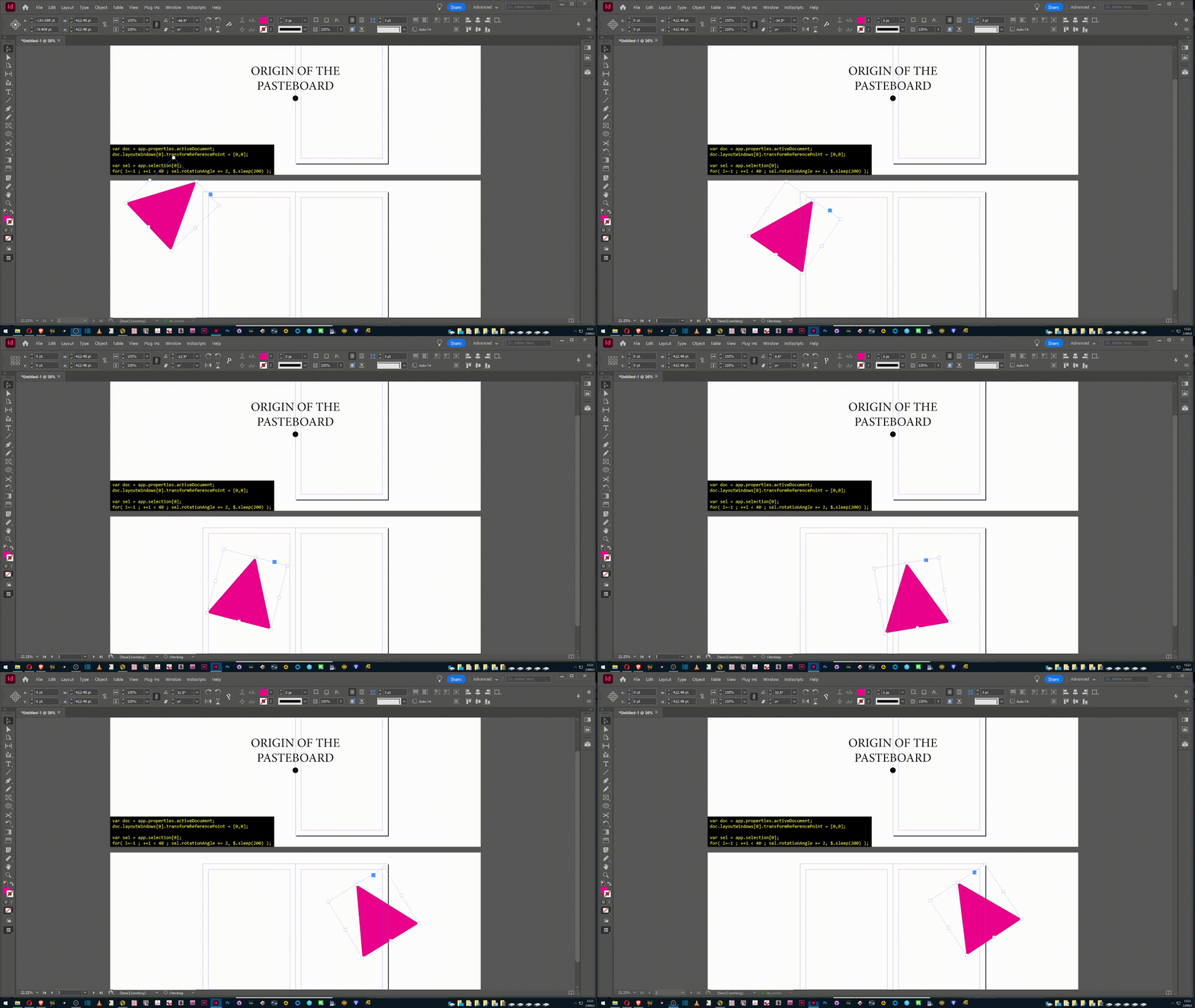
Not using transform and matrices explicitly does not mean that coordinate spaces are not involved behind the scenes. In fact, they always are, since InDesign works that way. The critical part of your code is the transformReferencePoint assignment, which explicitly refers to the origin of the pasteboard coordinate space. And this determines the center point of the rotation. Maybe a picture will make it clear:


Code:

var doc = app.properties.activeDocument;
doc.layoutWindows[0].transformReferencePoint = [0,0];

var sel = app.selection[0];
for( i=-1 ; ++i < 40 ; sel.rotationAngle += 2, $.sleep(200) );


Best,

Marc

4 replies

Robert at ID-Tasker
Legend
September 23, 2023

OK, this is what I wanted to achieve - and it is working - thanks to @Marc Autret and @m1b's example code.


But it only works on the 1st page - I still need help with resolving (0,0) point on next Pages / Spreads...


Marc Autret
Legend
September 25, 2023

Hi Robert,


If your goal (?) is to perform a rotation on any set of page items (e.g. the selection) as InDesign would do in the GUI, you only have to follow two rules:


1) work in the pasteboard space for determining individual bounds (that's what ID does),

2) compute the center point as the midpoint of minmax bounds (not the barycenter).


Here is a detailed implementation—in ExtendScript—that should work anywhere and whatever the original transform state of the items:


var myItems = app.selection; // Any array of page items
var myAngleDeg = 20;         // Your rotation angle (in degree)


// Absolute transform space (used by InDesign when you transform the selection).
const SPACE = +CoordinateSpaces.pasteboardCoordinates;

var xy = (function(/*PageItem[]*/a,/*CS*/sp,  bx,TL,BR,t,l,b,r,i,xy,v)
//----------------------------------
// Center point of `myItems` in SPACE coordinates (considering in-SPACE boxes.)
// This is how InDesign works when you manually perform a transformation on
// the selection: the default transform origin is not the 'barycenter' of the
// different box centers, it is the center of the overall bounding box, hence
// the min-max algo.
// => [num,num]
{
	bx = +BoundingBoxLimits.outerStrokeBounds;
	TL = [[0,0],bx,sp];
	BR = [[1,1],bx,sp];
	for( t=l=1/0, b=r=-1/0, i=a.length ; i-- ; )
	{
		xy = a[i].resolve(TL,sp)[0];
		(v=xy[0]) < l && (l=v);
		(v=xy[1]) < t && (t=v);

		xy = a[i].resolve(BR,sp)[0];
		(v=xy[0]) > r && (r=v);
		(v=xy[1]) > b && (b=v);
	}
	return [(l+r)/2, (t+b)/2];
})( myItems, SPACE );

var rot = (function(/*angleRad*/a,  c,s)
//----------------------------------
// Get the rotation matrix.
// => [num,num,num,num,0,0]
{
	c = Math.cos(a);
	s = Math.sin(a);
	return [c,-s,s,c,0,0];
})( myAngleDeg*Math.PI/180 );

// Perform the desired rotation around x,y (SPACE coords).
// ---
var orig = [xy,SPACE];
for( var i=myItems.length ; i-- ; myItems[i].transform(SPACE,orig,rot) );


Note that myItems can be set to any array of PageItem objects, not necessarily the active selection, and not even necessarily sharing the same spread!


Best,

Marc

Robert at ID-Tasker
Legend
September 25, 2023

Thanks @Marc Autret, I'll try to digest it later - but your video - is EXACTLY what I'm looking for.


Of course - the end goal is much bigger - do this on multiple pages / spreads at once ... and even multiple Documents - when someone is working on multiple designs of the leaflet...


Community Expert
September 22, 2023

Hi @Robert at ID-Tasker ,

I would urge you to test your code on objects that are not on the first spread of a document!


Regards,
Uwe Laubender
( Adobe Community Expert )

Robert at ID-Tasker
Legend
September 22, 2023

@Laubender, I did - and it behaved like the (0,0) was still on the 1st page...


Participating Frequently
September 22, 2023

@Robert at ID-Taskersaid: "…I did - and it behaved like the (0,0) was still on the 1st page..."


I expected that.

You can think of this as the zero point of the document.

Nothing really new. And no bug.


Regards,
Uwe Laubender
( Adobe Community Expert )

Robert at ID-Tasker
Legend
September 22, 2023

Ok, I think I've found a solution - workaround - I'll just create a new Rule, that will analyse all selected objects - their center (x,y) or a total area - get the "middle point" and use it as a (0,0) point for rotation / expansion.


Or user will have to create some temporary object - 5x5 mm rectangle with a label "center" - and center of this rectangle will be (0,0) point. 


There is always more than one way to skin a cat. 


m1b
Community Expert
Community Expert
September 22, 2023

Robert, I don't understand how this is a solution. Your problem wasn't finding the middle point, it was rotating an item around an arbitrary point.

Robert at ID-Tasker
Legend
September 22, 2023

@m1b, It's not a solution to the problem in InDesign - it's just a solution for what I want to achieve... it looks like a quite serious bug but I can't hold my breath waiting for it to be fixed, so - my workaround. 


m1b
Community Expert
Community Expert
September 21, 2023

Hi @Robert at ID-Tasker, I can confirm the same problem. Using this script:

var item = app.activeDocument.selection[0];

var tm = app.transformationMatrices.add({
    counterclockwiseRotationAngle: 10,
});

item.transform(
    // CoordinateSpaces.INNER_COORDINATES,
    // CoordinateSpaces.PAGE_COORDINATES,
    // CoordinateSpaces.PARENT_COORDINATES,
    // CoordinateSpaces.PASTEBOARD_COORDINATES,
    // CoordinateSpaces.SPREAD_COORDINATES,
    CoordinateSpaces.PASTEBOARD_COORDINATES,
    [0, 0],
    tm,
);


I get the same results you describe and changing the coordinateSpace argument of transform method makes no difference.


@Marc Autret, you have a great knowledge of coordinate spaces in Indesign. Any ideas about this? Are we doing something wrong here?


@Robert at ID-Tasker, a workaround may be (assuming that the mysterious [0,0] point can be reliably determined—is it centre of pasteboard?) to move the item to that position (offset according to your actual desired fulcrum point), rotate it, and then move it back to where it was (offset by how much it moved from the [0,0] point). This is similar to what I have to do in Illustrator to transform around a point.

- Mark

m1b
Community Expert
Community Expert
September 21, 2023

It seems that the [0,0] point is the centre of the combined bounds of every page on the first spread.

- Mark