

Inspiring
June 30, 2024
Answered
String Formatting in Extendscript
- June 30, 2024
- 9 replies
- 1309 views
I found this great script by @rob day in this group which returns font metrics data.
I wish this could be included in InDesign's info panel by Adobe.
Currently the script gives output in points. I have modified it to give data in MM also.
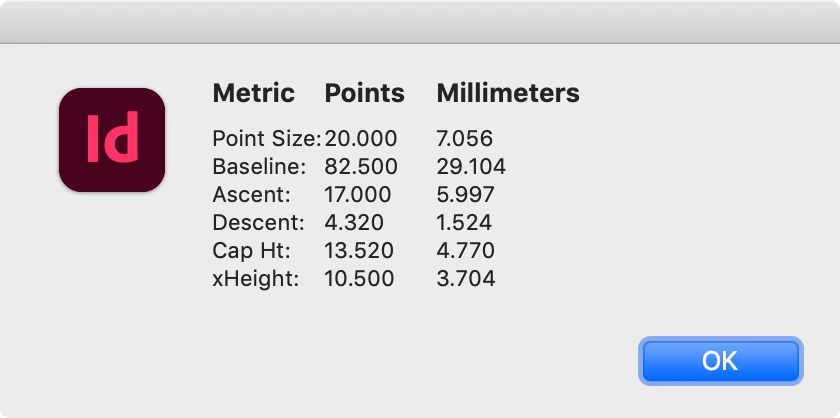
Issue is that the output is not properly formatted. I have attached a screenshot.
Is there a way to give proper formatting. I tried printf, sprintf, console.log but all these do not work in extendscript.
I want the top headers to be in bold, left headers to be in bold. ":" should be aligned. The values of Points to be aligned so that it becomes easier to read.
I have attached @rob day script here with modification.
// the selected character
var s = app.activeDocument.selection[0];
// the fixed decimal place
var dn = 3;

if (s.constructor.name == "Character") {
    var p = getFontMetric(s).pointSize;
    var bl = getFontMetric(s).baseline;
    var a = getFontMetric(s).ascent;
    var d = getFontMetric(s).descent;
    var ch = getFontMetric(s).capHeight;
    var xh = getFontMetric(s).xHeight;


alert("\u0009Points:" + "\u0009" + " MM:\r" + "Point Size:" + p + "\u0009" + p*.3572 + "\r" + "Baseline: " + bl + "\u0009" + bl*.3572 + "\r" + "Ascender: " + a + "\u0009" + a*.3572 +  "\r" + "Descender: " + d + "\u0009" + d*.3572 + "\r" +  "Cap Height: " + ch + "\u0009" + ch*.3572 + "\r" + "x-Height: " + xh + "\u0009" + xh*.3572);

} else {
    alert("Please Select a Single Character");
}


/**
* Gets the selected character’s font metrics
* @ param the character selection
* @ return an object with pointSize, baseline, ascent,descent, xHeight, and capHeight
*/
function getFontMetric(s){
    app.scriptPreferences.measurementUnit = MeasurementUnits.POINTS;
    var o = new Object;
    o.pointSize = s.pointSize.toFixed(dn);
    o.baseline = s.baseline.toFixed(dn);
    o.ascent = s.ascent.toFixed(dn);
    o.descent = s.descent.toFixed(dn);
    app.copy();
    var tf = app.activeDocument.textFrames.add({geometricBounds: [0,0,500,500], textFramePreferences: {firstBaselineOffset: FirstBaseline.CAP_HEIGHT, insetSpacing: 0, minimumFirstBaselineOffset: 0, verticalJustification: VerticalJustification.TOP_ALIGN}});
    app.select([tf.parentStory.insertionPoints[0]]);
    app.paste();
    tf.texts[0].alignToBaseline = false;
    o.capHeight = tf.texts[0].insertionPoints[0].baseline.toFixed(dn);
    tf.textFramePreferences.firstBaselineOffset = FirstBaseline.X_HEIGHT;
    o.xHeight = tf.texts[0].insertionPoints[0].baseline.toFixed(dn);
    tf.remove();
    app.select(s)
    app.scriptPreferences.userInteractionLevel = UserInteractionLevels.INTERACT_WITH_ALL;
    return o
}


 AdChoices