
Participant
November 5, 2018
Answered

striping text effect

  • November 5, 2018
  • 5 replies
  • 4410 views

Apologies if this is already posted, couldn't find it but struggled to think of exact search terms that might work.

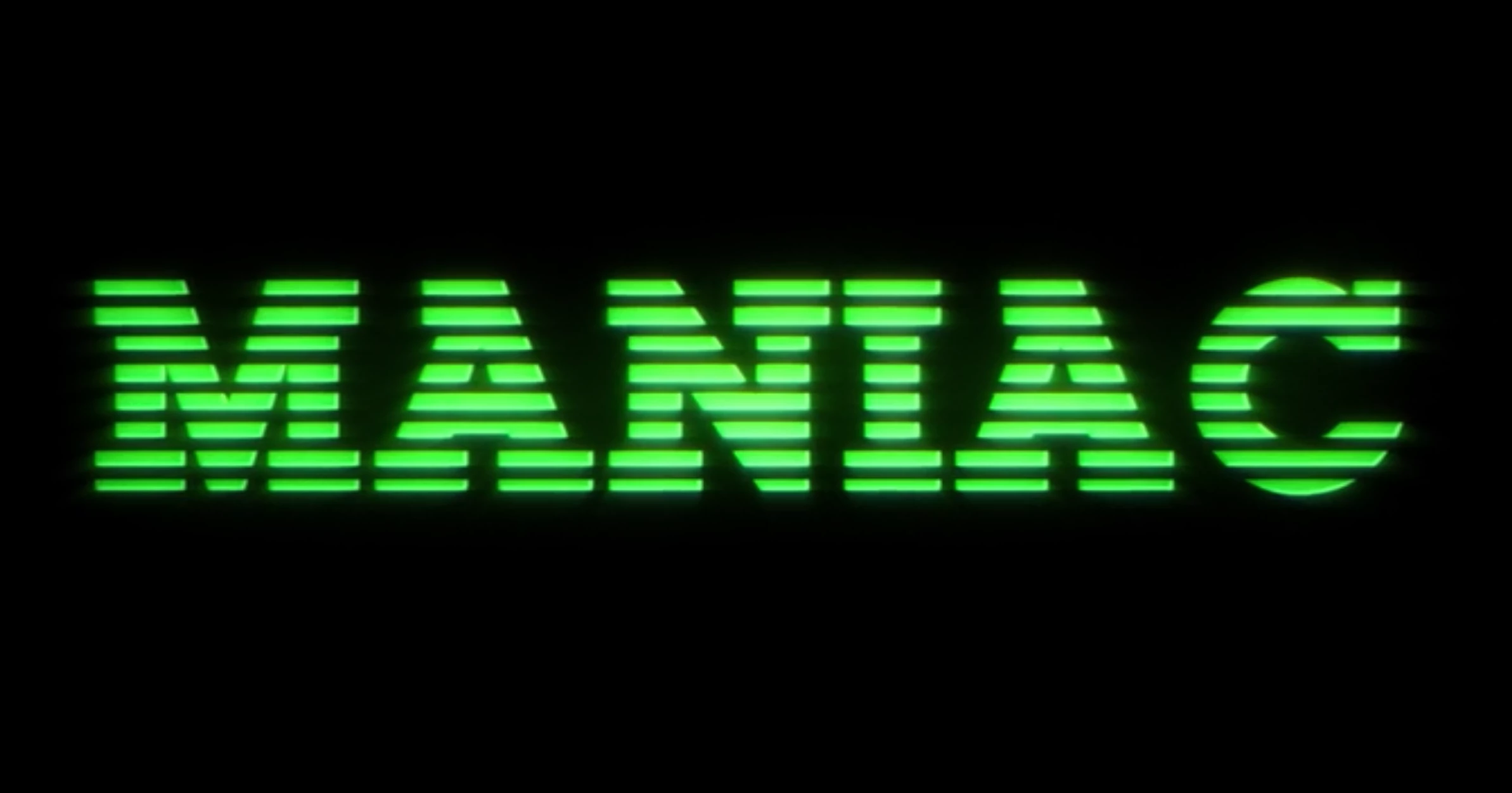
I'm looking to create a striped text effect, like the title font for Netflix's Maniac (below).

The best way I can think to achieve this is in Photoshop as an image/path but I'm really keen to keep it in an Indesign text box so that it's easy to edit. Does anyone have any suggestions?
Correct answer Jongware

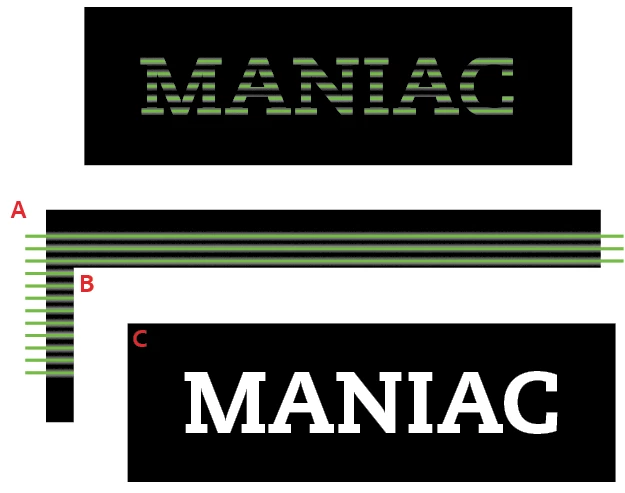
It is possible in InDesign, and fairly practical too -- in the sense that it's tricky to set up, but it has the obvious bonus that the text will still be freely editable.

The exact steps are from https://indesignsecrets.com/creating-see-through-text.php , so if my explanation is too concise, please check that.

A is the background image -- it can be anything you want.

B is a plain [Paper] rectangle

C is a regular transparent text frame (I made it black so you can see it), and with regular black text, but the Text Opacity has been set to 0% in the Effects panel. (So NOT for the 'entire object', the default selection in the Effects panel. Just the text.)

Then B and C are grouped together, and the last step is to select "Knockout Group" for this group.

5 replies

Participant
July 16, 2025

I was looking for the same question and found this thread and got my answer. 

Scott Falkner
Community Expert
Community Expert
July 16, 2025

I love it when there are multiple solutions to a problem and they are all viable.

hammer0909
Community Expert
Community Expert
November 5, 2018

One of the cool things about InDesign (and the other Adobe applications for that matter), is the number of ways to achieve the same result. So I'll throw my had in the ring with another option.

  1. Draw several frames (I used gridify to make it easy).
  2. Apply the Add option in the Pathfinder panel to merge them together
  3. Set your type, position it over the frames, then cut it, select the frames, and choose Edit > Paste Into

You'll need to apply color and tweak as needed but it'll get you there. You can even apply a glow effect if you want to soften the edges of the art.

FRIdNGE
November 5, 2018

Just for fun! … [outline, Pathfinder (another one), transparency and effects] 

Jongware
Community Expert
JongwareCommunity ExpertCorrect answer
Community Expert
November 5, 2018

It is possible in InDesign, and fairly practical too -- in the sense that it's tricky to set up, but it has the obvious bonus that the text will still be freely editable.

The exact steps are from https://indesignsecrets.com/creating-see-through-text.php , so if my explanation is too concise, please check that.

A is the background image -- it can be anything you want.

B is a plain [Paper] rectangle

C is a regular transparent text frame (I made it black so you can see it), and with regular black text, but the Text Opacity has been set to 0% in the Effects panel. (So NOT for the 'entire object', the default selection in the Effects panel. Just the text.)

Then B and C are grouped together, and the last step is to select "Knockout Group" for this group.

Colin Flashman
Community Expert
Community Expert
November 5, 2018

Another way would be to find a font that looks like this in the first place. I found this over at dafont.com - https://www.dafont.com/men-in-blue.font

If the answer wasn't in my post, perhaps it might be on my blog at colecandoo!
vinny38
Legend
November 5, 2018

Hi there!

You could do it easily in Illustrator, applying a custom pattern to your text fill.

Do not outline text, place AI artwork in Indesign and edit text in Illustrator when needed.

Would that work for you?

Participant
November 5, 2018

Thanks for the reply

Ideally was hoping to keep it all in Indesign, but if that's the easiest way then I'll settle for that!

vinny38
Legend
November 5, 2018

Well,

alternatively, you could do it in Indesign by creating a custom stroke style and apply it to your text as a strikethrough (same color than background).

Limitation is: this will work only if you have a single-color background: [paper], [black] or whatever color. But won't work if you place your text over a picture or a gradient. Strikethrough just fakes the striped out effect.

See example below.