Participant
November 20, 2023
Question

Stuck with MS Word Style and style mapping on import

  • November 20, 2023
  • 3 replies
  • 1196 views


Hi All, 

I'm still pretty new to style mapping in inDesign with importing MS Word documents.
I've come accross a problem, which may be simple, but I cannot seem to solve it. 


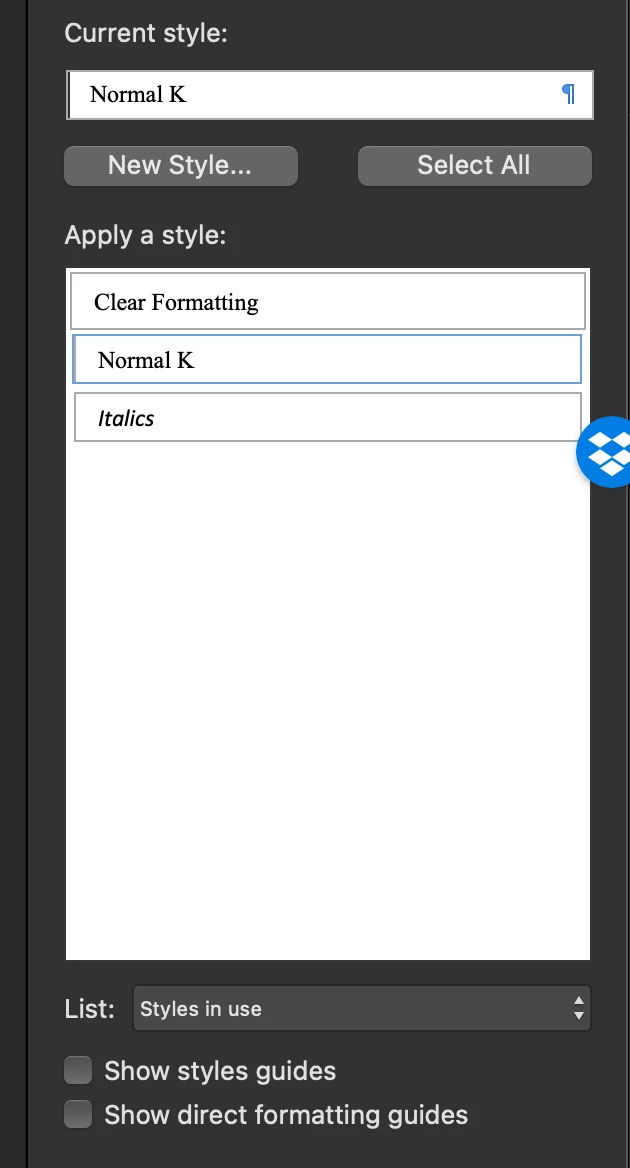
I have an MS Word document that was sent to me by the author, I went through the document and tried to reformat it in accordance with my own styles - I have made it as simple as possible with only one paragraph style, Normal K, and one charactr style, Italics. I cleared all direct formatting, deleted all the other styles in my Style Gallery, attamped to delete all other styles in the Styles Pane (with 'in current document selected') but cannot seem to delete certain styles such as "Normal", or "Heading 1" and I cannot understand why. See screenshot attached. 
 

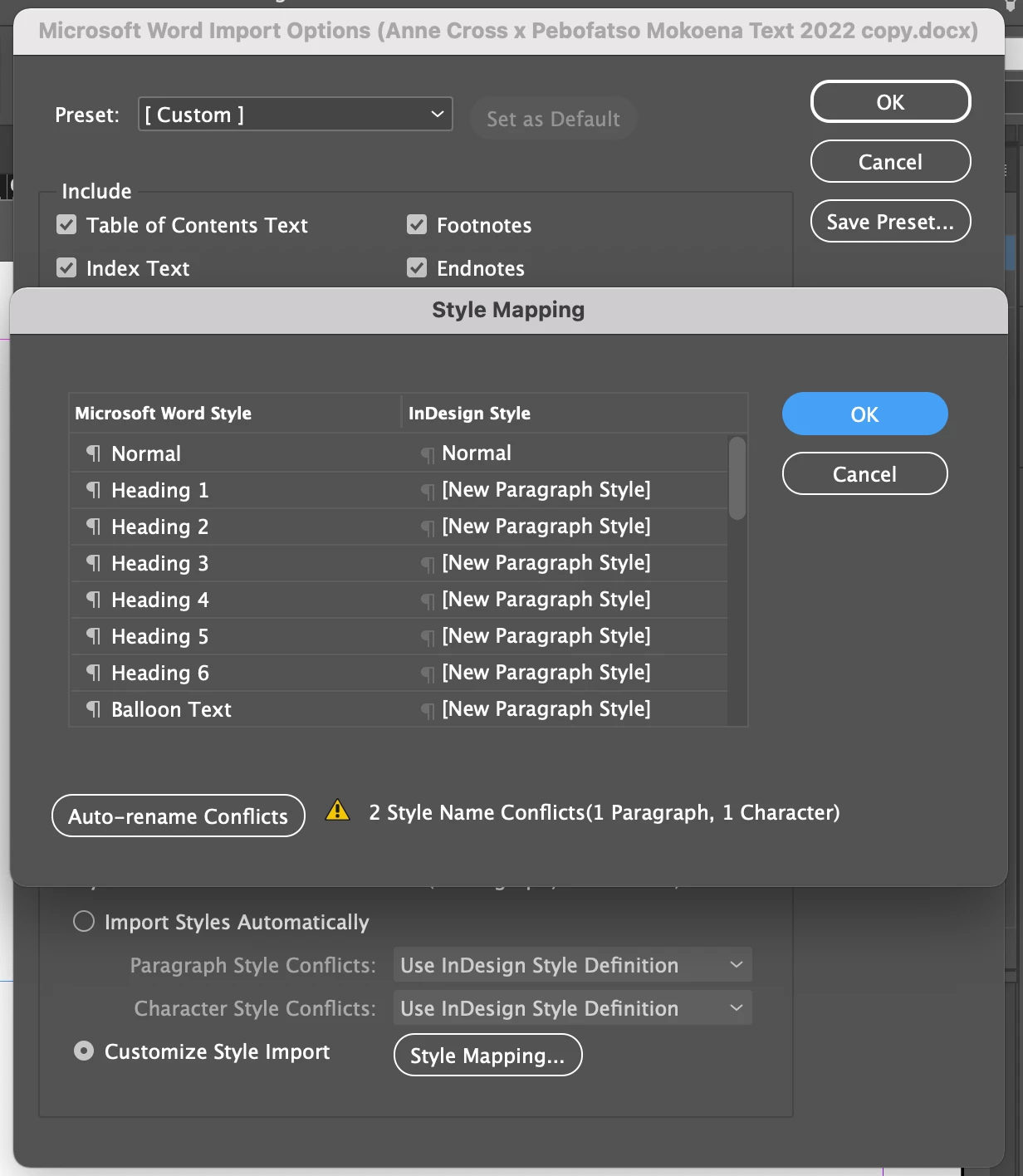
I've tried to Place the Word file in inDesign, in spite of the minor Style discrepancies which I canot seem to deleted as they are one or two, and the Style Mapping dialogue box opens to show mutliple (so many) Styles in the MS Word doc, which I cannot even find in the MS Word doc when I open it in word and tried to make sure to remove, and which require me to scroll through them to find the 2 Styles I actually used. This looks very different from the YouTube tutorials that I have followed, in which their Style Mapping dialogue box generally only shows Styles which are 'in current document' on the word side?? See screenshot of dialogue box for reference 

Any help or advice would be appreciated! 


This topic has been closed for replies.

3 replies

AlanGilbertson
Community Expert
Community Expert
November 21, 2023

Since your needs are simple, you'll find it much more efficient to ignore style mapping completely. All of the fixes you will want to make can be done faster and more easily in InDesign. Don't bother with the Word doc other than to do a "Save As..." to remove accumulated editing crud left over in the original .docx (an old, tried-and-true best practice with Word). This crud isn't usually a big deal, but occasionally it can mess up InDesign. Best to be on the safe side.


Use File > Place to bring in the text. In Import Options, choose "Remove Style and Formatting" and turn on "Preserve Local Overrides."


Don't create threaded frames yet. Press Esc to select the frame. You wnat a single text frame with overflow (if any). Now, run Find/Replace to change any italic text (Find Format, then choose "Basic Character Formats" and enter Italic.

.

In the "Replace Format" field use the Character Styles dialog and enter your Italic character style or create it now if you haven't already.


Choose "Replace All." Do the same for boldface text, if applicable.


With the text frame selected, go to the Paragraph Styles panel. The [Basic Paragraph] style will be selected, with a + sign after it indicating overrides, Ckear them with Alt/Option-Click or choose the Clear Overrides icon at the bottom of the panel. (THe reason you assign the character styles first is that they will preserve their formatting when you clear overrides on the paragraph styles.)


I think you'll find this gets you to "one paragraph style plus an italic character style" quicker than messing about with Word or style mapping.

Robert at ID-Tasker
Legend
November 21, 2023

@Kirsty_deKock 


If you want to convert ALL local overrides to CharStyles - you can use this set of my Macros for WORD:


https://www.adobescripts.com/uploads/WordStyle.zip


Then do what @AlanGilbertson suggested - don't map styles - just select all and apply your own ParaStyle + Clear Overrides.


Participating Frequently
November 20, 2023

You're seeing all the styles in your normal.dotx template. Rather than mapping styles, since you only have two, it would be simpler to create these two styles in InDesign. They don't need any special style options, just base them on No Paragaph Style or Basic Paragaph, but they have to have the exact same names as the styles in your Word doc. No need to enable Show Import Options. Once you have placed your Word doc, you can add the style options you want.

Participant
November 21, 2023

Thanks Clark - This was super informative. Do you know if there is any way to edit the normal.dotx template? I don't fully understand what a 'normal.dotx template' is.

Robert at ID-Tasker
Legend
November 21, 2023

It's a special file that can be used as a blueprint for new documents. 


https://support.microsoft.com/en-au/office/change-the-normal-template-normal-dotm-06de294b-d216-47f6-ab77-ccb5166f98ea


Robert at ID-Tasker
Legend
November 20, 2023

Don't worry, only styles that are really "in use" will import to InDesign. 


You can't delete Normal in Word - it's Word's internal / hardcoded style. 


James Gifford—NitroPress
Legend
November 20, 2023

It's difficult to delete or even modify the standard hierarchy in Word - Normal, Heading n, List Paragraph, all those. You have to work around them and make any changes after import.