Inspiring
August 23, 2017
Answered

Subsequent Line Indent (basic question)

  • August 23, 2017
  • 1 reply
  • 1126 views

Hi all, could you help with the following:

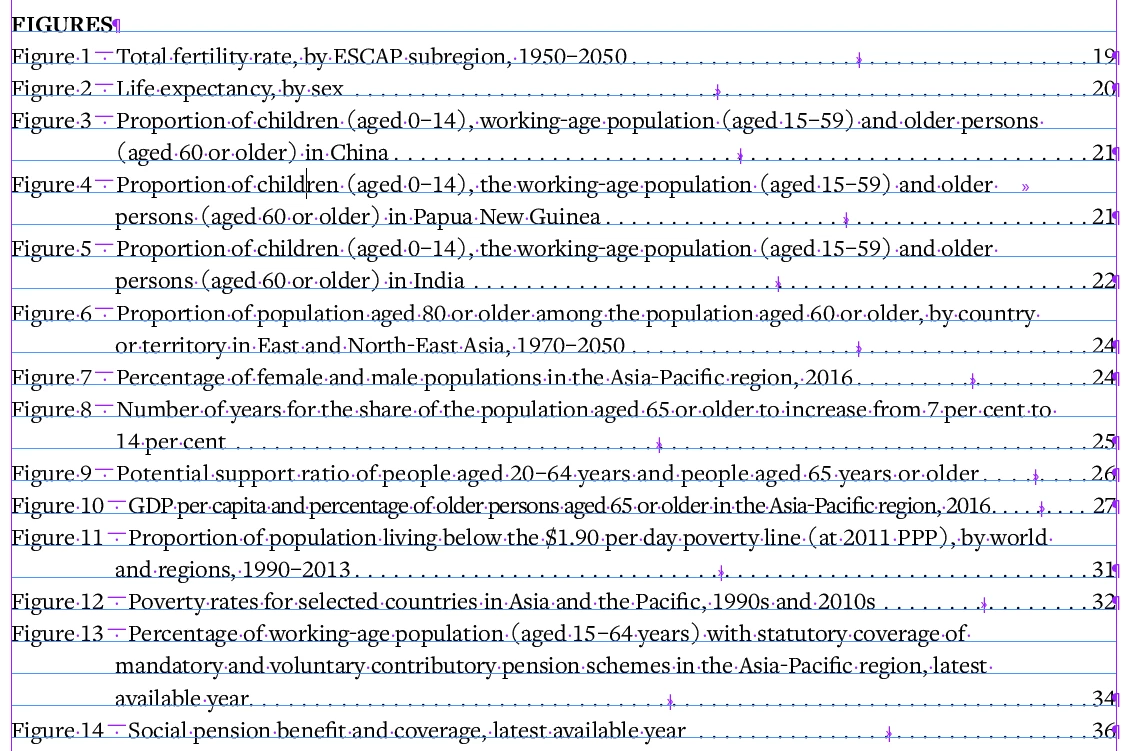
I need the second line "(aged...)" to start exactly the P from "Proportion" in the first line is. How do I do this? I can fidget with first line indent and left indent but it won't work well since the Figure list uses an em space to separate, not tab. So if I use first line / left indent combo, it would look off for Figure 10 and onward:
Please advise!
    This topic has been closed for replies.
    Correct answer Bill Silbert

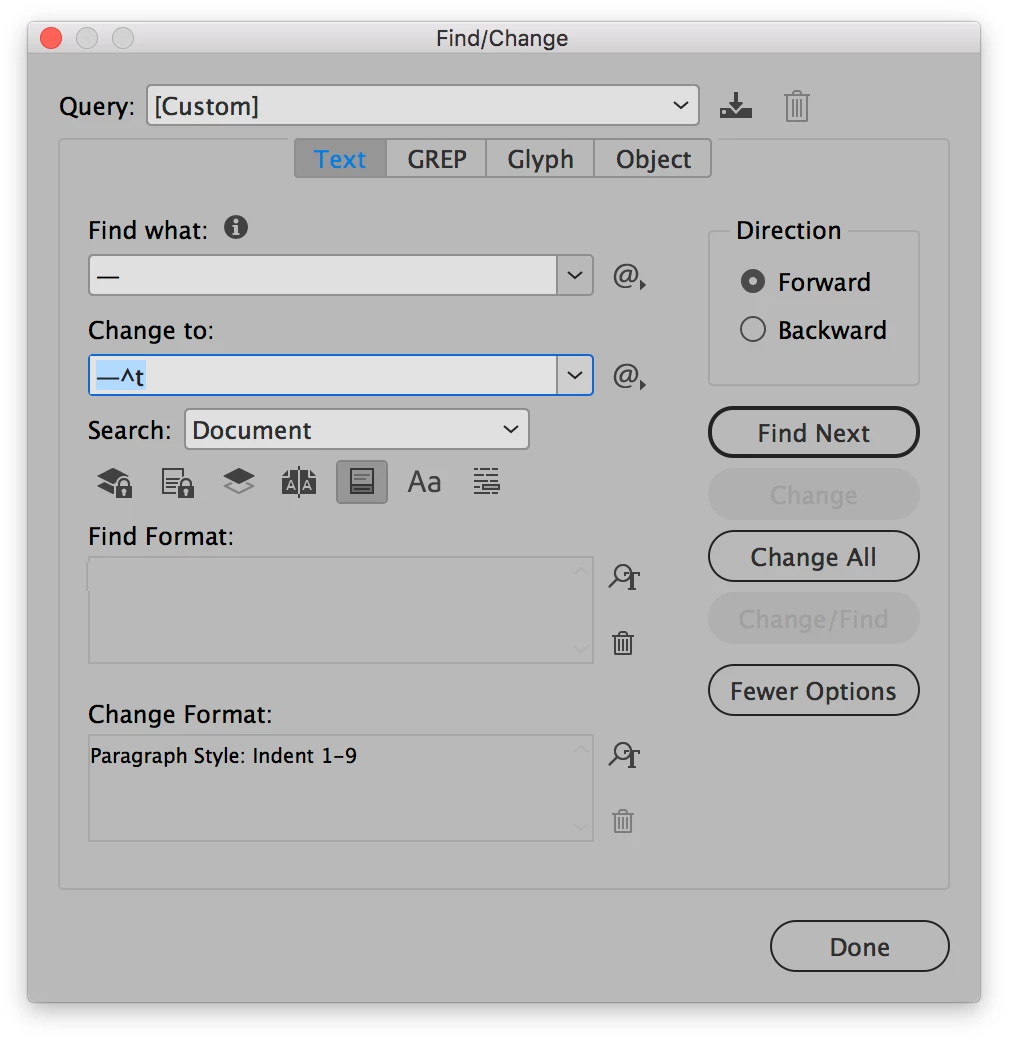
    I just want to add to my original post that you can add the tab after the em-dash globally using Find/Change. In the find field type the em-dash and in the change field type the em-dash followed by ^t. Then as long as there are no other em-dashes in your document or if all of the em-dashes are in the same text frame or threaded text frames then you can hit Change All and the tabs will all be inserted at once. If you have set up a paragraph style, that can also be applied at the same time although since you will need two different styles for the single-digit and the double-digit numbers you won't then be able to do a "Change All". See screen shot:

    1 reply

    Bill Silbert
    Community Expert
    Community Expert
    August 23, 2017

    The first thing you must realize is that Figures 1-9 will necessarily be a different indent than 10 and above simply because the width is different with one digit rather than two. Understanding that see screen shot below:

    The screen shot shows the first four lines of your text both with and without the invisibles showing. To achieve this look I used the Paragraph Panel and created a left indent of .7063 inches and a negative first line indent of -.7063 inches. I placed a tab to the right of the “M” dash (wide hyphen) which automatically aligns the first line with the left indent of the rest of the paragraph. Obviously your amount of indent will vary depending on the font used and size of that font. You will have to experiment with indent amounts and it can get tricky. But once you get it right it will work correctly. I used 12 point Minion Pro regular.

    Jongware
    Community Expert
    Community Expert
    August 23, 2017

    Alternatively, use an "indent-to-here" code right after the em-space. Then you don't need to know the actual distance -- in fact, you can change the font or point size and everything will still align!

    To align numbers beyond 9 the same as 1-9, insert both an em-space and a number space for 1-9, then only an em-space for 10 onwards.

    The advantage of Bill's First Line Indent, on the other hand, is that you can store it inside the style for this list and for later use. You can't do that with Indent-to-here.

    Bill Silbert
    Community Expert
    Bill SilbertCommunity ExpertCorrect answer
    Community Expert
    August 23, 2017

    I just want to add to my original post that you can add the tab after the em-dash globally using Find/Change. In the find field type the em-dash and in the change field type the em-dash followed by ^t. Then as long as there are no other em-dashes in your document or if all of the em-dashes are in the same text frame or threaded text frames then you can hit Change All and the tabs will all be inserted at once. If you have set up a paragraph style, that can also be applied at the same time although since you will need two different styles for the single-digit and the double-digit numbers you won't then be able to do a "Change All". See screen shot:
