
Known Participant
October 12, 2026
Question

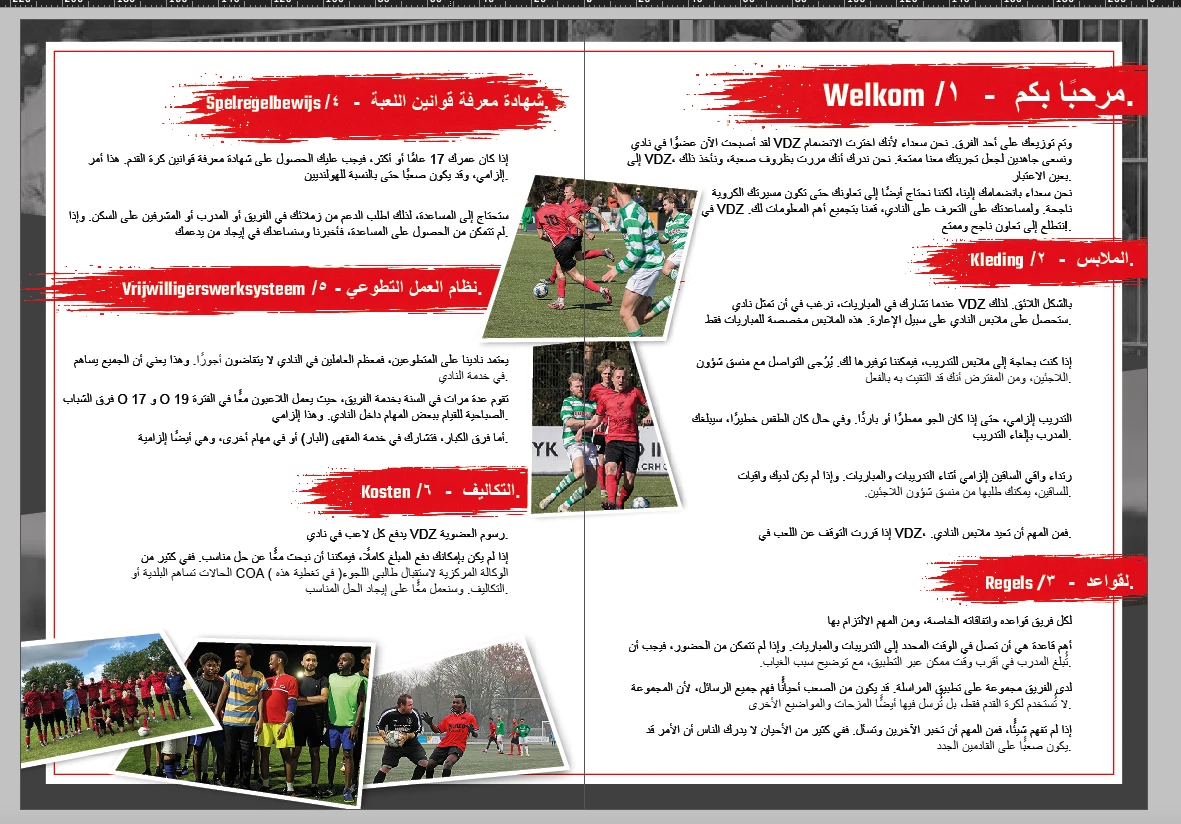
Swap text and images on the spread
  • October 12, 2026
  • 3 replies
  • 18 views

Hi all!

I would like to swap the left and right pages. What is the fastest way to do this in InDesign 2026? The background needs to remain in place; only the text, red shapes, white text, and images with white borders should be flipped and swapped between pages.

Thanks in advance for your help!

    3 replies

    Peter Spier
    Community Expert
    Community Expert
    October 12, 2026

    Thinking about this more, I would probably NOT swap the pages, but instead select the elements you want to move on the left page, move them to the pasteboard, then select the elements on the right and shift them over to the left page, and finally move the elements from the pasteboard onto the right page.

    You’ll still have quit a bit of adjusting to do.

    Peter Spier
    Community Expert
    Community Expert
    October 12, 2026

    Actually, I believe you DO want to allow page shuffling, and simply drag one page to the opposite side and they should swap, but your background and and crossover images are going to shift (unless the background happens to be on a Parent Page), so you will need to reposition them, as well and any of the red elements you want to bleed. Also, unless your red shapes are ragged on both ends, you’ll probably need to re-draw them.

    CORCTON34033231
    Community Expert
    Community Expert
    October 12, 2026

    Hi Stefanie,


    The fastest way is in the Pages panel:


    1. Open the Pages panel menu and turn off Allow Document Pages to Shuffle and Allow Selected Spread to Shuffle — otherwise InDesign keeps each page on its own left/right side of the spread.

    2. Then drag the left page thumbnail to the right side of the spread (or use Layout > Pages > Move Pages and swap the two page numbers). The content moves with the pages, so the two pages trade places.


    One thing to check afterwards: if your document uses different left/right parent (master) pages or mirrored margins, make sure the swapped pages are still using the intended parent page.


    Adobe's guide to moving pages: https://helpx.adobe.com/indesign/desktop/create-and-organize-pages/arrange-and-order-pages/move-pages.html


    Hope that helps!