Inspiring
May 11, 2018
Answered

Table Of Contents - 2 line title problems

  • May 11, 2018
  • 4 replies
  • 5069 views

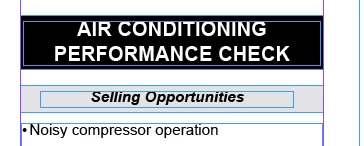
I have a catalog which  some of the titles of the chapters are on two lines like this: see the screenshot the white text in the black box

When I select the style name I gave this ( WHITE TITLE TOC)

and choose as the style for the TOC

I get

AIR CONDITIONING - 1

PERFORMANCE CHECK - 1

HOW CAN I POPULATE THE TOC WHERE TWO LINES ARE ONE ENTRY, FOLLOW?
    This topic has been closed for replies.
    Correct answer Bevi Chagnon - PubCom.com

    The TOC utility looks for the regular paragraph mark and considers it to be the indicator of new headings. That's why you're getting 2 entries in the TOC.

    Here's an easy solution.

    1. Use the forced line break within a paragraph (Shift + Enter) as suggested above. This will keep the heading as one paragraph.
    2. Note: be sure to put a spacebar before the Shift + Enter so that when it's removed in the TOC, the remaining words don't run on together.
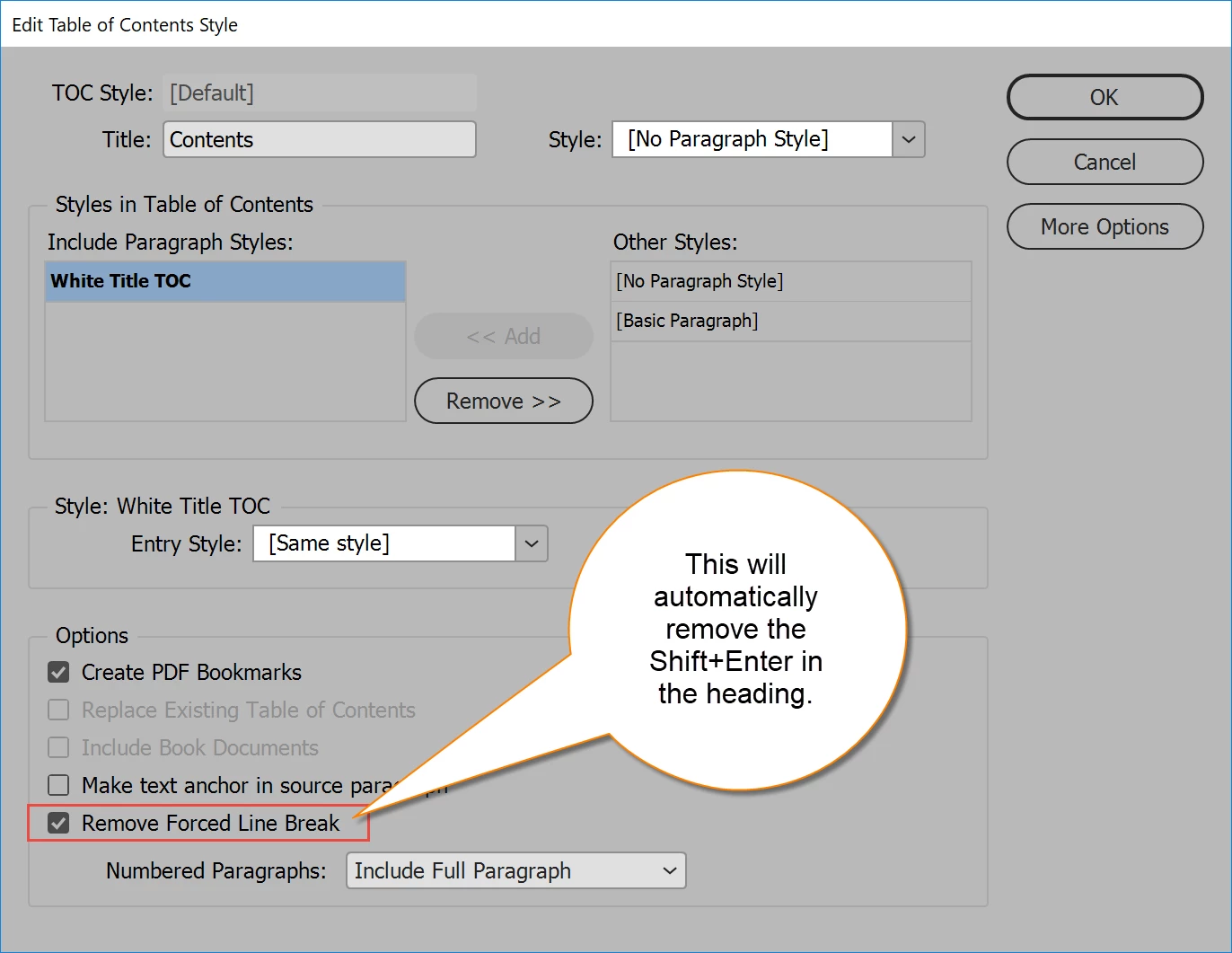
    3. When you define your TOC style, check the box in the lower left to Remove Forced Line Break.

    Voila!

    4 replies

    Bevi Chagnon - PubCom.com
    Legend
    May 11, 2018

    Glad to help, matthewdee!

    |    Bevi Chagnon   |  Designer, Trainer, & Technologist for Accessible Documents ||    PubCom |    Classes & Books for Accessible InDesign, PDFs & MS Office |
    Bevi Chagnon - PubCom.com
    Legend
    May 11, 2018

    The TOC utility looks for the regular paragraph mark and considers it to be the indicator of new headings. That's why you're getting 2 entries in the TOC.

    Here's an easy solution.

    1. Use the forced line break within a paragraph (Shift + Enter) as suggested above. This will keep the heading as one paragraph.
    2. Note: be sure to put a spacebar before the Shift + Enter so that when it's removed in the TOC, the remaining words don't run on together.
    3. When you define your TOC style, check the box in the lower left to Remove Forced Line Break.

    Voila!

    |    Bevi Chagnon   |  Designer, Trainer, & Technologist for Accessible Documents ||    PubCom |    Classes & Books for Accessible InDesign, PDFs & MS Office |
    Inspiring
    May 11, 2018

    Thanks for this!

    Barb Binder
    Community Expert
    Community Expert
    May 11, 2018

    As per Fenja, the trick is to keep all the lines as a single paragraph. You could use his line-break in the document option, and then remove them in the TOC or:

    Try a non-breaking space (Type > Insert Break Character)

    Or add Balance Ragged Lines, which will balance the lines without any additional human input.

    After you update the TOC using either of these solutions, you should be good to go. IMHO, the best option is to find something that works in both places and doesn't cause additional steps that we might forget when rushed. I'd think the Balance Ragged Lines on in the source doc—and off in the TOC—would be perfect.

    ~Barb

    ~Barb at Rocky Mountain Training
    May 11, 2018

    Apply behind the first line a space and a Shift+Enter.

    When ready, select the table of content only and go to Edit > Find/Replace > GREP.

    Note: The text field "Replace" is selected but empty.

    After applying the GREP the table of content looks like this:

    Fenja