Participant
January 28, 2025
Question

Table of Contents adding in numbers

  • January 28, 2025
  • 7 replies
  • 781 views

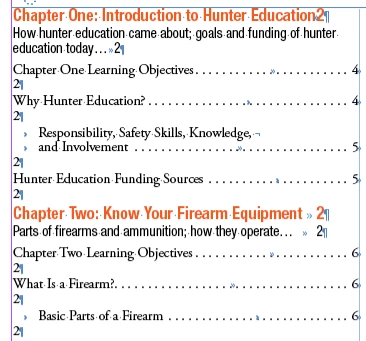
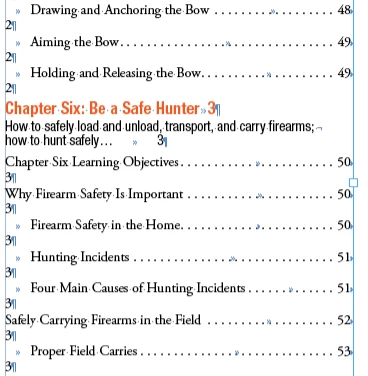
I'm creating a TOC for a 100+ page booklet. Everything looks great when I populated the TOC with the styles I have applied, however there is a random 2 between each entry, and after a while that changes from 2 to 3 between each entry. Help?
7 replies

Participant
January 28, 2025

Sorry all, it is a confidential file so I will not be sharing more. I've ran through the document and there are no hidden characters or numbers where the TOC chapters appear. There are 4 levels of styles applied, the number appears at the end of each style except the last, the '2' and '3' at the end of the first red chapter should not be there either. I've mnaually manipulated the TOC for now to appear as it should, but that would have to be done each time it is updated which could cause a pain point.

This is how it should appear without the extra '2' and '3' randomly at the end of each line:

James Gifford—NitroPress
Legend
January 28, 2025

Just to be sure — we've seen several TOC issues like this recently and every one came down to the level definitions pulling the unwanted content from somewhere. (One made the circular mistake of making the TOC entries grab and include... the existing TOC entries.) So that's where to continue looking, I think. You might blow away the TOC and re-create it from scratch, and — always — be sure to save the "style" under a distinct name. Leaving it to the default can cause odd problems. (Really, a general ID rule — use named instances/styles and never the default or base settings.)

Robert at ID-Tasker
Legend
January 28, 2025

@Ciara31274891gx7g


Can you share your file? If it's confidential - you can click on anyone's nickname - but you'll have to upload your INDD file somewhere and share the link - there is no option to attach files to ptivate messages.


Robert at ID-Tasker
Legend
January 28, 2025

It looks like repeated Chapter "numbers"? 


Also, numbers after the orange text - those are not page numbers? 


James Gifford—NitroPress
Legend
January 28, 2025

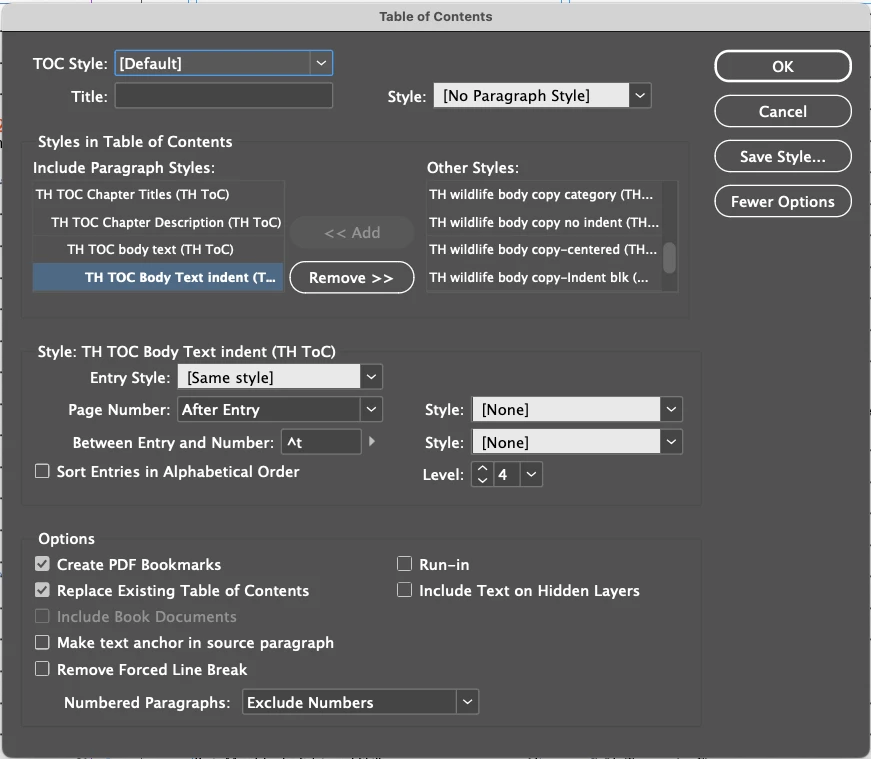
Is this menu shot showing the correct level/TOC item? It looks as if the menu shows 4th level and the weird extra number is coming after the 3rd(?)

Barb Binder
Community Expert
Community Expert
January 28, 2025

Auto-numbers was my first thought, Peter, but it looks like the TOC has the text entry, a tab, a number, a second tab, the extraneous number and then the ¶.


Auto-numbers would be at the beginning, right? Honestly, I'm still baffled—just hoping the screen shots will clarify the situation. I'm thinking section number or hidden text.


~Barb

~Barb at Rocky Mountain Training
Peter Spier
Community Expert
Community Expert
January 28, 2025
quoteAuto-numbers would be at the beginning, right? Honestly, I'm still baffled—just hoping the screen shots will clarify the situation. I'm thinking section number or hidden text.

By @Barb Binder

 Well, yes, ordinarily, but I think it might be possible to get them after in some combinations of English text with a right-to-left language designation in the ME version. Just a wild guess.

Seeing a lot more info, like paragraph style defintions, would be helpful.

Peter Spier
Community Expert
Community Expert
January 28, 2025

I'm wondering if thiose headings showing the numbers that shouldn't be there are defined as numbered lists?

I also see that you appear to be using the same style for both the lisitings and the paragraphs they reference, and I think that might be part of the problem -- something in the style defintion that belongs in the paragraph, but not the listing.

Barb Binder
Community Expert
Community Expert
January 28, 2025

Hi @Ciara31274891gx7g :


A table of contents pulls in the exact content from the paragraph style you reference, along with the page number.


  1. Can you please share a screen shot that contains the first entry: Chapter 1 Learning Objectives with Type > Show Hidden Characters enabled and the Pages panel visible.
  2. And to be proactive to try to cut down the time it takes to solve this, a second screen shot with your cursor in the same paragraph but in Story Editor view (Edit > Edit in Story Editor).


~Barb

~Barb at Rocky Mountain Training