keithconover
Inspiring
Nov 14, 2026 12:08 AM UTC
Answered

Table of Contents dialog box indenting looks wrong but works fine

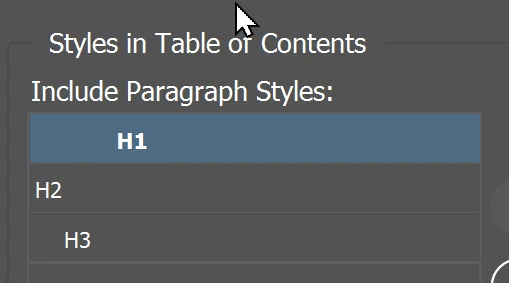
I have a Table of Contents that works fine in the document, but in the dialog box the indenting doesn’t look right. Not a functional problem, just bothers me that I don’t understand why it looks like this or how to fix it:

 

    Dave Creamer of IDEAS
    Dave Creamer of IDEASCorrect answer
    Community Expert
    Nov 14, 2026 12:20 AM UTC

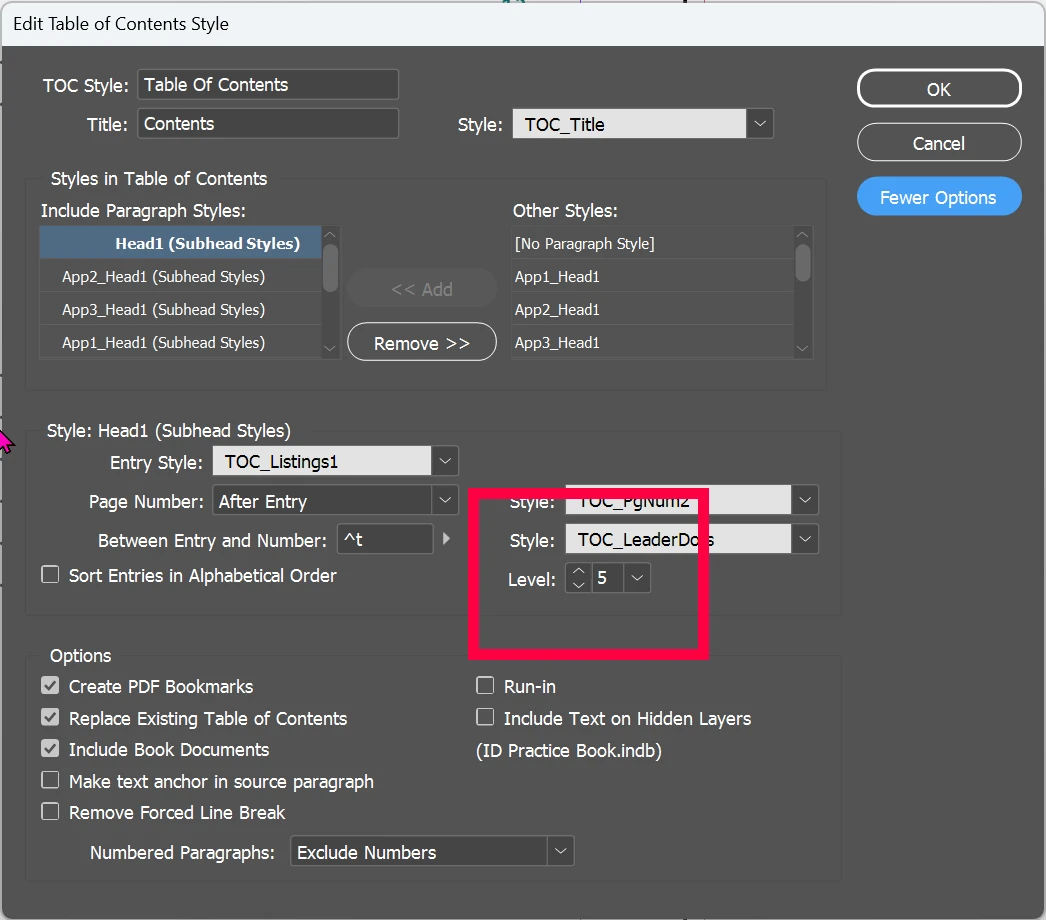
    Check the Level setting by clicking “More Options”. 

    They should be in order of the headings, that is, H1=1, H2=2, H3=3, etc. 


    David Creamer: Community Expert (ACI and ACE 1995-2023)

    7 replies

    keithconover
    Inspiring
    Nov 14, 2026 5:30 PM UTC

    It would be nice if this dialog box also offered a way to create those PDF TOC bookmarks all collapsed so they’d be much more usable. I’ve posted this on UserVoice, but here’s my workaround from 2023:

    PDF Table of Contents from my InDesign files always show up expanded, which is very hard to navigate. I've been manually collapsing them after exporting from InDesign.  Here is my workaround/kludge from 2023:
    PDF Post-Processing for each volume and chapter (new Acrobat interface 2023):
    • While chapter still open in Acrobat:
    • Click on right top-ish bookmarks icon
    • Highlight each chapter bookmark and press the "/" key to collapse all bookmarks in the chapter. Repeat this for each chapter. Save PDF via Save As > [save over original version]

    Translate
    Dave Creamer of IDEAS
    Community Expert
    Community Expert
    Nov 14, 2026 6:37 PM UTC

    If your chapter titles are the top level, as opposed to the book title*, you can choose “Collapse Top-Level Bookmarks”. 


    *Having a single book title bookmark is fairly useless. It would be better to add the title in the Document Properties Description and select Show Document Title under Initial View. 

    Translate
    David Creamer: Community Expert (ACI and ACE 1995-2023)
    keithconover
    Inspiring
    Nov 14, 2026 2:09 AM UTC

    That makes perfect sense. But if it’s mostly for making PDF bookmarks, wouldn’t it be nice to have another little place here to “Create PDF Bookmarks: (a) collapsed (b) expanded” ? I’d personally like to have my PDF bookmarks for a Table of Contents start off collapsed to just the first-level headings, much more usable for a big Table of Contents than bookmarks that are expanded and scroll off the page for a long way. 

    Translate
    Dave Creamer of IDEAS
    Community Expert
    Community Expert
    Nov 14, 2026 4:48 AM UTC

    That’s a good suggestion, but a different issue/question. 

    Here is a link for feature suggestions:

    https://indesign.uservoice.com/forums/601021-adobe-indesign-feature-requests

    Translate
    David Creamer: Community Expert (ACI and ACE 1995-2023)
    keithconover
    Inspiring
    Nov 14, 2026 12:30 AM UTC

    I guess my question should be rephrased. Why did my Table of Contents look normal even with the styles mislabled in the dialog box Level section that you outlined in red? If that was so, what’s the function of the “Level”? Or was it just that I hadn’t updated to Table of Contents? I’ve been using InDesign for decades and I still find puzzling things in dark corners. 

    Translate
    Dave Creamer of IDEAS
    Community Expert
    Community Expert
    Nov 14, 2026 12:34 AM UTC

    The level would be for bookmarks in a PDF and helps with accessibility. 

    Translate
    David Creamer: Community Expert (ACI and ACE 1995-2023)
    Dave Creamer of IDEAS
    Community Expert
    Dave Creamer of IDEASCommunity ExpertCorrect answer
    Community Expert
    Nov 14, 2026 12:20 AM UTC

    Check the Level setting by clicking “More Options”. 

    They should be in order of the headings, that is, H1=1, H2=2, H3=3, etc. 


    Translate
    David Creamer: Community Expert (ACI and ACE 1995-2023)