
Participant
July 18, 2020
Answered

Table of Contents extra leader lines

  • July 18, 2020
  • 3 replies
  • 407 views

Hi,


For some reason I keep getting extra leader lines under one of my headings in this TOC I automated in InDesign. Please see the picture. The subheading looks fine but for some reason it turns out like this. Any idea why?
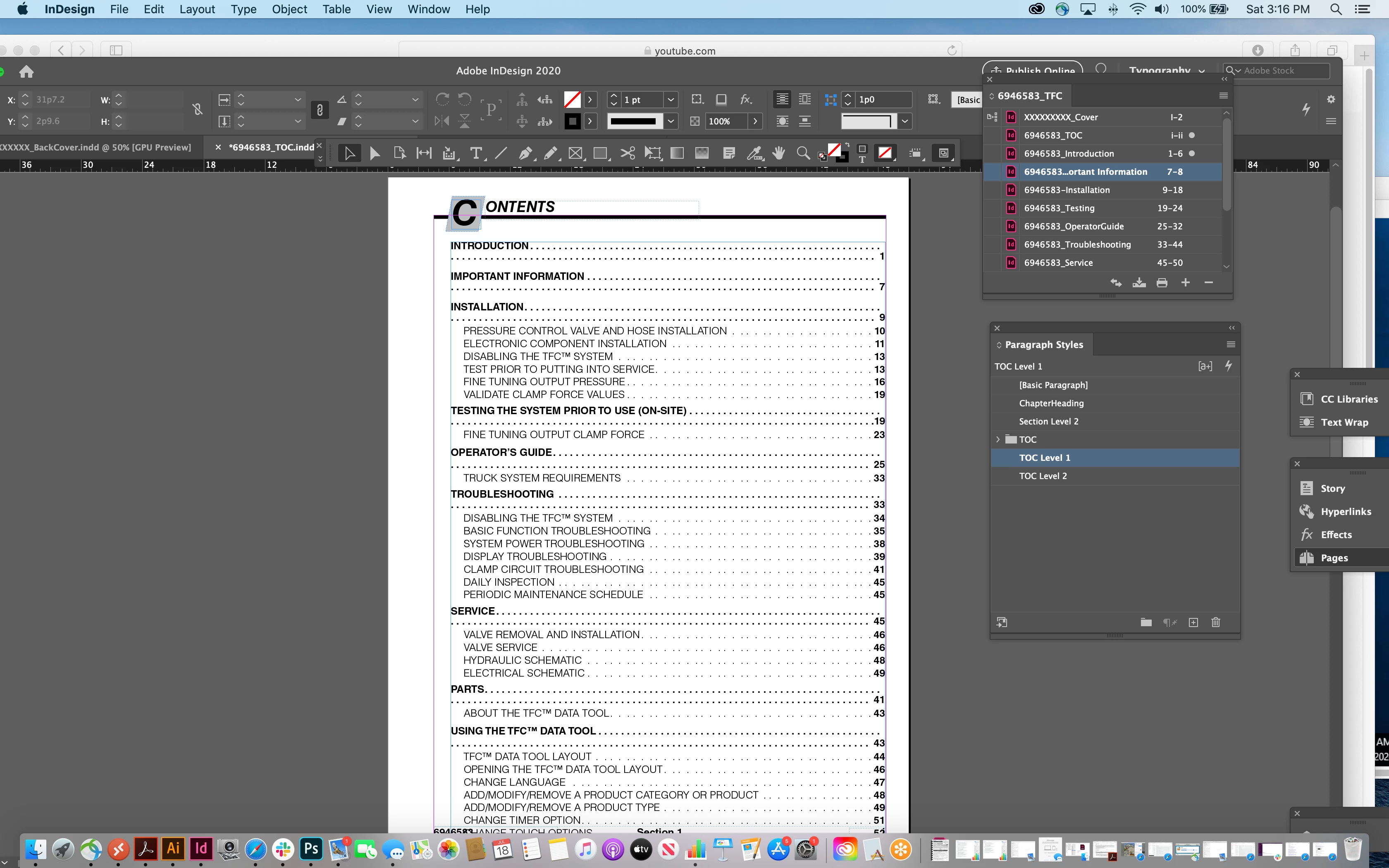
This topic has been closed for replies.
Correct answer Randy Hagan

I'd check the style and see if the right-align tab might sit just past the right side margin.


  1. Click into one of your double-lined index entries with the Text tool to target the style.
  2. If it's not already visible, open your Paragraph Styles panel. The style for your lead top ToC style should be highlighted.
  3. Double-click on the style to open the Paragraph Style Options dialog box.
  4. At the far left, select the Tabs option, then place a right-align tab before the right-side margin on the ruler bar, then select the Preview check box in the bottom-left corner of the dialog box.
  5. If that removes the double-line effect, you're in business.
  6. Go back to the right-align tab you just set, hold the mouse button down and drag it until it's aligned with the right-side margin, but not past it.
  7. When you're happy with the end result, click the OK button and admire your handiwork. The problem should be gone.


Hope this helps,


Randy

3 replies

Ashutosh_Mishra
Inspiring
July 25, 2020

Hi there,


Thanks for reaching out. I hope your issue is resolved now. We'd appreciate if you can mark the appropriate response correct.

If you used any other method, please share it here. It'll help other users having similar concern.

If you still have issues, let us know. We'll be happy to help.


Regards,

Ashutosh

Randy Hagan
Community Expert
Community Expert
July 21, 2020

Any luck? Did my previous response help you with your problem?

Randy Hagan
Community Expert
Randy HaganCommunity ExpertCorrect answer
Community Expert
July 18, 2020

I'd check the style and see if the right-align tab might sit just past the right side margin.


  1. Click into one of your double-lined index entries with the Text tool to target the style.
  2. If it's not already visible, open your Paragraph Styles panel. The style for your lead top ToC style should be highlighted.
  3. Double-click on the style to open the Paragraph Style Options dialog box.
  4. At the far left, select the Tabs option, then place a right-align tab before the right-side margin on the ruler bar, then select the Preview check box in the bottom-left corner of the dialog box.
  5. If that removes the double-line effect, you're in business.
  6. Go back to the right-align tab you just set, hold the mouse button down and drag it until it's aligned with the right-side margin, but not past it.
  7. When you're happy with the end result, click the OK button and admire your handiwork. The problem should be gone.


Hope this helps,


Randy