

Roger Breton
Legend
August 14, 2023
Question

Tables: How to convert Graphic cells back into regular Text cells?

  • August 14, 2023
  • 2 replies
  • 993 views

I was looking for a way to convert back graphic cells into regular text cells and could not find anything under the Table menu? For the purpose of demonstrating table editing to students, I ended up with a table with some cells converted to graphic cells:
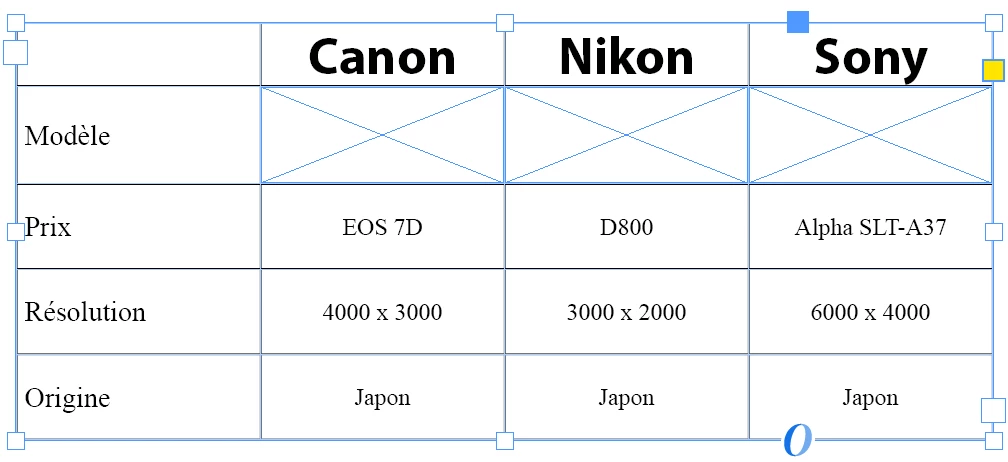
You can see the three graphc cells marked with an X. My initial gut reaction was to select the three cells by dragging the mouse over each cell the way we usually do when the cells are "Text" cells but I quickly realized I could not "place" the mouse into any of the cell? A careful inspection down the Table menu did not return anything that read like the function I wanted to perform existed, Convert Graphic cells to text?

I'll admit I was stumped?

Then I "took my chance" and using the Selection tool (V key), I try to "select" all three cells by holding down the Shift key, to no avail? So I reasoned, perhaps this can't be done otherwise: it has to be done one graphic cell at a time? So that's what I did and then hit de Delete key on each one anb was done? Couldn't have been more intuitive, right? 

Is that how it's supposed to work, though? Did I miss anything? 

This topic has been closed for replies.

2 replies

Community Expert
August 15, 2023

Hi @Roger Breton ,

to select a graphic cell and not its contents:

Select the graphic frame inside the graphic cell and hit ESC on the keyboard.

Or select a text cell next to the graphic cell and use the arrow key to jump your selection to the adjacent graphic cell.


To change all selected graphic cells to text cells use the menu command to convert the cell.

Downside to this: the graphic frame of the graphic cell will be anchored to the converted text cell.


Better:

Copy a text cell to the clipboard, select all graphic cells you want to convert, paste from the clipboard.


Regards,
Uwe Laubender
( Adobe Community Expert )

Community Expert
August 16, 2023

Just one thing added:

If you want to convert a single graphic cell to a text cell, select the graphic frame inside the graphic cell and delete it.

The cell automatically will revert to an empty text cell.


Regards,
Uwe Laubender
( Adobe Community Expert )

Roger Breton
Legend
August 16, 2023

Das stimmt! This is what I "discovered"... Vielen danke dir!

James Gifford—NitroPress
Legend
August 14, 2023

I believe it's simply an integral and fluid thing; the cell will respond to Graphic settings etc. if it holds a graphic object such as an image, and Text settings if it contains text. Just delete the graphic element, double-click in the cell, and you're back in text mode.


ETA: you will get those diagonal lines only if you paste a graphic into a cell and then delete the graphic itself; what you're seeing is a graphics frame embedded in the cell. Click to select that frame and delete it, and you're back at an undefined/text cell. Not too different from what happens any time you delete the content of a graphics frame, anywhere one is used.

Roger Breton
Legend
August 15, 2023

I agree, it's the sensible way to go about it BUT InDesign does have a command, under the Table menu to turn a Graphic cell back to a Text cell and that baffles me?

James Gifford—NitroPress
Legend
August 15, 2023

I guess I am misunderstanding the question. I have no problem selecting a graphic cell,  in which case the "Convert to Text" menu option becomes active. Both menu items work as expected. (I tend to use the direct methods, and shortcuts, over menu selections.)


This all seems to come down to selecting a graphics cell, which can be a little fussy but isn't impossible. 


Does that address your question?