Inspiring
March 18, 2020
Answered

Tags Not Correct in Exported Tagged PDF

  • March 18, 2020
  • 1 reply
  • 7944 views

We've been asked for the firtst time to create an Accessible PDF from InDesign CS6 files, so we're working in that.


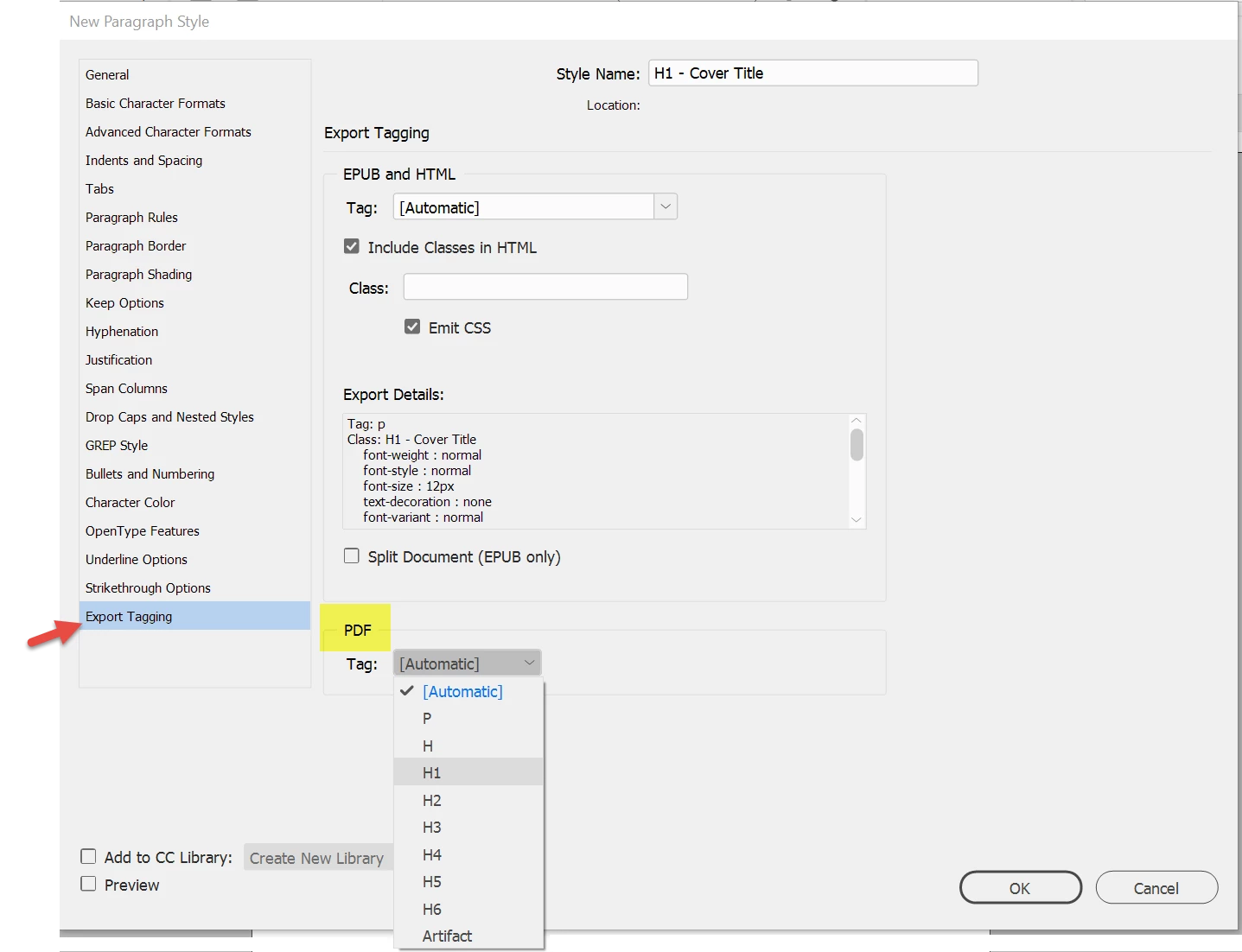
Everything seems to make sense for how this works from InD and I've set the "Export Tagging," "PDF" section of a bunch of styles to the PDF tags, <H1> through <H4>, as well as assigning the <P> tag to textual styles.


But, when exporting and turning on "Create Tagged PDF" the tags that are showing in the Acrobat file aren't <H1> and <P> (for instance), but rather <UNIT_PT> and <Normal> which reflect the InDesign style names.


Is there something I'm missing?


Thanks!
Ken
This topic has been closed for replies.
Correct answer Bevi Chagnon - PubCom.com

Three issues:

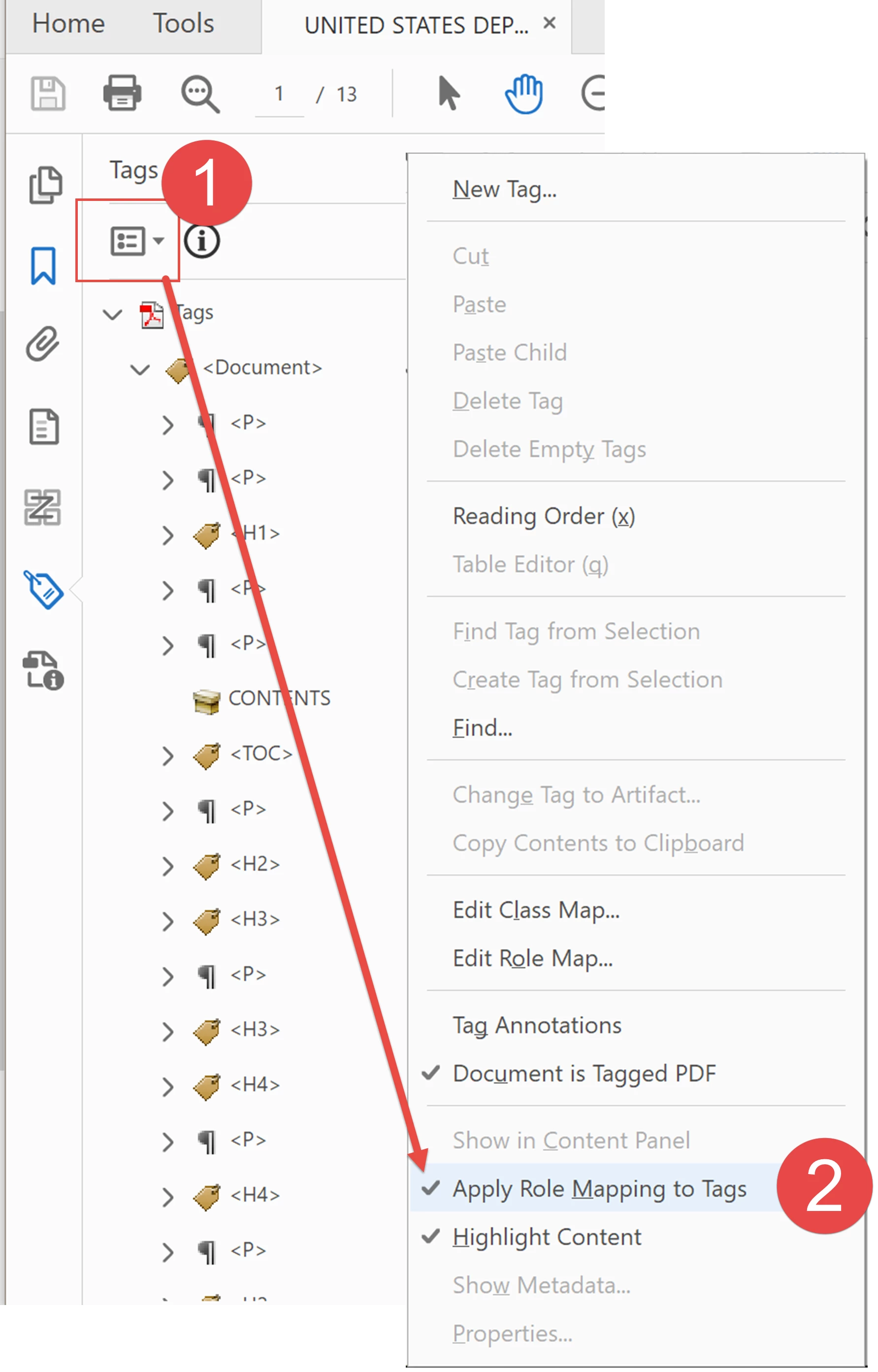
  1. When in Acrobat and viewing the tag tree, turn on the feature to Apply Role Mapping.
    1. Select the Options Menu on the tag tree.
    2. Check Apply Role Mapping to Tags to view the real tags for accessible PDFs. You'll need a recent version of Acrobat Pro that has this feature.

  2. In InDesign, you also need to set the Export Tags on every style to the appropriate tag.
    1. <P> for all forms of Body Text.
    2. <H1>  - <H6> for titles and headings, used in a logical, hierarchical order.
    3. Artifact for paragraphs of text that should be artifacted, like headers and footers.
    4. Automatic for Lists, Tables of Content, Footnotes, Endnotes, Indexes.
    5. <P> for everything else, like captions, sidebars, by-lines, etc.

  3. Use InDesign CC:2019 (version 14.0.3), and not CC:2020 (version 15.x) which has significant errors exporting a compliant, tagged PDF.
    1. InDesign contains the export utility, which converts your layout to a tagged PDF.
    2. CS6's built-in export utility doesn't correctly interpret the layout and, therefore, doesn't tag the PDF correctly. Significant problems.
    3. Therefore, you must upgrade to CC:2019 in order to have the software do the job right. There are no exceptions.
    4. CS6 was released in 2012. The PDF/UA-1 standards (which define how an accessible PDF must be tagged) were not released until 2 years after its release, in 2014. And the PDF/UA-1 standards were updated in 2014. Therefore, don't expect CS6 to create a PDF that meets a standard that didn't yet exist.


1 reply

Bevi Chagnon - PubCom.com
Legend
March 18, 2020

Three issues:

  1. When in Acrobat and viewing the tag tree, turn on the feature to Apply Role Mapping.
    1. Select the Options Menu on the tag tree.
    2. Check Apply Role Mapping to Tags to view the real tags for accessible PDFs. You'll need a recent version of Acrobat Pro that has this feature.

  2. In InDesign, you also need to set the Export Tags on every style to the appropriate tag.
    1. <P> for all forms of Body Text.
    2. <H1>  - <H6> for titles and headings, used in a logical, hierarchical order.
    3. Artifact for paragraphs of text that should be artifacted, like headers and footers.
    4. Automatic for Lists, Tables of Content, Footnotes, Endnotes, Indexes.
    5. <P> for everything else, like captions, sidebars, by-lines, etc.

  3. Use InDesign CC:2019 (version 14.0.3), and not CC:2020 (version 15.x) which has significant errors exporting a compliant, tagged PDF.
    1. InDesign contains the export utility, which converts your layout to a tagged PDF.
    2. CS6's built-in export utility doesn't correctly interpret the layout and, therefore, doesn't tag the PDF correctly. Significant problems.
    3. Therefore, you must upgrade to CC:2019 in order to have the software do the job right. There are no exceptions.
    4. CS6 was released in 2012. The PDF/UA-1 standards (which define how an accessible PDF must be tagged) were not released until 2 years after its release, in 2014. And the PDF/UA-1 standards were updated in 2014. Therefore, don't expect CS6 to create a PDF that meets a standard that didn't yet exist.


|&nbsp;&nbsp;&nbsp;&nbsp;Bevi Chagnon &nbsp;&nbsp;|&nbsp;&nbsp;Designer, Trainer, &amp; Technologist for Accessible Documents ||&nbsp;&nbsp;&nbsp;&nbsp;PubCom |&nbsp;&nbsp;&nbsp;&nbsp;Classes &amp; Books for Accessible InDesign, PDFs &amp; MS Office |
KenWKAuthor
Inspiring
March 26, 2020

Wow!! Thanks so much for that fabulous in depth answer!! (Which, incidentally, was marked as the answer before I even had a chance to get back to it. Not sure how that works.)


Another question in regard to manually tagging. The files are arranged by parts, each part/file has muiltiple chapters. I imagine I should have story tags (Role of <Sect>) around each of those chapters, but when I manually apply the story tag to the text in InDesign it doesn't come out tagged as such. The only Story tag is around the entire flowing InDesign story.


I'm guessing that if I break the InDesign stories at the chapters I'll get multiple stories (true?) but is there any other way to acheive the multiple stories?


Thanks again!
Ken

Bevi Chagnon - PubCom.com
Legend
March 31, 2020

First, let's review the purpose of the "grouping" tags (also called "container" tags). None of them are required at this time, other than the root tag <Document> that contains the entire PDF no matter how long it is.


You can view the current set of standard tags for accessible PDFs at https://helpx.adobe.com/acrobat/using/editing-document-structure-content-tags.html#standard_pdf_tags. There isn't anything called a "story" tag.

  • <Part> is for a major section of a large document. Good example: it contains all the individual tags in one chapter of a book. Or a department in a newspaper or magazine, such as the editorial page of a digital newspaper. A <Part> can also hold 2 or more chapters in a very large work.
  • <Art> (that's article, not artwork or story) should be the most heavily used grouping tag in a PDF because it identifies each individual story. Examples: a 6-panel folded brochure might have just one <Art> for all the content. A digital magazine would have an <Art> tag for each individual story, and they might be nested inside a <Part> tag to group them within the magazine's different departments.
  • <Sect> is meant to define a small amount of copy that is a subsection of an <Art>. Best examples: sidebars, pull quotes, and a group that contains a bar chart, its title and its caption.
  • <Div> is not recommended at this time because its usage hasn't been clearly defined by the PDF standard.

The rules aren't hard and fast so that you can flex them to fit each type of document. Make the best decision based on what makes sense for your document.


Often, InDesign doesn't set these tags correctly and tends to put everything into <Sect> tags...way too many, in fact, and in an illogical pattern. You might want to tweak the grouping tags once the final PDF is exported.


Depending upon which version of InDesign you use, you'll get a different series of grouping tags. Generally from 2020, you'll have this pattern:

<Document> (the root tag required for all PDFs)

     <Art>

          <Sect> (which contains the first frame or the first threaded story)

          <Sect> (the second frame or second threaded story)


If you use the Articles panel, each artical will be tagged with <Art>.


Hope this helps.


|&nbsp;&nbsp;&nbsp;&nbsp;Bevi Chagnon &nbsp;&nbsp;|&nbsp;&nbsp;Designer, Trainer, &amp; Technologist for Accessible Documents ||&nbsp;&nbsp;&nbsp;&nbsp;PubCom |&nbsp;&nbsp;&nbsp;&nbsp;Classes &amp; Books for Accessible InDesign, PDFs &amp; MS Office |