


keithconover
Inspiring
Nov 6, 2025 2:55 PM UTC
Answered

Taskbar icon invisible, jumplists don't work

I am always excited when a new release of InDesign comes out. I have no pressing deadlines so I can explore to my heart's content. The first thing I noticed Is that the icons for InDesign on my Windows 11 Taskbar and desktop were blank. I threw them in the Recycle Bin. and then dragged the InDesign 2026/21.0 icon from the Start Menu to the desktop. I then renamed the desktop icon from "Adobe InDesign 2026" which is more information than I need to "InDesign" as I have done with many different versions when updated.


Then, I started InDesign and noted that the Taskbar icon, though it showed InDesign as the program when I hovered the mouse over it, it was entirely blank: a blank area on my Taskbar. It worked to start InDesign, so I thought I would go with the flow and leave it that way.


I then spent a considerable amount of time to get my Windows 11 TaskBar Jumplist for InDesign configured the way I like it for easy access to my ongoing big project: InDesign > File > Open > [Open the file I want at the top of the JumpList] > Pin file to the Jumplist. All well and good, I have to do this with each upgrade, but it's worth it. However, when I reopened InDesign from the Taskbar, and tried to open a file from the Jumplist, this is what I saw:
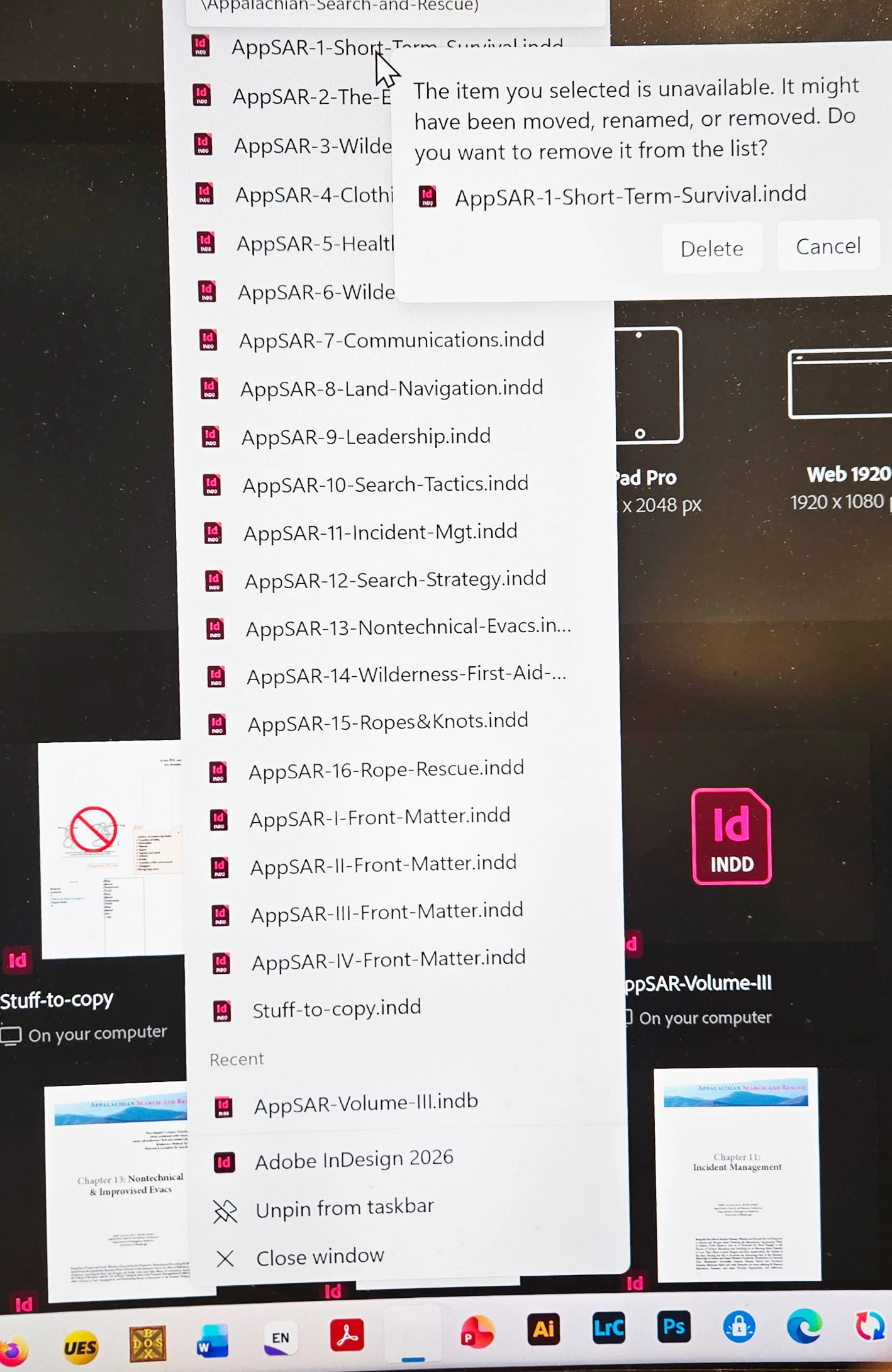
 

This error was consistent for every file I tried to open: nothing would open.


I figured this was Adobe punishing me for taking "Adobe" and "2026" off of the desktop icon. So, I unpinned the blank icon from the Taskbar, deleted the shorcut icon named "InDesign" from my desktop, and then draffed a new "Adobe InDesign 2026" icon shortcut from the Start Menu to my desktop, started it, pinned the icon to the Taskbar (this time the icon was showing on the taskbar), and tried to open some of the files. 


Same error, even though the file was really there in the same place. 


I tried unpinning the last pinned file on the Jumplist, File > Open > [open that file] then pinning it again. Still wouldn't open from the Jumplist and gave the same error message. I tried doing this by just unpinning, and also by accepting the "Delete" popup message. Even though I did that both ways, re-opening the file and re-pinning it still gives and error message and won't work. Sigh. 


This is very puzzling and I thought I should report it here, there are lots of smart people on this forum who have helped me in the past. 

Anubhav M
Anubhav MCorrect answer
Community Manager
Nov 6, 2025 7:16 PM UTC

Hello @keithconover,

Thanks for reaching out. Could you try pinning Adobe InDesign 2026 to the taskbar from the Start Menu to see if it helps?


Looking forward to hearing from you.
Anubhav

4 replies

keithconover
Inspiring
Oct 26, 2026 1:19 AM UTC

I’m more concerned now about losing the jumplist I’ve laboriously created to quickly access the files of my textbook. It seems that when a new version of InDesign comes out, I see this message on EVERY SINGLE ONE of my pinned files. Which means I have to delete them and carefully recreate the jumplist. I find the jumplist to be much simpler and easier to access them than the Book Panel. Is this going to happen every time I update InDesign?


Translate
Abhishek Rao
Community Manager
Community Manager
Oct 26, 2026 3:33 PM UTC

Hi ​@keithconover,


Thank you for the update. I understand your concern about losing your carefully organized Jump List after InDesign updates.

Could you please try the following?

  1. Take a screenshot of your existing Jump List, then unpin and re-pin InDesign to the Taskbar from the Start Menu.

  2. Check whether your pinned documents are still accessible.

  3. If the issue persists, try opening an affected .indd file directly from File Explorer.

Additionally, please share your current InDesign version and the version you upgraded from.

Let us know the results so we can investigate further.
Abhishek

Translate
Anubhav M
Community Manager
Anubhav MCommunity ManagerCorrect answer
Community Manager
Nov 6, 2025 7:16 PM UTC

Hello @keithconover,

Thanks for reaching out. Could you try pinning Adobe InDesign 2026 to the taskbar from the Start Menu to see if it helps?


Looking forward to hearing from you.
Anubhav

Translate
keithconover
Inspiring
Nov 6, 2025 8:47 PM UTC

Yesssss! That fixed it! 


Thank you so much!


I will note that, although it worked quickly and easily on my desktop. On my laptop, though, InDesign 2026 was not already pinned to Start Menu. I tried going to All Apps, right-clicking and picking Pin to Taskbar, but the right-click menu didn't offer Pin to Taskbar. I then right-clicked and selected Pin to Start. Once I pinned to Start, I was able to right-click it from the top of the Start Menu. For whatever reason, the Taskbar icon was a blank page. 


Unlike on my desktop PC, the blank Taskbar icon retained the files I had pinned to the previous Taskbar icon, and they worked.  

I had to first, from the Start Menu, pin InDesign 2026

Translate