
Participant
December 10, 2024
Question

Template frames periodically reset leading to duplicate frames

  • December 10, 2024
  • 1 reply
  • 125 views

For my project I have a number of parent spreads with different layouts. When I add pages, I assign a parent spread and then I command-shift click in the frames on the layout to be able to edit them / add content. But periodically (and I am not sure what is the trigger), the pages seem to reset such that I get both my frames with the added content, and the original frames without any content.


The result appears as in the screen shot.
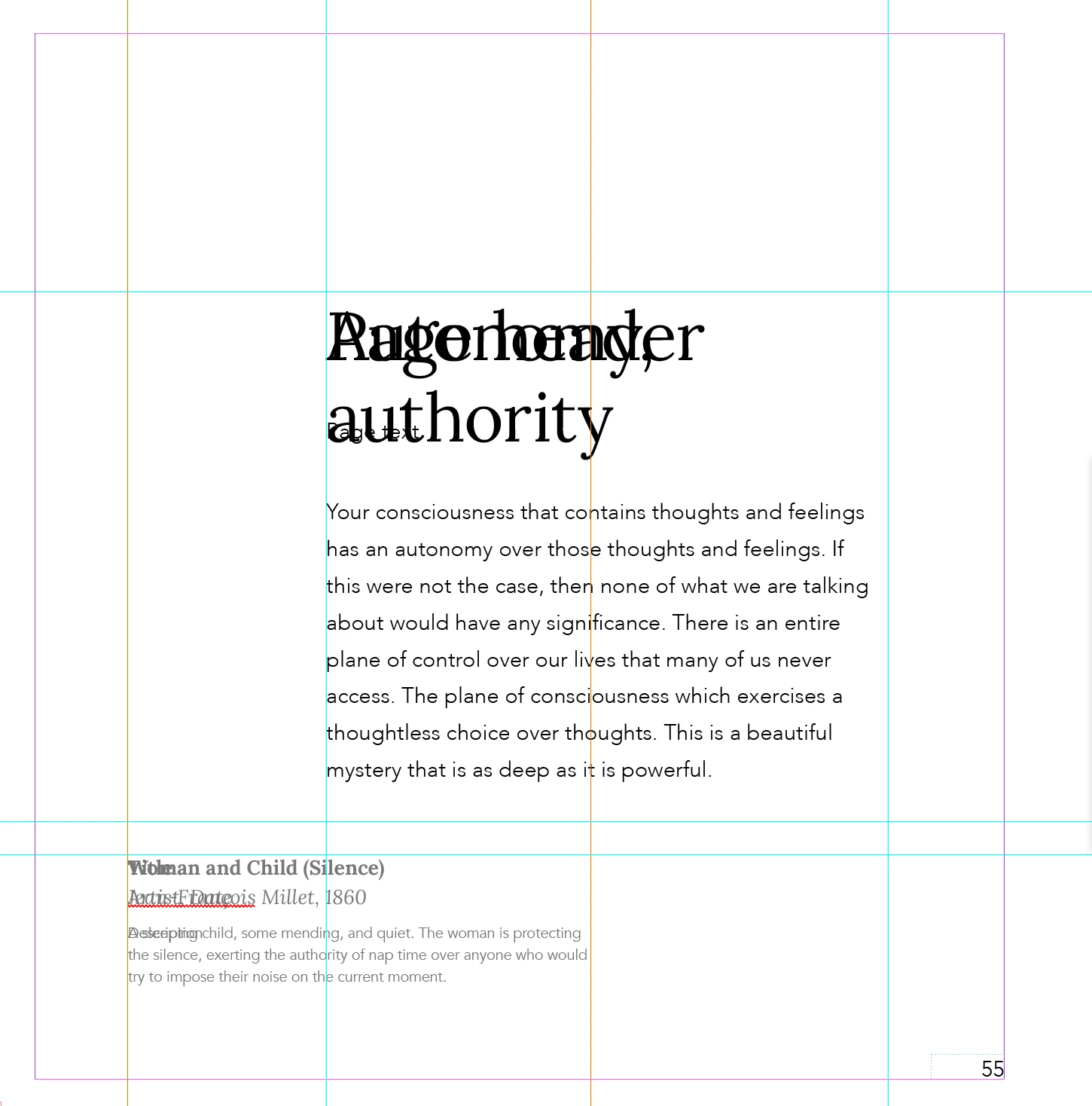
 

I then need to go in and cut the contents from the editted frames, delete those frames, enter the frames from the parent pages with shift-command-click and paste the content back in.


Any clues why this happens and how I can prevent it?


This topic has been closed for replies.

1 reply

Randy Hagan
Community Expert
Community Expert
December 10, 2024

I can't say definitively without seeing the file, but this often happens when you create a document with a Primary Text Frame, then add a text frame to the parent page files.


You can go to the File>Document Setup menu command and quickly see if the Primary Text Frame check box is selected. If it is, uncheck it and hopefully that will be the end of the problem for you.


Another possibility is that you have double-stacked text frames in your parent page(s). You can check that by going to the parent page(s) and moving the text frame you see with the Arrow/Selection tool. If you move the text frame and still see the underlying text, You have double text frames stacked and need only delete the top one to be able to easily get to the underlying one.


There are other remote possibilities, but these are the most likely sources for problems like you're having.


Hope this helps,


Randy

Eric_k2Author
Participant
December 10, 2024

Thank you, Randy. I have ensured that Primary Text Frame is unchecked, and verified that I do not have double stacked text frames.


(I will point out that this particular instance of this occurring coincided with upgrading the document from InDesign 2024 to InDesign 2025, although it has happened previously as well, typically, I think, coinciding with selecting "Synchronize Book" in the book in which the chapters appear.)


I will attach an example file here.


Randy Hagan
Community Expert
Community Expert
December 10, 2024

Hmmm ... the plot thickens ...


I'll look at the file when I get back in my studio and get to my ID2025 install. But one common thing to do when files act a bit funky is to export to an IDML file, then reopen and re-save as an INDD file again to clear odd anomalies in a given InDesign document file.


It's worth a shot to do that to use the File>Save As menu command, choose the InDesign CS4 or later (IDML) (*.idml) option in the Save As Type: options box, and save the resulting IDML file as [filename]-test.idml, and then open and name the new InDesign document file [filename]-test.indd to see if you get lucky. This wouldn't necessarily identify the source of your problem, but if you're fortunate it could provide the fix you desire and get you running better with the new file(s).


Hoping you get lucky with this,


Randy