
Participating Frequently
April 4, 2012
Question

Text appears jagged, unless zoomed into 100 percent.

  • April 4, 2012
  • 9 replies
  • 38374 views

I am having the same or similar problem as Steve [Edit: branched from Indesign 5.5 displays text with ragged edge.]. I have done my best to research this but I cannot figure it out. I am using a Macbook Pro, 15 inch (late2011) with the normal display. I have Leapord 10.7.3. My InDesign is 7.5.2.

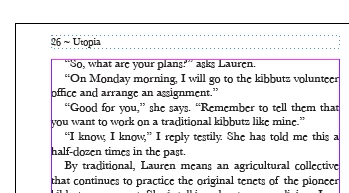
The text appears jagged, unless zoomed into 100 percent. Here is a screen shot of the problem at 300 percent:
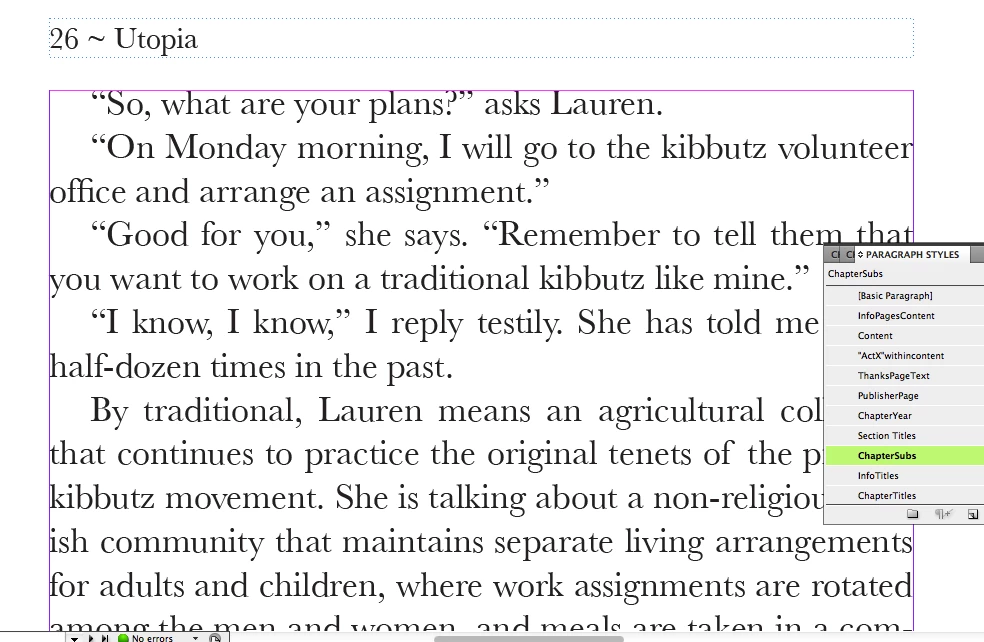
And here is the exact same file when I zoom into 100 percent:
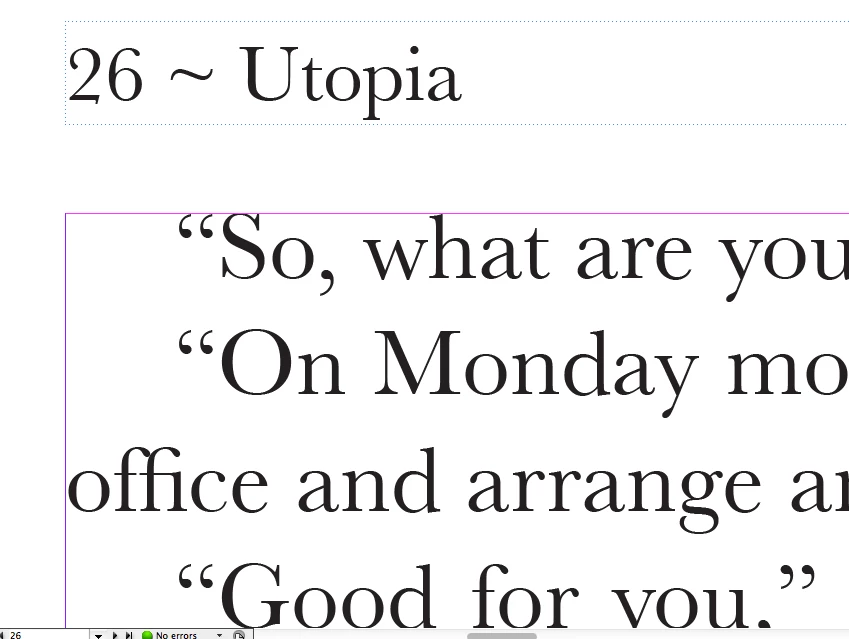
here is the same text zoomed even more:
The typeface is Baskerville. It prints properly, no jagged edges.

I have tried all the display and text options

Any ideas?

Thanks. Also, do you guys think I should I post a new topic?

Message was edited by: John Hawkinson

    9 replies

    Participant
    March 26, 2025

    Let's just say it displays properly in Google Chrome PDF reader. I have therefore uninstalled Adobe Acrobat and cancelled my license. Not a problem? Perhaps.

    BobLevine
    Community Expert
    Community Expert
    March 26, 2025

    Suit yourself, but this discussion is 13 years old and is now locked!

    Peter Spier
    Community Expert
    Community Expert
    April 8, 2012

    I'm going to bring up the system font thing again....

    Over the years I've learned to avoid using system fonts in my layouts. I have no real evidence other than experience, but in cases where the OS supplied font has some sort of problem, a "real" purchased version generally does not, and my conclusion is that the versions Apple and Microsoft are giving away are not as complete or robust in some way as the ones the foundries release to the general public. Considering how inexpensive an OS license is, and how many fonts you receive along with it, you can imagine that the font foundry is receiving only pennies for each sale in royalties so we may well be getting "lite" versions that leave out some things like the hinting that would help baskerville align at small sizes (if, indeed, hinting is the problem).

    Does this mean the font is not usable in a layout? Not at all if you are printing. But the screen view is annoying, isn't it?

    John Hawkinson
    Inspiring
    April 8, 2012

    In principle I agree with Peter that it's better to buy professional versions of fonts that you use on a regular basis, but for a different reason.

    There are other attributes of fonts that tend to work better in such fonts, including OpenType Features, more sub-faces, and a wider glyph complement.

    But it's also not as great as one might hope. For instance, we use Utopia quite a bit, from Adobe's Font Folio 11. But its glyph coverage is not as wide as one would hope for. There are times when I end up pulling obscure glyphs from Apple's Times (typically unexpected foreign accents) which makes me feel grotty, but it's the easiest solution. Glyph coverage is going to be better with, say, Adobe's "Pro" variants, but there are only handful (ok, let us say a "double handful") of those.

    Does this mean the font is not usable in a layout? Not at all if you are printing. But the screen view is annoying, isn't it?

    Of course that's why we need to get the bug fixed!

    If the OS's native apps get the small-size rendering correct, there is no reason that Adobe's apps cannot do so as well.

    (Has anyone tested this with non-InDesign Adobe apps?)

    Jongware
    Community Expert
    Community Expert
    April 8, 2012

    John Hawkinson wrote:

    (Has anyone tested this with non-InDesign Adobe apps?)

    Here you go, using Illustrator CS4 on the Mac. My Baskerville shows the same problem the OP notices in ID, so it's worth a shot.

    I realize I've made claims that "all Adobe programs use the same text rendering", but that was more a Hunch than a substantiated Fact. Voila, it turns out to be a Fact:

    Participant
    April 6, 2012

    Hi all! I am having the exact same problem. I'm using InDesign 5 with Baskerville font under Mac OS 10.7.3. The only way I can solve this problem now is to create outline (Types > Create Outlines) of the problematic texts. Still, this solution is very inconvenience. I'll very appreciate a better solution for this problem.

    Jongware
    Community Expert
    Community Expert
    April 6, 2012

    There is no problem, as far as I can see.

    The text looks weird when displayed at a very small size. That's not a surprise; in fact, thinking about it, it's surprising that a 7 pixel capital 'R' can still be recognized as "Baskerville"!

    Fonts are designed at a large size, and every time you see it display at any size smaller than 1,000 pixels (at least!) some of the features you are seeing will be artefacts due to displaying it smaller than the designed size.

    In other words, why complain that the baseline is not straight when there are lots of other "problems" with those very same characters!? (I can see large rectangular chunks, a.k.a. "pixels", which I'm sure are not in the original design. I can also clearly see all sorts of shades of gray, and I am fairly sure this text color is set to "Black". And so on ...)

    When drawing a large character on a coarse screen with a *very* low number of pixels, rounding is inevitable. The less pixels you have, the more "rounding" will be making bad mistakes; and because a single pixel on this size accounts for 1/6th of the total character size, the effect is exagerrated. Compare it to the largest zoomed-in image above; in that image the pixels are also rounded to the nearest "whole" value. For that you suddenly decide that a 1-pixel difference is not important?

    It's all just a screen artefact. The proof is given by the OP himself: "It prints properly, no jagged edges." Of course not -- the printer's resolution is high enough for all rounding to be practically invisible.

    Jongware
    Community Expert
    Community Expert
    April 6, 2012

    .. In the Baskerville case I'm pretty sure the problem is exagerrated because of bad hinting in the font itself. You see how all of the dropped characters have a curve at the lower bottom? That's Bad Hinting.

    Grant H
    Community Expert
    Community Expert
    April 4, 2012

    just a quick one: in you mac system preferences: under appearence: is "use LCD font smoothing when available" checked...

    G

    pdgmtfAuthor
    Participating Frequently
    April 4, 2012

    I dont see the same issue I am having with your screenshot, Peter. Or Mike.

    The font is Baskerville Regular. I dont know what other way to describe it there might be. It is not Baskerville old face and it is not italic and not bold or semi-bold. It says regular in that dropdown menu in indesign.

    It is set for high quality display (the problem persists whatever setting is here)

    and LCD font smoothing is turned on in system preferences.

    To me, if the letter right next to another letter, there is no reason why the baseleines would need to be on separate pixel lines. This leads me to believe it is a bug or a glitch.

    I also just tried changing my diplsay to a lower resolution, and that did not solve it either.

    Thanks again folks for the interest and repsonse.

    MW Design
    Inspiring
    April 4, 2012

    Not a good reply, but some versions of some fonts just do not display well. I apologize if this is mentioned further up but I was too lazy to reread the thread. Does your page print properly or export to PDF? If so, I would say it is the font itself. If not, then it is an ID issue.

    Sorry that's the best I have to offer. You are not alone, but usually it is a display issue regarding hinting in the font, or other mysterious font issues.

    Take care, Mike

    Peter Spier
    Community Expert
    Community Expert
    April 4, 2012

    Are you set for View > Display Performance > High Quailty Display?

    Participating Frequently
    April 4, 2012

    I'm with Peter on this one. I get the same "distortion" with some fonts, which would explain that the outline information for the font at a given zoom factor is just displaying differently based on the pixel size of the screen. The Baskerville TrueType version is obviously "built" differently than the OpenType font that John is describing. I certainly wouldn't worry about it; back in the days of OS8 and OS9 and Quark XPress, a user had to simply accept the jaggies onscreen, knowing that the output would be correct.

    Just a thought...

    Cheers!

    Mikey

    John Hawkinson
    Inspiring
    April 4, 2012

    'mtf (is that "modulation transfer function"?!):

    The text appears jagged, unless zoomed into 100 percent. Here is a screen shot of the problem at 300 percent:

    I'm slightly confused...your first capture appears to be smaller than the 100% capture, did you resize the image before uploading it? Normally the 300% image should be 3 times bigger than the 100%. Or did you really mean 30%?

    Peter Spier
    Community Expert
    Community Expert
    April 4, 2012

    Definitely looks like a problem with the display. We've been told for years that we have WYSIWYG displays, but it isn't really true. What you see is CLOSE to what you get depending on the ability of the pixels to display it smoothly.

    Glyphs with round bottoms typically extend slightly below the baseline, and it looks like at some your 100% zoom level the choice is being made to use an extra pixel on the screen rather than lose the bottoms (but look at the G in Good, which looks like the other way). As you zoom in you have more screen pixels to work with for any given part of the text so it gets better, though it wouldn't surprise me if it got wonky at some odd non-incremental zooms like 237%.

    pdgmtfAuthor
    Participating Frequently
    April 4, 2012

    Are there any fixes for it? Is it not considered a bug or glitch? It does not effect output but it can be aggrevating when dealign with stuff on screen.

    The first photo was at 100, the second photo is at 300 (which in screenshot form, the text does appear a little ragged, not like on screen when I saw it. this shot was intended to show the text how it should be) It still looked jagged so I did another zoom in, not really sure how much. It was just showing as you zoom in in gets less and less ragged or jagged. Im not sure if i messed up the numbers or something like that, if I did sorry. Im not sure why the size of the screen grabs looks weird either.

    Thanks for the replies guys!

    John Hawkinson
    Inspiring
    April 4, 2012

    I believe Peter is suggesting you have hit the physical limit of the display.

    I'm not yet convinced, but I remain confused about your images.

    You're saying your first photo, the smallest one called Jagged300.png, is really at 100%.

    And the second photo, called notJagged.png that you described as 100% is really 300%.

    And the third photo, Screen+Shot+2012-04-03+at+7.23.21+PM.png, is some unspecified zoom factor?

    I am not seeing jaggedness in the 2nd and 3rd photos. Are you?

    Are you saying the screenshots are not faithful reproductions of the problem? That would be very interesting.

    pdgmtfAuthor
    Participating Frequently
    April 4, 2012

    my display settings: