Chris  P.  Bacon
Inspiring
November 29, 2022
Answered

Text box shape and size while copy pasting formatted text between InDesign and Illustrator

  • November 29, 2022
  • 4 replies
  • 2136 views

Is there really no way to maintain the text box shape and size while copy pasting formatted text between InDesign and Illustrator?

I need text boxes with custom shapes, basically I need to fill custom shaped selections with text, sometimes even with text with warped or irregular shape, and functions like envelope distort and other graphical text effects I can only use in Illustrator, but I want live objects in my final InDesign document that will go to print (because I want to produce interactive ebooks along the paperback, and the blending - transparency blend modes - I want to do in InDesign as well) , so I need to move my text boxes over from Photoshop or from Illustrator where I am creating the text, over to InDesign.

So far I didn't find a way to preserve the text box shape and size when copy-pasting text with formatting. 

By custom shaped text boxes I mean boxes made with free hand drawn paths.
This topic has been closed for replies.
Correct answer Scott Falkner

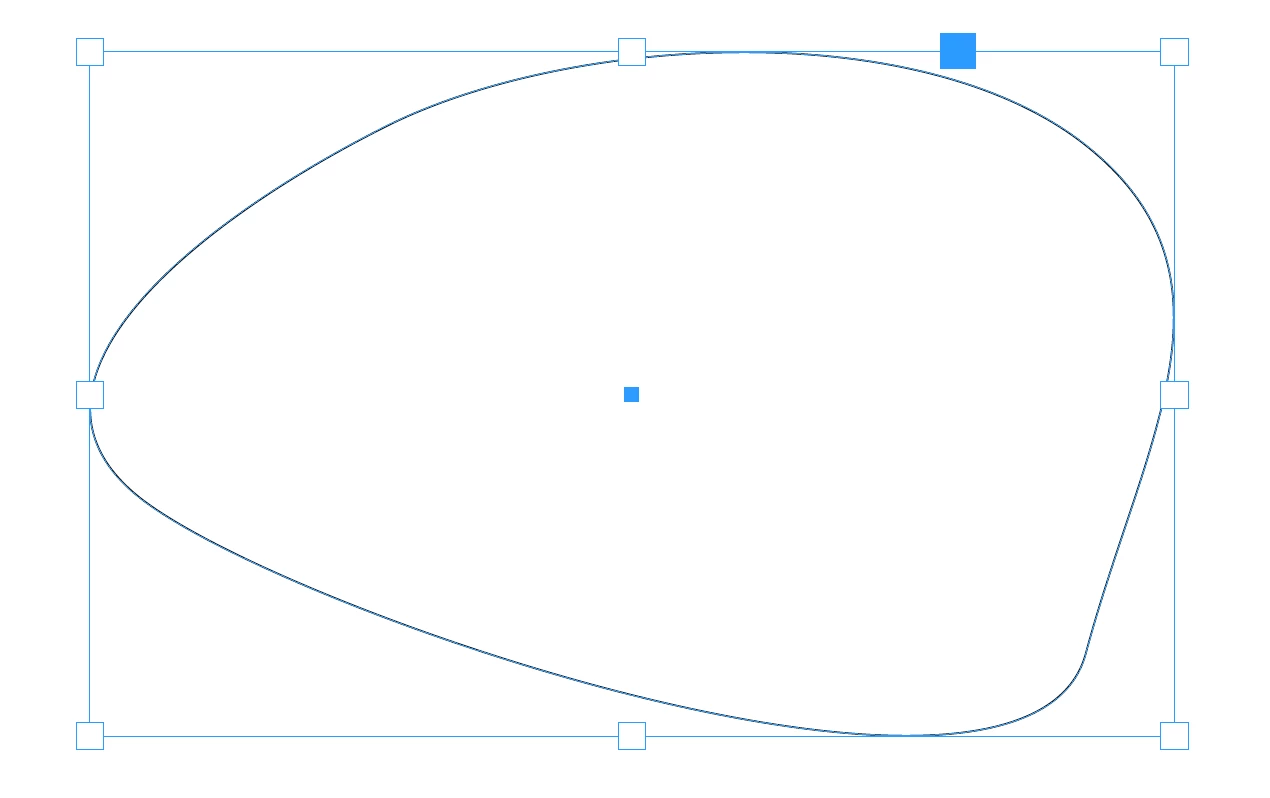
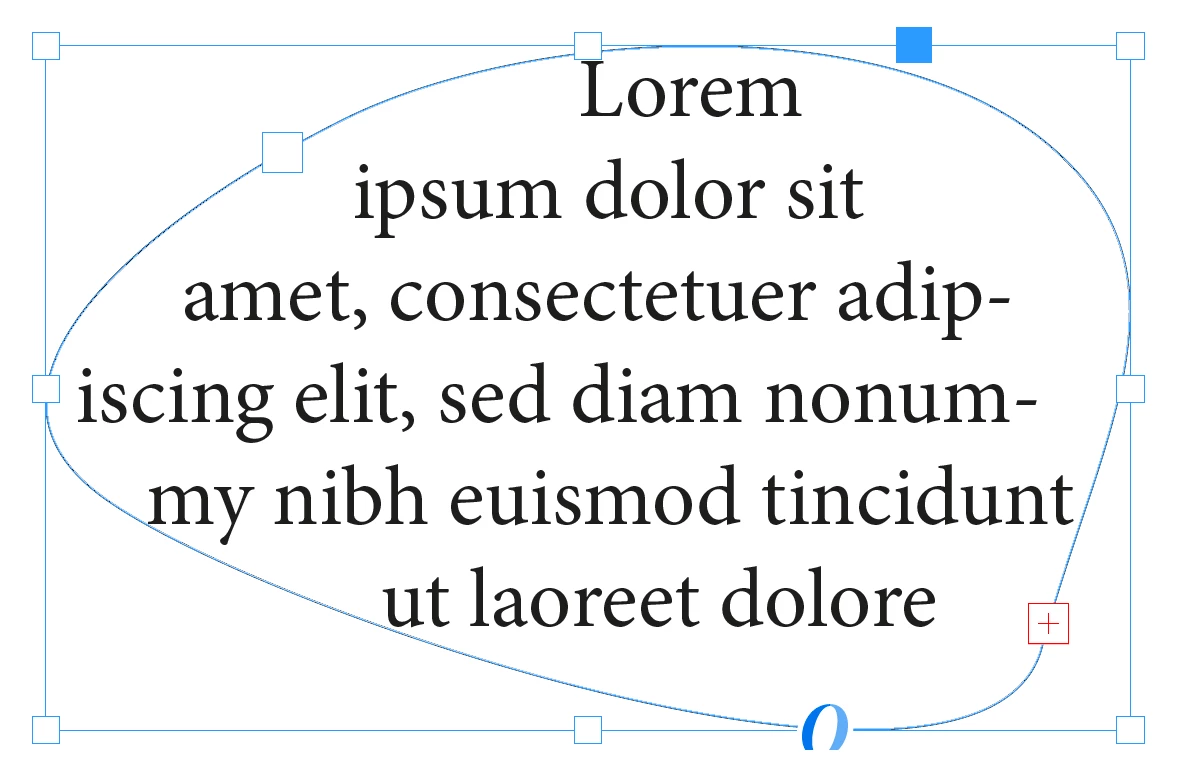
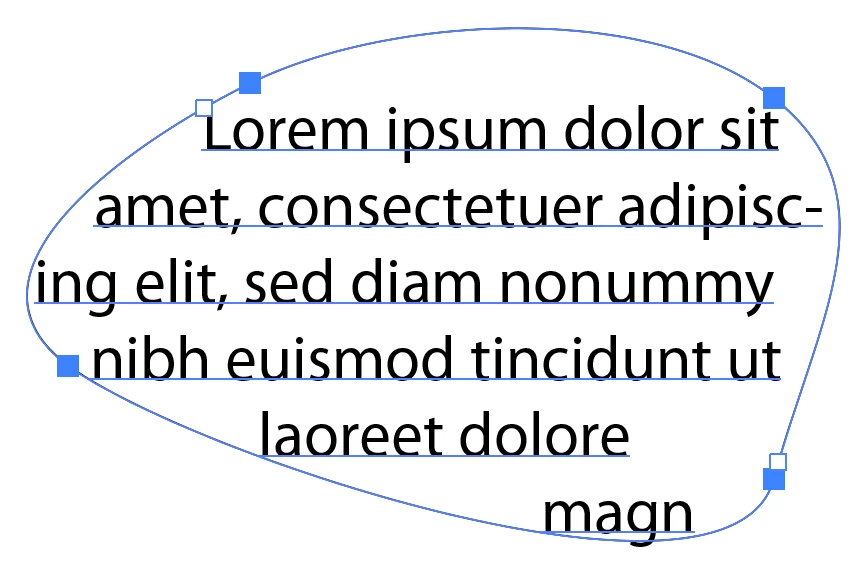
I would select the shape in Illustrator with the object select tool or direct select tool, copy, then paste. Then use the type tool to copy the text and paste it into the frame. Formatting usually (perhaps always?) does not survive.


Text frame attributes between Illustrator and InDesing are very different. I doubt there will be any way to copy a text frame from Illustrtor to InDesign.


Illustrator Text Frame

Path Pasted into InDesign

Text Pasted into Frame

4 replies

aniri5j9ox8tw2ln
Legend
November 30, 2022

Du kannst Textstile die man nur mit Illustrator machen kann, auch in in Indesign nutzen! Ich würde also wie Scott Falkner vorschlägt, die Rahmen durch copy&paste in ID einfügen, und dann mit den importieren AI Stile den Text in ID formatieren:

https://community.adobe.com/t5/indesign-discussions/quot-rotate-characters-quot-function-disappear/m-p/13048316#M483058

Scott Falkner
Community Expert
Scott FalknerCommunity ExpertCorrect answer
Community Expert
November 30, 2022

I would select the shape in Illustrator with the object select tool or direct select tool, copy, then paste. Then use the type tool to copy the text and paste it into the frame. Formatting usually (perhaps always?) does not survive.


Text frame attributes between Illustrator and InDesing are very different. I doubt there will be any way to copy a text frame from Illustrtor to InDesign.


Illustrator Text Frame

Path Pasted into InDesign

Text Pasted into Frame

Mike Witherell
Community Expert
Community Expert
November 29, 2022

Bear in mind that InDesign works in a delegated partnership with both Illustrator and Photoshop. So, make your interesting warped shapes in Illustrator; save a named file; then File > Place that content into InDesign. The three work together as one.

Mike Witherell
chrisg11235813
Participating Frequently
November 29, 2022

Link the illustrator file to the inDesign file. There is no Text Warp effect within inDesign.

You might be able to create a "reference" shape that you would copy from illustrator and then paste into inDesign.

You would then have to create a matching text box in inDesign. But there would be no text warping.

This dosn't seem like an efficient way of working though.


Using a hammer on a screw will (kind of) do the job, but it's not the best way to approach the problem.


what are the "interactive elements" that you are trying to achieve?


chrisg11235813
Participating Frequently
November 29, 2022

illustrator files that have "Live Text", that are linked into inDesign, will still have "Live Text" once exported as a PDF.

Does that make sense?