Participant
August 10, 2017
Answered

Text keeps disappearing when it is moved around the page

  • August 10, 2017
  • 6 replies
  • 43087 views

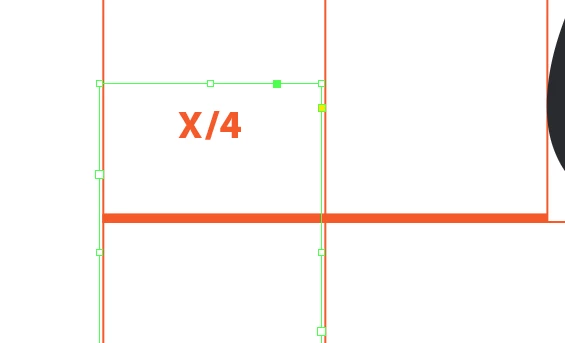
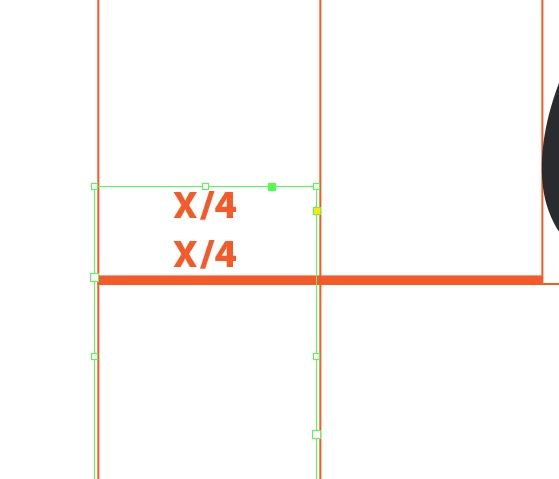
I'm having a very frustrating problem where text inside my text boxes disappears or becomes overset text when I move them around on the page. Keep in mind that I'm not scaling the text boxes- I just move them up or down and they become overset. I'm also having a sister issue where the vertical margins on text boxes keep shifting when I move them to where I see double text. Regardless of the double text, the vertical margin keeps shifting when I move the text box. I believe that there must be something that I'm not accounting for on the page that is causing these things to shift.
    Correct answer Scott Falkner

    First check to see if the text frames are overlapping an object with text wrap applied. One easy way to test this is to turn on Ignore Text Wrap in the frame options dialogue. If this makes the problem go away then a text wrap was your culprit You can either accept that the problem is solved or explore further to see what objects have the text wrap and either remove it or ensure it is appropriate for your layout.

    I do not think this is the problem. I think your text is set to snap to a baseline grid. As the frame moves about the page the baseline grid is staying fixed to the page. This makes the first line of text always align to the next baseline grid it can find, which makes the first line shift up or down a bit relative to the frame. In some cases there is not enough rom for all the text.

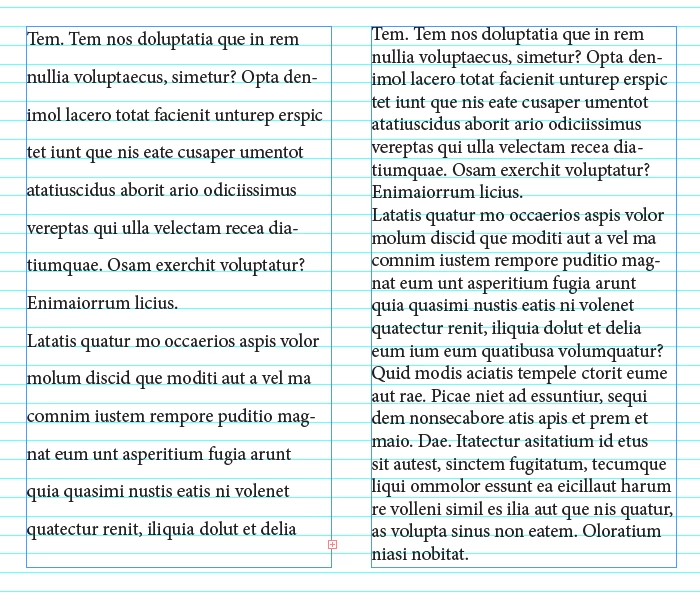
    In the attached image, the text in the frame on the left is aligned to the baseline grid. Since the grid does not match the leading the grid defines the leading. This also makes the text start at the next grid line available, instead of at the top of the frame.

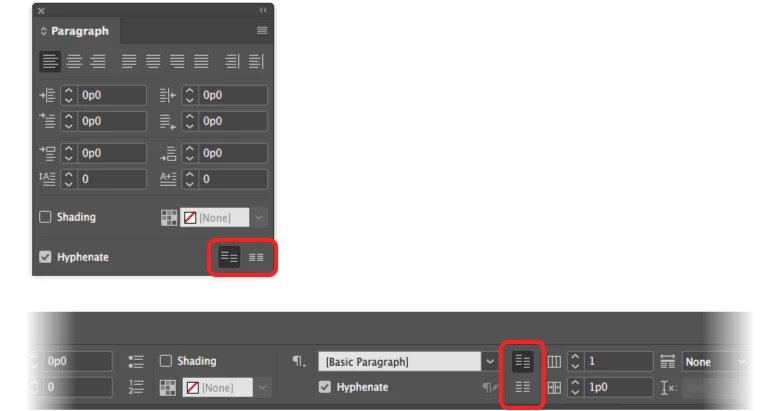
    Baseline grid can be turned on and off in the Control panel or the paragraph panel. It is a paragraph level text attribute, not an attribute of the text frame.

    6 replies

    Sean5CF1
    Inspiring
    January 29, 2026

    V21.1 x64 update 2025

    whole page going blank requiring scroll up and down to “refresh”

    a known issue judging from all the comments, but no fix other than “users to fix”, deleting preferences, recaching etc

    everything working fine until update, so users shouldn’t have to fix expensive Adobe software

    Participant
    December 30, 2024

    I'm using InDesign 2025 and my text disapears.  I tried all of the fixes listed on this page and removed text wrap.  If I type in a paragraph already there it is fine and will extend down the page, but if I want to start a new paragraph in the text box it disapears.  Anyone know why?

    Abhishek Rao
    Community Manager
    Community Manager
    December 30, 2024

    Hi @shannon_9033,


    Sorry to hear you're facing this issue. To help you better, could you provide a bit more information?

    1. What operating system (OS) are you using?

    2. Is this issue occurring with one specific file or multiple files?

    3. Could you share a screen recording demonstrating the issue? This will help us understand the behavior better.


    In the meantime, ensure that your text box has enough space to accommodate new paragraphs and that no unwanted baseline grid or text wrapping settings are still affecting the layout.

    Looking forward to your response!


    Best, 

    Abhishek Rao

    Stephen Gard
    Inspiring
    November 13, 2020

    Thank you, that was the answer for me. I had an illus. with text-wrap.


    SDG

    Participant
    November 13, 2020

    THANK YOU

    This option is stupid

    jmlevy
    Community Expert
    Community Expert
    November 13, 2020

    No, it is not.

    Scott Falkner
    Community Expert
    Scott FalknerCommunity ExpertCorrect answer
    Community Expert
    August 11, 2017

    First check to see if the text frames are overlapping an object with text wrap applied. One easy way to test this is to turn on Ignore Text Wrap in the frame options dialogue. If this makes the problem go away then a text wrap was your culprit You can either accept that the problem is solved or explore further to see what objects have the text wrap and either remove it or ensure it is appropriate for your layout.

    I do not think this is the problem. I think your text is set to snap to a baseline grid. As the frame moves about the page the baseline grid is staying fixed to the page. This makes the first line of text always align to the next baseline grid it can find, which makes the first line shift up or down a bit relative to the frame. In some cases there is not enough rom for all the text.

    In the attached image, the text in the frame on the left is aligned to the baseline grid. Since the grid does not match the leading the grid defines the leading. This also makes the text start at the next grid line available, instead of at the top of the frame.

    Baseline grid can be turned on and off in the Control panel or the paragraph panel. It is a paragraph level text attribute, not an attribute of the text frame.

    Participant
    June 14, 2019

    Hello, I know this was a few years ago, but I am having this problem and neither solution you posed has worked. Would you happen to have a different idea of the problem? Thanks!

    Islam Ashour
    Known Participant
    April 18, 2022

    A few years ago, I also had the same problem, but I found that my issue was I turned on trim mode. I turned it off, and it's all good now. 

    BobLevine
    Community Expert
    Community Expert
    August 11, 2017

    Do you have the text set to align to a baseline grid?