e ch n
Inspiring
November 8, 2024
解決済み

Text Won't Align to Top Line in Text Box

  • November 8, 2024
  • 返信数 4.
  • 2201 ビュー

Can I get some guidance, please?


In the attached video you can see and hear the problem I am having with the text.


It shows a text box with left alignment, but when I want to send the word from the lower left corner to the upper right corner, it does not go up, even though there is plenty of space in the text box.


Why does this happen, do I have some configuration that prevents it?


The invisible characters show only the space between one word and another... there doesn't seem to be any special character that forces the word not to go up to the top line...


Thanks!


<Title renamed by MOD>
解決に役立った回答 Laubender

Hi @e ch n ,

thank you for your sample InDesign document.

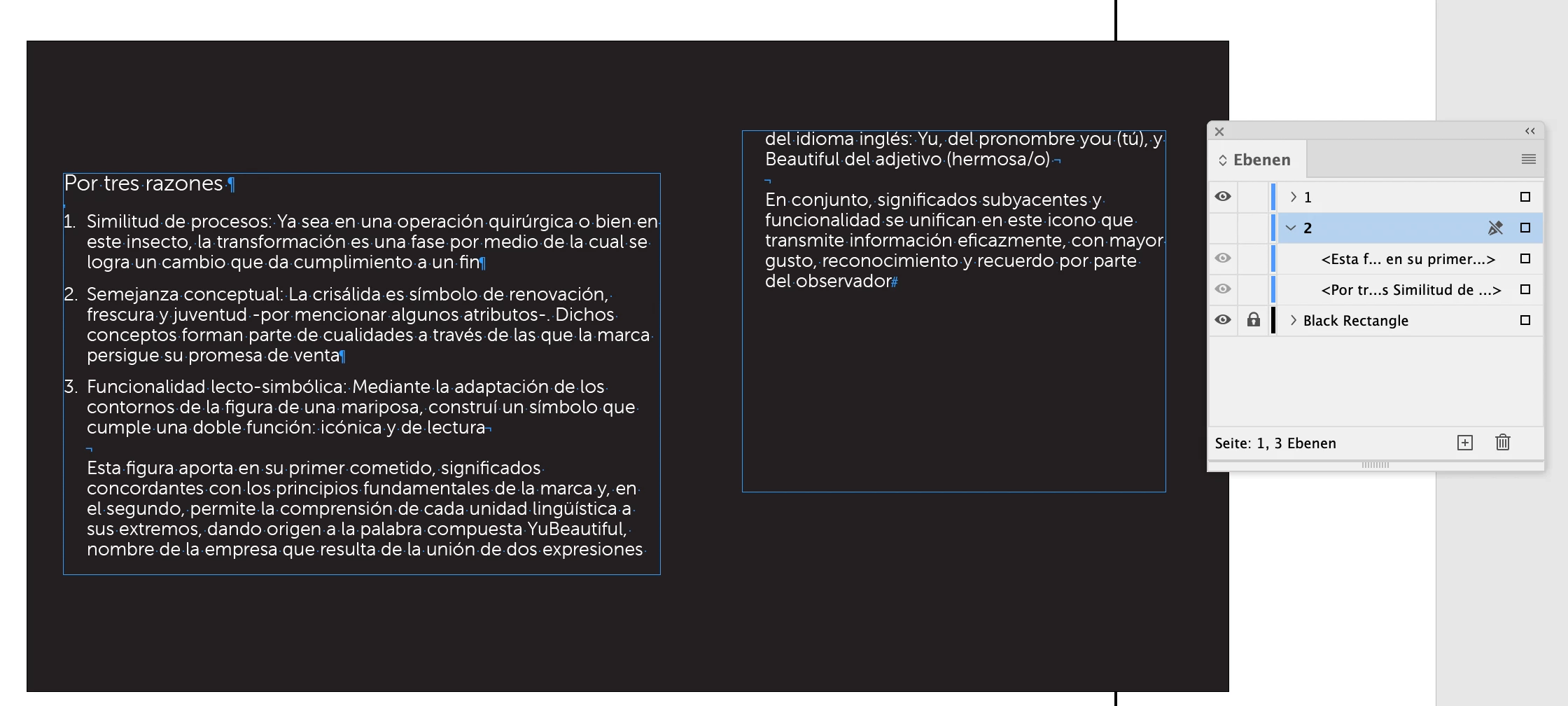
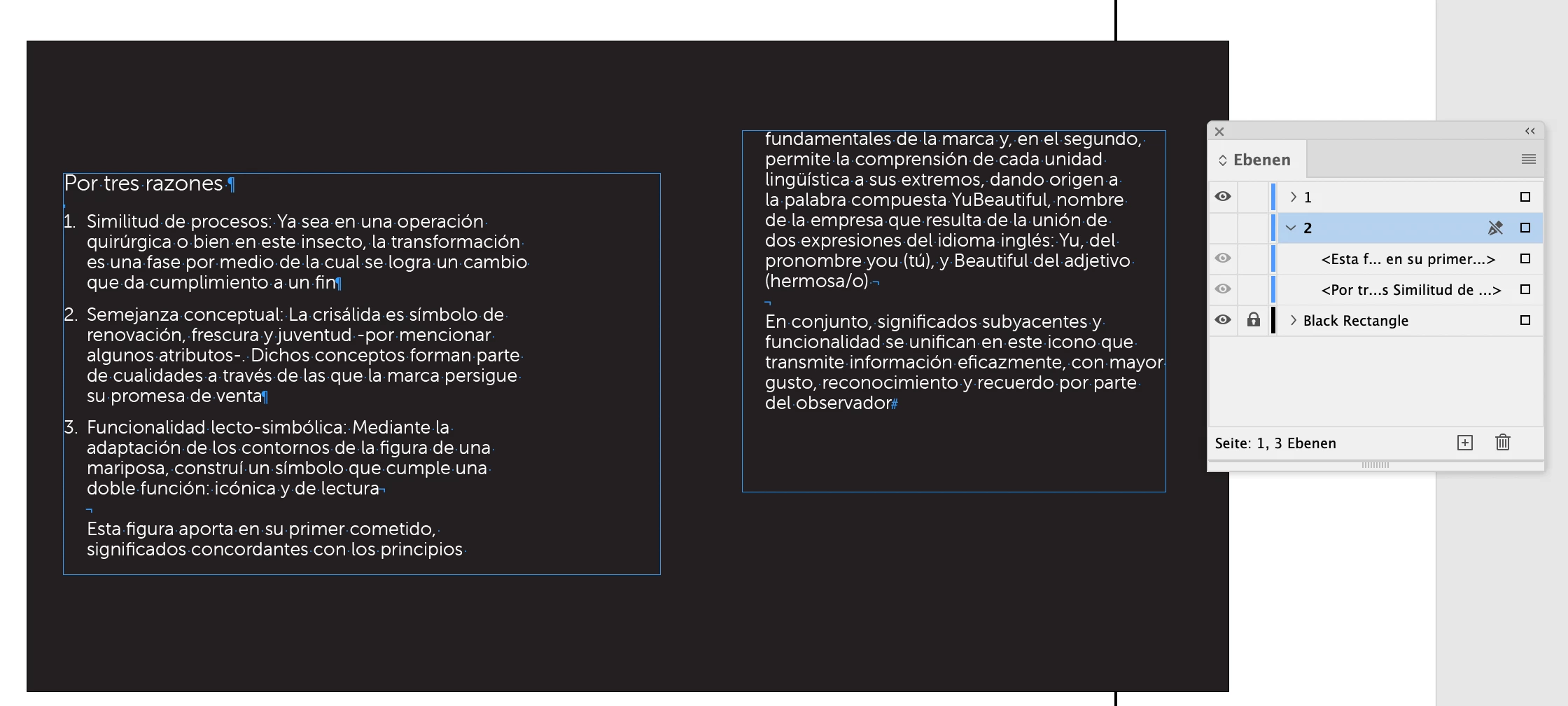
@Eugene Tyson showed the cause of the problem, a frame on the hidden layer with text wrap enabled.

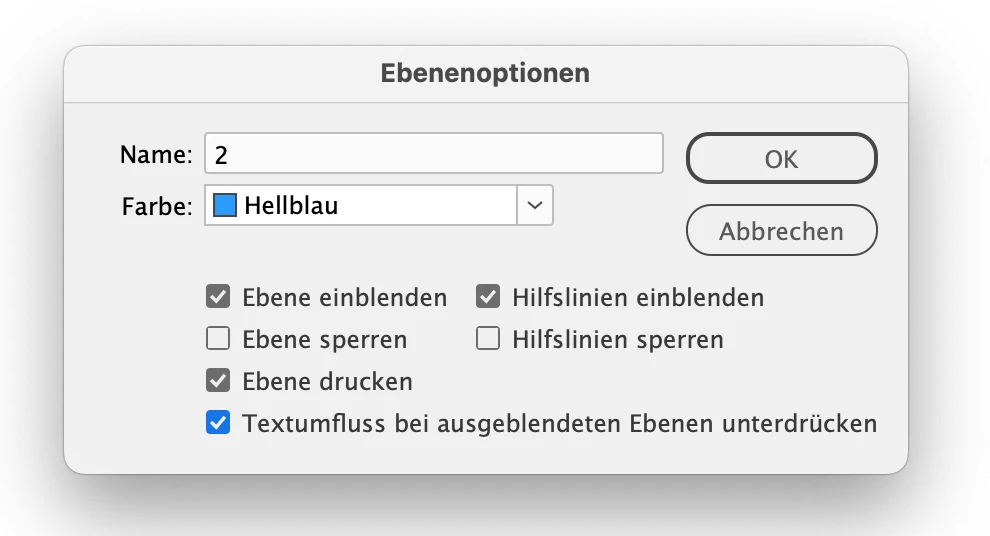
If you do not want to change the wrap or remove the frame or set the frame on the visible layer to ignore text wrap, you could also check a layer option to ignore text wrap for objects on hidden layers.


Before:


That setting, ignore text wrap for objects on hidden layers, for the hidden layer enabled in the Layer Options ( from my German InDesign ) :


Result:


Regards,
Uwe Laubender
( Adobe Community Expert )

返信数 4

LaubenderCommunity Expert解決!
Community Expert
November 10, 2024

Hi @e ch n ,

thank you for your sample InDesign document.

@Eugene Tyson showed the cause of the problem, a frame on the hidden layer with text wrap enabled.

If you do not want to change the wrap or remove the frame or set the frame on the visible layer to ignore text wrap, you could also check a layer option to ignore text wrap for objects on hidden layers.


Before:


That setting, ignore text wrap for objects on hidden layers, for the hidden layer enabled in the Layer Options ( from my German InDesign ) :


Result:


Regards,
Uwe Laubender
( Adobe Community Expert )

James Gifford—NitroPress
Legend
November 10, 2024

That looks to be it from my perspective, and a good explanation.


@e ch n , when you present problems here, it's best to give us a "big picture" look at what's going on, and not these little composites of selected details. We need to see the layout, margins, guidelines, hidden characters and often an entire menu of settings. Being selective about what you show, and how you assemble the view, limits our ability to judge the problem, and keeps it focused on what you think is wrong, which may be something other than the actual problem. If there are issues such as a dark or colored background obscuring details (like hidden characters) create a work version of the file and change all text to black and all backgrounds to white (for example) — something that just shows the fault you're trying to correct, but with all the technical details included.

e ch n
e ch n作成者
Inspiring
November 10, 2024

All of the above is very useful for me to be able to formulate my queries in a correct way.


I will take all this into account in the future.


Thank you very much, I am sorry for not having included all the information in an adequate way.


Peter Spier
Community Expert
Community Expert
November 9, 2024

You might try switching from one of the "paragraph" composers to the "single line composer (See @Bill Silbert 's screen shot).

The paragraph composers use a murky algorithm for line breaks even when balance ragged lines is off in order to get a more "pleasing" look.

e ch n
e ch n作成者
Inspiring
November 10, 2024

Hello, Peter Spier.


Thanks for your response.


I was replicating one by one the answers of the community experts, and yours was the next one when, the points made by fellow @Scott Falkner led me to discover what caused the “error”, which was not such, and fellow @Eugene Tyson  found the reason for the unwanted behavior.


Thank you for your collaboration and that of each of you.

Community Expert
November 10, 2024

Yeh - we got there in the end - very difficult to guess a hidden layer with unwanted behaviour - all the suggestions were the usual reasons that come up for such things like this happening - always good to check.

Scott Falkner
Community Expert
Community Expert
November 9, 2024

Is there a nearby object with text wrap applied?

Community Expert
November 9, 2024

Another thing that might be applied is No Break 

https://helpx.adobe.com/indesign/using/text-composition.html#:~:text=Prevent%20text%20from%20breaking


This could also be added to the paragraph style in the GREP style or Nested Style - through character styles

Can you share a sample document ?


@e ch n 

e ch n
e ch n作成者
Inspiring
November 10, 2024

Hello, Scott Falkner.


Thanks for your response.


Here is my feedback:


1.- No, there is no image with the "text wrap" function applied; next to it, there is only another text frame where text continues to. The background image is in a layer for images, and it is an Illustrator file, on which I place the texts in an upper layer (deleted due to weight gain in the file).


2.- I checked each line of points 1 and 2 of the text box, and none of them have the “No Break” function activated. I attach two screenshots as a sample.


3.- I looked at the link you kindly shared, and I deliberately placed, as a test in two lines "Nonbreaking Space" and "Nonbreaking Space (Fixed Width)", and the invisible characters that represent these two functions are different from those of separation between words, so no, this function is not activated. I attach the screenshot as well.


4.- Yes, I can share a sample of the document.


And guess what... when I was preparing the document to share it with you, I noticed what apparently is the cause of the error (and I don't know if “this is how InDesign is supposed to work”, or if it is a “program error”): as part of the editorial design process, I generated a backup text layer (in the file marked with the number 2) and although it is locked and hidden, the left text frame in this layer, affects the right text frame of the layer number 1, (the one that presents the problem). And if we reverse the factors and hide and lock layer number 1, and show and unlock layer number 2, now the left text frame of layer 1, affects the left text frame of layer 2, generating exactly the same error... Although... if this is the “principle of affectation” I don't know why it doesn't happen with the right frame of layer number 2, because it is spliced with the right frame of layer number 2.


The questions would be: Is the file corrupted, it is supposed to “work” this way, is it a program error?


I attach the sample file.


If you need any other information, please let me know.


Thanks for your help.

Bill Silbert
Community Expert
Community Expert
November 8, 2024

Try turning off "Balance Ragged Lines" in the Paragraph Panel pull-down menu.

e ch n
e ch n作成者
Inspiring
November 9, 2024

Hello, Bill Silbert. Thank you for your response.


I tried to turn off the “Balance Ragged Lines”, but they were already off; anyway, I turned them on and off to observe the result with and without, but the problem continues.


I tend to think it's a configuration issue, rather than a software bug.


Any other ideas as to what might be affecting it?


Anyway, here I leave the video of the exercise.


Thanks!


James Gifford—NitroPress
Legend
November 9, 2024

The video is useful but doesn't show some essential things. Can you take a simple screen shot of the whole text box, in Normal mode with all guidelines and hidden characters showing?


It does look very much like a 'balance ragged lines' issue. Double check that you are setting the text box options for the right element. The amount of spacing on the right margin is another issue. And it's possible you have some hard (non breaking) spaces in there, which the hidden characters would show.