
rehana36276218
Known Participant
February 28, 2022
Answered

text wrap issue in Indesign
  • February 28, 2022
  • 6 replies
  • 1451 views

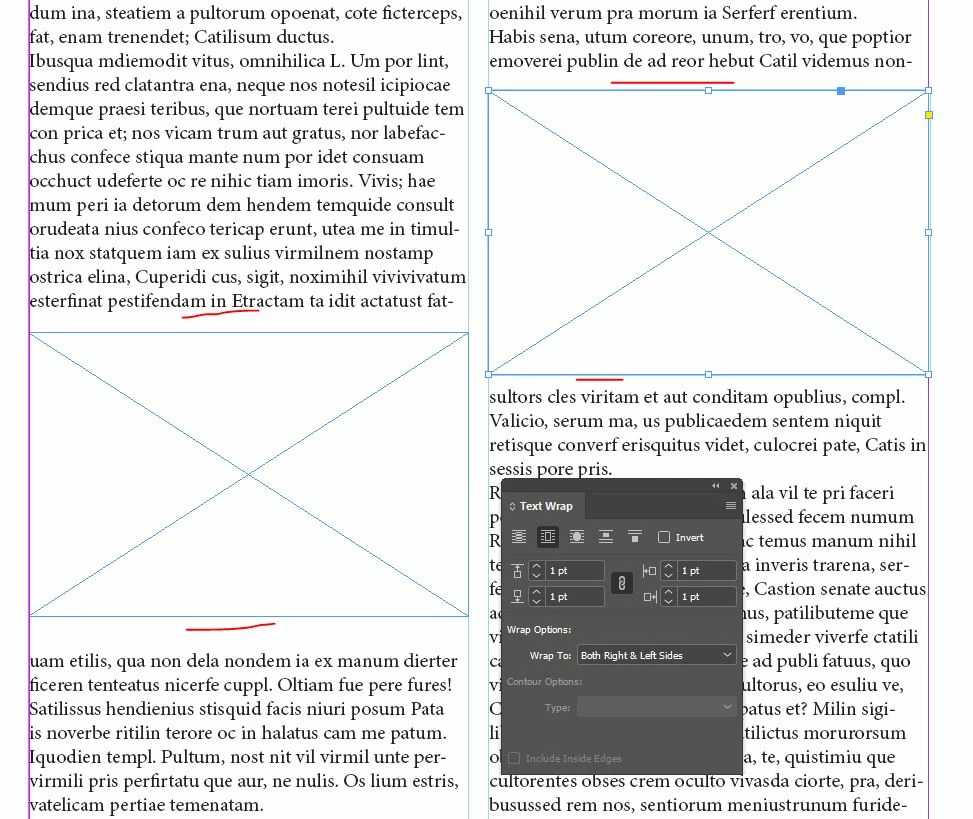
i tried all text wrap option in indesin to balance equal space between top and bottom where i mark red line, but when i move this  graphic box by 1% keyboard increment up or down the result come to close just in viewing but not accurate , how we can achieve this in indesign , balance space ...?

Thanks in advance 

This topic has been closed for replies.
Correct answer Brad @ Roaring Mouse

The easy solution:

Turn off Skip By Leading in Preferences > Composition

6 replies

Participating Frequently
November 29, 2022

Thank you for posting your question so clearly. One of the replies solved a nasty issue for me.

Peter Kahrel
Community Expert
Community Expert
March 2, 2022

> Thanks Brad, mine is turned on.


It should be off, as Brad suggested.

P.

m1b
Community Expert
Community Expert
February 28, 2022

Option A: If you want the graphics to flow with the text: Paste a graphic into the text and choose, for example, "Above Line" in anchored object options, then adjust the space before and after. Make a new Object style with those settings and apply it to all your graphics.


Option B: If you need the graphics to stay fixed and not move with the text, I have another idea: I've written a script that centers a selected item to the document's baseline grid. You will need to manually work out a vertical offset to adjust in the script (my example gives -3 (pts) so just change that -3 to whatever visually looks right based on your baseline grid settings and font size. Save that change to the script file and then to use it, just select an item or items and run script. I haven't tested much, so I'd love to hear how it goes if you end up playing with it. You can also align to top of baseline grid division.

- Mark


/*

    Center To Baseline Grid.js

    by m1b
    here: https://community.adobe.com/t5/indesign-discussions/text-wrap-issue-in-indesign/m-p/12782817

    This should move a page item vertically so that its center
    aligns with the centre of the nearest baseline grid increment.

    By providing a verticalOffset, you can adjust the change visually.

    Adjust the weightFactor argument higher (maximum is 1) if you prefer
    the item to move downwards to the next baseline division more often.

*/


function main() {

    alignItemsToBaselineGrid({
        items: app.activeDocument.selection, // path item(s)
        verticalOffset: -3, // pts: distance to move item from the exact centre of baseline grid
        weightFactor: 0, // Number from 0 to 1: 0 is normal, 1 will always move downwards, 0.5 tends to move downwards
        alignment: 'center' // align to 'center' or 'top' of baseline division (verticalOffset applies in both cases)
    });


    function alignItemsToBaselineGrid(options) {
        if (options.items == undefined) return;
        var items = options.items,
            verticalOffset = options.verticalOffset || 0,
            weightFactor = options.weightFactor || 0;
        alignment = options.alignment || 'center';

        // handle a single item
        if (!items.hasOwnProperty('0'))
            items = [items];

        if (items[0] == undefined) return;
        var doc = items[0].parent;
        while (doc.constructor.name != 'Document')
            doc = doc.parent;

        var gridPrefs = doc.gridPreferences,
            marginTop = doc.marginPreferences.top,
            isRelativeToMargin = gridPrefs.baselineGridRelativeOption == BaselineGridRelativeOption.TOP_OF_MARGIN_OF_BASELINE_GRID_RELATIVE_OPTION,
            gridStart = (isRelativeToMargin ? marginTop : 0) + gridPrefs.baselineStart,
            gridDivision = gridPrefs.baselineDivision,
            verticalWeighting = gridDivision * weightFactor;

        for (var i = 0; i < items.length; i++) {
            if (!items[i].hasOwnProperty('visibleBounds'))
                continue;
            var item = items[i],
                itemTop = item.visibleBounds[0],
                itemHeight = item.visibleBounds[2] - item.visibleBounds[0],
                newTopDelta = -((itemTop - gridStart) % gridDivision),
                newHeightDelta = -(itemHeight % gridDivision),
                newItemTop = itemTop + newTopDelta,
                newItemHeight = itemHeight + newHeightDelta,
                verticalDelta = (newItemTop + newItemHeight / 2) - (itemTop + itemHeight / 2) + (gridDivision / 2);

            // round to nearest baselineitem's top (-newTopDelta >= gridDivision / 2) newTopDelta += gridDivision;baseline grid
            if (-newHeightDelta >= gridDivision / 2) newHeightDelta += gridDivision;
            if (-verticalDelta + verticalWeighting >= gridDivision / 2) verticalDelta += gridDivision;

            // move item
            if (alignment == 'center') {
                item.move(undefined, [0, verticalDelta + verticalOffset]);
            } else if (alignment == 'top') {
                item.move(undefined, [0, newTopDelta] + verticalOffset);
            }
        }
    }


} // end main

app.doScript(main, ScriptLanguage.JAVASCRIPT, undefined, UndoModes.ENTIRE_SCRIPT, 'Center To Baseline Grid');


Brad @ Roaring Mouse
Community Expert
Brad @ Roaring MouseCommunity ExpertCorrect answer
Community Expert
February 28, 2022

The easy solution:

Turn off Skip By Leading in Preferences > Composition

rob day
Community Expert
Community Expert
February 28, 2022

Thanks Brad, mine is turned on.

rob day
Community Expert
Community Expert
February 28, 2022

Hi @rehana36276218 , when the object’s text wrap Offsets are set to 0 it can’t interfere with the text’s baselines—the baseline is defined by the applied Leading.


Here my text Leading is set to 14pt and frame set to wrap is 140pts in height. I have Align to Baseline Grid turned off, but the frame still can’t interfere with the texts’ baseline, or the text will reflow:


If I add 2pts to the frame height it forces the text to the next baseline—the text on either side of the frame has to be on the same baseline:


If I want to bring the line backup to the baseline above, I can set the Bottom Offset to -2


Even space above and below

Willi Adelberger
Community Expert
Community Expert
February 28, 2022

The text is aligned to the baseline grid, which is good. 

So there are 2 solutions:

  1. Turn off baseline alignement.
  2. Better: Fit the size of the size of the image to the baseline grid and align all images with the bottom to the baseline grid and the top to the height of the Letter H.
rehana36276218
Known Participant
February 28, 2022

i can easily align the top with baseline , but bottom the images is not sitting to base line when i extend the image to bottom  the text is moving to the next line and if i turned off baseline grid not solving my issue. thanks 

Willi Adelberger
Community Expert
Community Expert
February 28, 2022

Supply a screenshot of text wrapping,