Okay. Here's a simple list of steps, ask if any of them aren't clear:
- Create a new document with the page margins you want and no primary text frames (whether you create it as facing pages or not is up to how you plan to use these pages; I will assume you're using only one page format without a facing equivalent.)
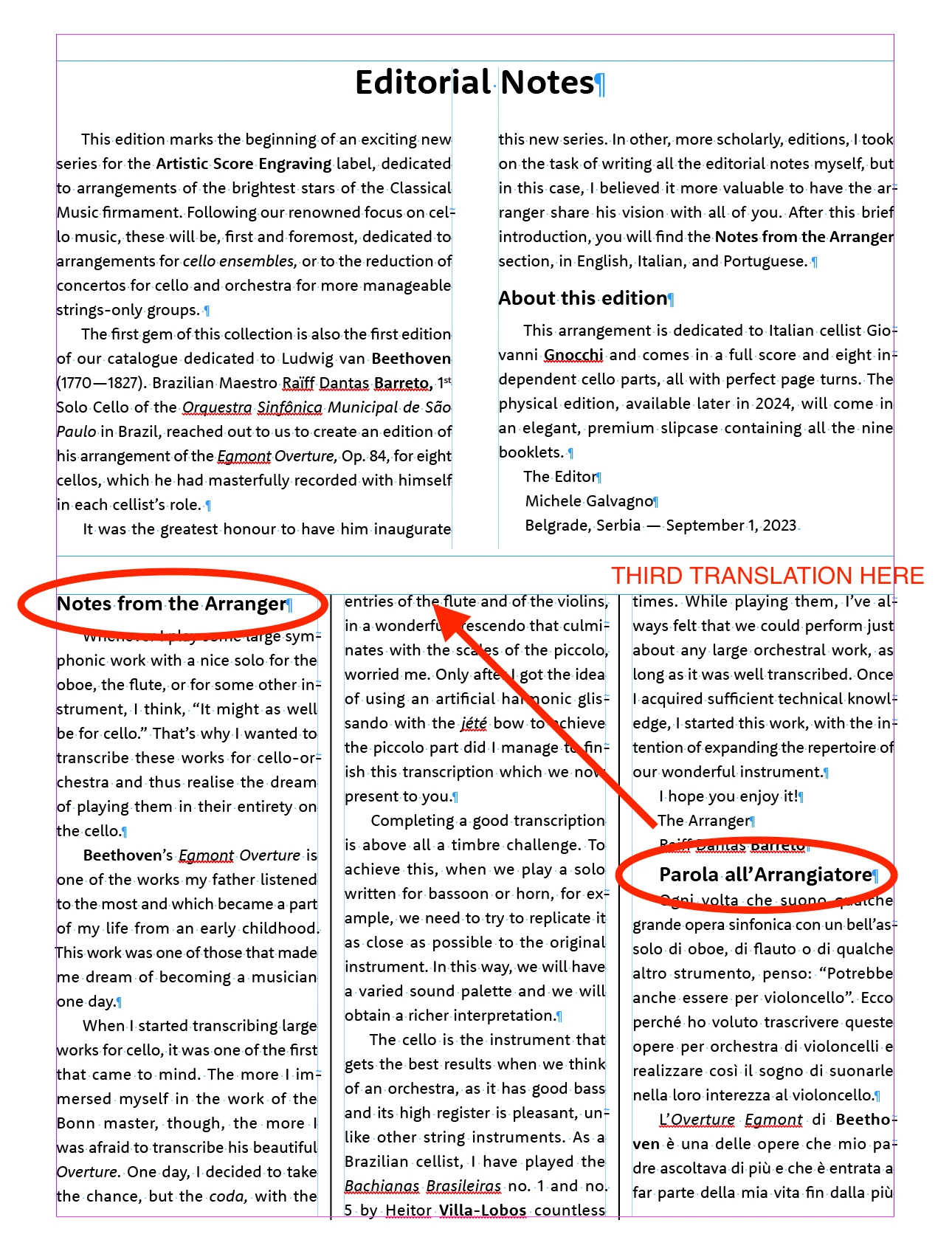
- On the (blank) Parent page, create a text frame across the top half of the page. Use Text Frame Options to give it two columns and the gutter width you want.
- Create a text frame across the lower half of the page, and repeat the first step to give it three columns, probably somewhat wider gutters, the gutter (inter-column) rule, etc.
- Click on the text flow connector icon at the lower right of the top frame. Click in the lower frame to connecting them into one text flow.
- On a doc page, Ctrl-Shift-click both top and bottom to place both frames on the page.
- Dump your text into the upper frame. It should flow through the columns (top1 , top 2, bottom 1, bottom 2, bottom 3).
That's the page setup. For styles:
- Create a new Body Text Eng style and configure it the way you want the text to appear.
- Duplicate it for each of the other languages: Body Text Por, Body Text Ita. The main reason to do this is so that you can assign the correct language for spell checking and hyphenation. Use any naming system that's consistent and works for you.
- After you flow the text in (or if you want to be sophisticated, use the same style names in Word) tag all the paragraphs with the right language body style.
- To get the text to break into columns, you will need another style, probably one for each language again, that includes a "break to next column" setting in Keep Options. So you would have Body Text Eng brk, etc. If you're going to use headings to separate the material, you can use those styles instead (Heading Ita, etc.) and give them the column-break setting.
That should get you started and will work for one-page layouts. If the three-column material may extend over more than one page, a different approach will be needed. You will also need four separate source text files, which you can do by cutting sections from a single source doc. (Cut the English, paste it in place, cut the Portuguese, paste it, etc.)
- On the first page, create the top two-column frame, but then create three separate frames on the bottom. You will have to manually draw in the column rules.
- On a second Parent page, draw just the three separate columns, top to bottom.
- DON'T connect any of these frames. You'll need to flow them manually in the document.
- When you pull either of these layouts to a doc page, Ctrl-Shift-Click in each space to place an independent text frame there.
- Place your top text into the 2-column frame.
- Place each separate language below into its own frame.
- With both pages visible, click the text flow icon on the first column, then click in the corresponding column on the next page. You want to connect the first column on page 1 to the first on page 2, and so forth. If you have more than two pages of material, add a third page with three columns and repeat.
There are some tricks and refinements, but that's the process to manage the three languages as you wish.

 AdChoices