Inspiring
February 22, 2022
Answered

TOC Text Anchor not found

  • February 22, 2022
  • 3 replies
  • 9102 views

Could someone help me with this error? 

I have already updated the ToC not to use Text Anchors ... 

I have removed and recreated the ToC ... same error ... 

I have tried with checking the "make text anchor in paragraph" option but it then gives the same error, and every time I need to rebuild my custom bookmarks ... 

What can I do? How can I find what are the "offending" text anchors that are not found? 

I tried to make a copy of the INDD, remove the TOC and export, which gave no error. Recreating the TOC and exporting to EPUB gave the same error ... 

Correct answer rayek.elfin

Thanks

Could you please also give a look at my post just above the one you replied to (the one with six screenshots attached)?

There I describe my exporting procedure in great detail and would like to understand if there is something I can change to make things better or if it is InDesign breaking things. 

The things that I'm still trying to understand is why a text anchor in an invisible layer counts as not found ... 


This is a known problem: text anchors in hidden layers fail when exported. Or rather, when you hide things, those are not exported in an epub.


In simple words: by hiding those text anchors, obviously during export InDesign throws an error that the TOC entries (which are links) cannot find those destinations. And export fails, of course.


It's not a bug, but I suppose you could call it a glitch? Or "intended behaviour" as a developer would call it.


In any case, three workarounds:


  1. Hide by layer order. Since you have notation sheets imported as images, simply hide the text frames with chapter styles by arranging the layer with images on top of the text frames, and effectively obscuring those from view

  2. Hide by changing the text colour to paper. Select the text lines, and set the text colour to "Paper". This will visible hide the text, i.e.: white on white.

  3. Hide by tiny type size. Change the type size to 0.1pt. It will effectively be invisible, in particular when it is moved to the very right corner of the page.

  4. Combine methods #1, #2, and #3 😉
    (if you do use either method, you will have to define specific paragraph / text styles for the TOC, of course - otherwise your TOC is also affected by the same styling...)

  5. Hide by assigning a CSS class and hide via a CSS rule. I suppose this would be the 'proper' method.


#5 is arguably the best approach, but the most finnicky to set up in InDesign. Here follows how it works:

To hide the text with css, do the following:

  1. create a paragraph style called "hide-me". I duplicated the existing chapter heading style.

  2. In the Export Tagging tab, assign a class called "hidden".
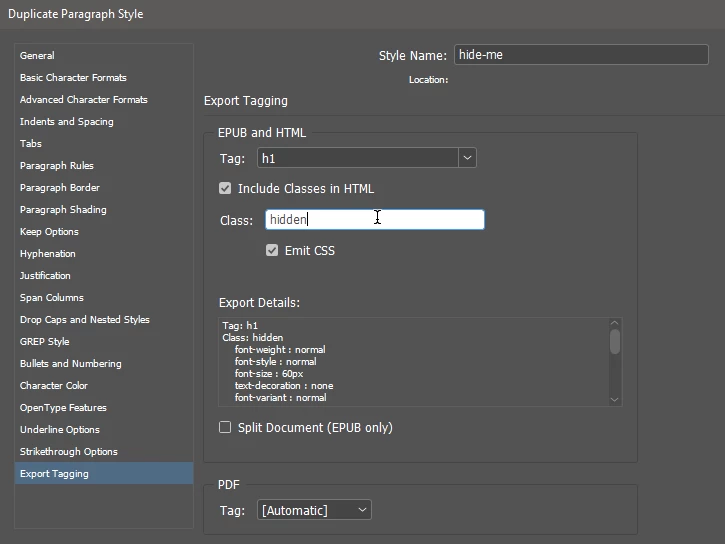
  3. Confirm the paragraph style changes, and assign this paragraph style to your to-be-hidden chapter headings.

  4. Open a text editor. And I mean an actual text/code editor like Visual Studio Code, Notepad++ on Windows, or Text Edit on the Mac.

  5. Create a new file called mystyles.css and save this file in the same folder as your InDesign document project. (This last step is important!!!)

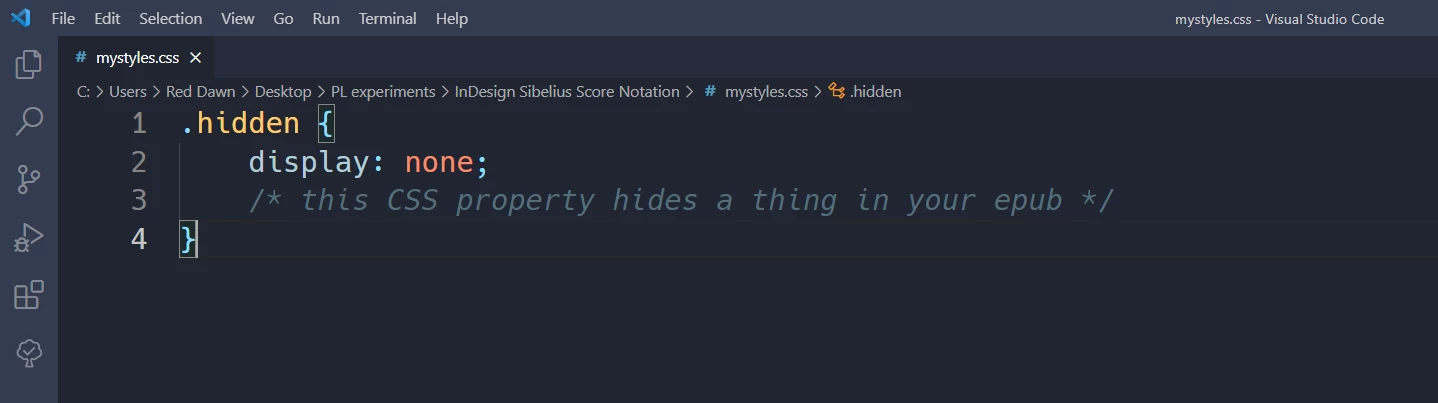
  6. Add the following lines of code:
  7. Save the file and close it. Return to InDesign.

  8. Export your epub. Switch to the CSS tab and point it to that CSS file.
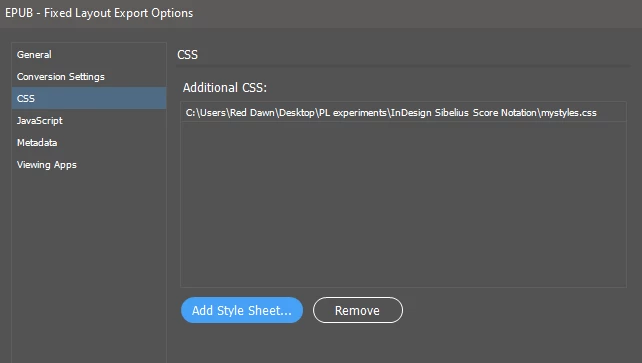
    Click the Add Style Sheet button and locate your mystyles.css file.

  9. Now export your epub. Done. There should no longer be any errors popping up.

  10. Check your epub file in Thorium and the iBook reader. The headings should be hidden from view. (they are still present in the code, though - but that is good, because searching for these chapter headings is now also possible if need be).


Consider opening and resaving in Sigil to fix the epub code errors that InDesign's shoddy epub export produces and also compress the epub file properly (which, if you use svg files will reduce the file size by a factor of 9).


Or if you don't want to fix those code glitches, run your epub file through eCanCrusher to compress it properly - that way you can use SVG files without worrying about file sizes and Apple complaining about exceeding image pixel dimensions.


PS I would use method #6 myself: open the CSS code in Sigil, add that hidden class to the ebook's existing CSS file, and assign that class to all the headings as a second class (chain it to the existing paragraph heading class) in the xhtml pages. 

But then I probably wouldn't be using InDesign in the first place for my epub creation. 😉

3 replies

Community Expert
February 23, 2022

Hi Inélsòre,

I looked into your InDesign document.

Well, the special characters FEFF are indeed there.

At the beginning of the paragraphs that are picked up from the TOC function.

The paragraphs that are in the usually hidden text frames and where paragraph style "ToC entry" is assigned.


And of course I can find them with the <FEFF> pattern with Text Find/Replace ( not GREP Find/Replace ). See the screenshot below. So follow Willi's advice and remove them. Then try again to export to EPUB.


Note: I did not activate the necessary fonts through Adobe Fonts.

Therefore the pink marks that are indicating a missing font.


Regards,
Uwe Laubender

( ACP )

Inspiring
February 23, 2022

I tried again but my research returns no match. 

Is it possible that <FEFF> is good only in German and that in English it may be something else? What does <FEFF> stands for? 

Second thing: when I first tried to export this it told me I didn't have anchor (I suppose that means those special characters were not there?). Remaking the ToC with the anchor option checked added them, but exporting said it didn't find them.

Deleting both ToC and all frames made the EPUB export successfully. Re-adding the frames and the TOC (with anchors) and exporting failed again.

1) why can't I export an EPUB with frames missing these anchor characters if the ToC was set up without them?

2) why once I add them as requested it says they are missing?  

Community Expert
February 23, 2022

Change the scope to Search: Document

FEFF is the unicode value for that special character.

You can easily select it when you are in the Story Editor window.

Your screenshot is showing it; the one with the two red dots.


Regards,
Uwe Laubender

( ACP )

Community Expert
February 22, 2022

Hi Inélsòre,

my guess is:

You at least once used the option [x] Make text anchor in source paragraph with your TOC.

Then you edited the text and five of the special characters that are the anchors were removed during the editing process.

The next time you did not use "Make text anchor in source paragraph" when updating the TOC, the remaining anchors from updating the TOC before are still there. Your EPUB export is detecting them and also detects that some are missing.


Text anchor special characters can be found with TEXT Find/Replace.

Search with pattern <FEFF>.

But do not remove all found automatically in one go.

There could be FEFF special characters that have other purposes.


You will find the remaining TOC related special characters at the beginning of the paragraphs that are collected with the TOC.


Regards,
Uwe Laubender

( ACP )


Inspiring
February 22, 2022

The research found no match. 

The fact that un-hiding those frames made the EPUB export seamlessly gave me an epiphany: in previous publications I usually created an INDD, inserted the multipage-PDF in it, hid a few frames among the pages, created the TOC, and exported. There was no other text frame apart from the ones populating the TOC. 

Now, this document, which I'll share later today or early tomorrow, has a mixture of text frames and graphical frames, and it is possible that the TOC is not liking to link to a paragraph style that sometimes is above another text frame and sometimes is above a graphical frame. 

I removed all those hidden frames (btw, not even changing opacity settings helped because then the TOC entry would disappear as well) and arranged some text on certain pages to feed the TOC. I am not completely happy about it but, at least, it works, and the EPUB passes the validation check. 

I will also try, in the next few days, to build a dummy project that would reproduce this issue reliably so that it will be easier for you to investigate. Again, I am not sure what I did was the best I could do, but after 4hrs of failing, I got what I needed for the publishing process. 

Thanks

Willi Adelberger
Community Expert
Community Expert
February 22, 2022

Remove all toc-related text anchors manually.

Recreate the toc with new text anchors setting.

Inspiring
February 22, 2022

How do I do that? 

What are those anchors?

Are they the hidden text frames I have created? If so, deleting them doesn't solve it. 

I then deleted the TOC, recreated the hidden text frames (in another layer as usual, then hid the layer), recreated the new TOC and hit export. This time this was the result: 

 Now, if I go and check the checkbox it asks me to do, it suddenly finds no text anchors ... 


There is clearly something going on here, as the EPUB Interactivity Preview also shows the table of contents as not working. Interesting fact: exporting to PDF works beautifully. Here is how my TOC is organised, hopefully someone will find a way to help:

  1. There are 5 desired entries in the TOC so I created 5 text frames with a dedicated paragraph style on the pages I wanted to show. 
  2. I put these 5 text frames on a separate layer and hid the layer.
  3. Created a TOC including objects on hidden layers but not checking the "make text anchor" option

Got the error above. Recreating the TOC with that option checked gives me the "TOC Anchor not found" error... 


Update: if the text frames are not hidden the EPUB exports and validates without any issue.

How is that possible? And how do I make it the way I need it to be?