Participant
August 2, 2017
Answered

Tools don't show

  • August 2, 2017
  • 1 reply
  • 624 views

Hi there,

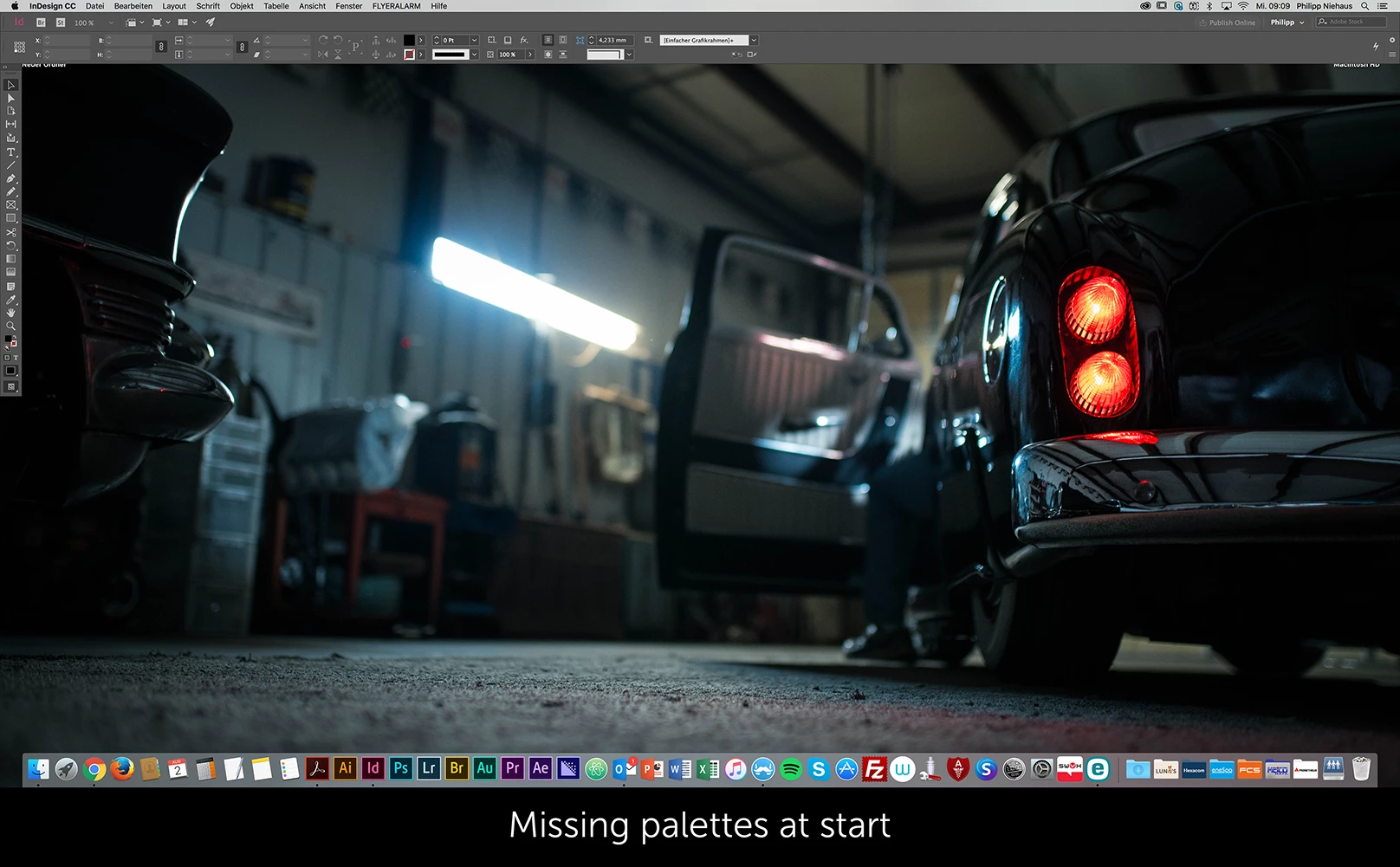
sometimes when I start my InDesign the palettes don't load. The complete UI is there but my tools on the side aren't there (see images). The issue is fixed when I restart ID. Sometimes it is very irritating especially when you're in a hurry.

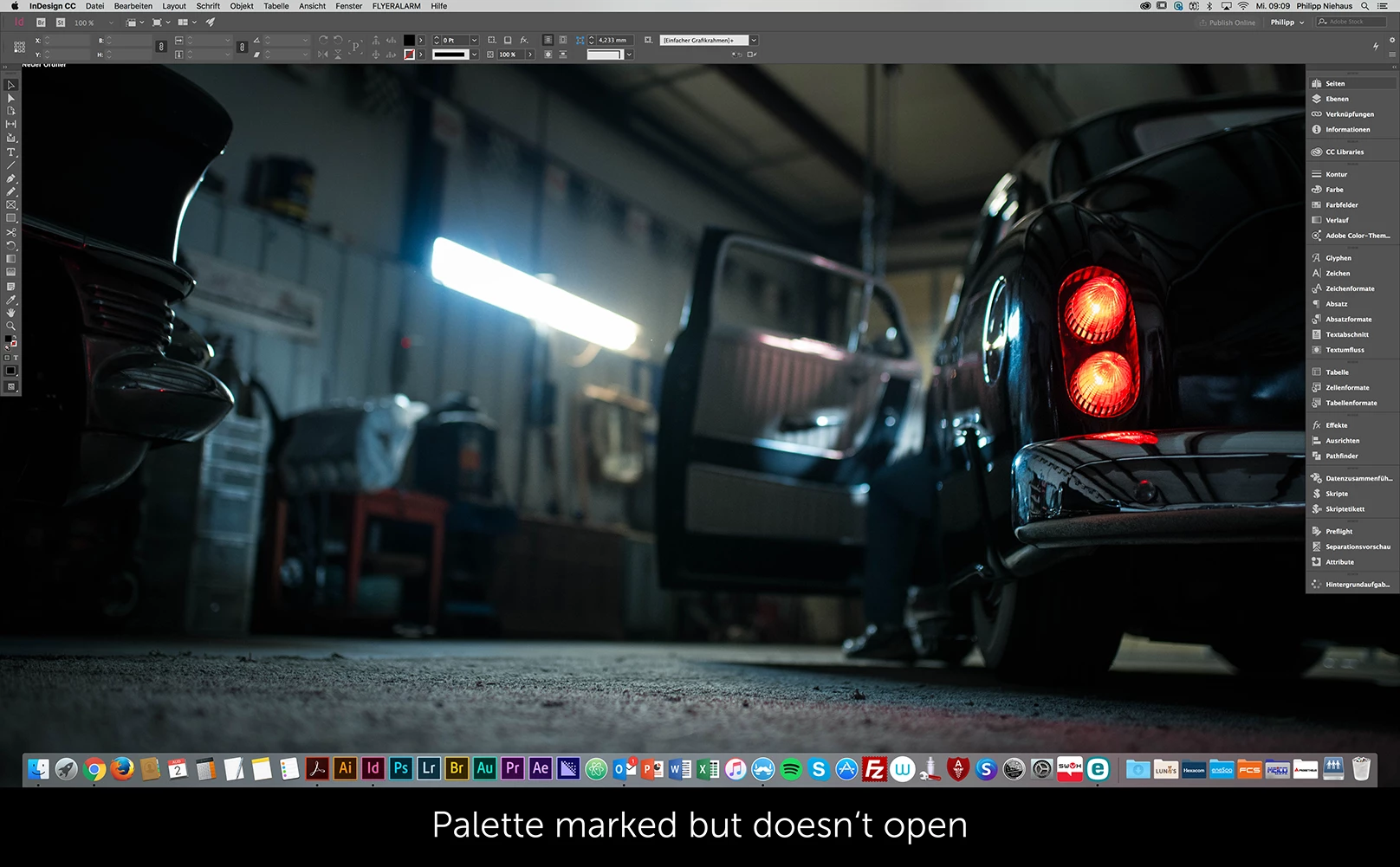
Another issue is that when I open my ID the complete UI incl. palettes is there, but when I want to open one of the palettes (pages, colors, text e.g.) nothing happens. I hit the button, it is marked but the tools don't show.

I am working with the latest version of ID and the latest version of OSX.

Until now I have had this problem for about two years on different desktop devices working for different companies at different locations. So either it follows me or this is a general problem.
    This topic has been closed for replies.
    Correct answer amaarora

    Hi,

    I suggest you reset your cache and preferences. Troubleshooting 101: Replace, or "trash" your InDesign preferences

    I see you are working on a custom workspace named "Phillip", so if you want you can first save it on some other location and then clean your cache and preferences.

    To save the workspace:

    1. Go to: ~/Library/Preferences/Adobe/Adobe InDesign

    2. Navigate to Version X.0/en_us/Workspaces and you'll find your workspace files

    Copy and place the workspace files in some other location (say Desktop). Clean cache and preferences and then place your workspace back at the same location.

    Or you can first rename your cache and preference folders, and then see if that helps.

    -Aman

    1 reply

    amaarora
    amaaroraCorrect answer
    Inspiring
    August 2, 2017

    Hi,

    I suggest you reset your cache and preferences. Troubleshooting 101: Replace, or "trash" your InDesign preferences

    I see you are working on a custom workspace named "Phillip", so if you want you can first save it on some other location and then clean your cache and preferences.

    To save the workspace:

    1. Go to: ~/Library/Preferences/Adobe/Adobe InDesign

    2. Navigate to Version X.0/en_us/Workspaces and you'll find your workspace files

    Copy and place the workspace files in some other location (say Desktop). Clean cache and preferences and then place your workspace back at the same location.

    Or you can first rename your cache and preference folders, and then see if that helps.

    -Aman

    Bill Silbert
    Community Expert
    Community Expert
    August 2, 2017

    I recommend that after you've reset preferences and have redone all of your settings as you like them that (after quitting the program) you make a copy of this new "pristine" version of your preference file and save it for future use. It is a big time saver to be able to trash preferences and replace them with a version that is already as you like them.

    derflip85Author
    Participant
    August 2, 2017

    Special Thanks to you, Bill :-) That will make it a lot easier in the future!