

tomb30347099
Participating Frequently
January 28, 2022
Answered

Top of menu bar hidden, can't move , close it

  • January 28, 2022
  • 2 replies
  • 16309 views

I have installed 2022 Indesign v 17.1. There are no close/minimise/expand buttons on the program window.
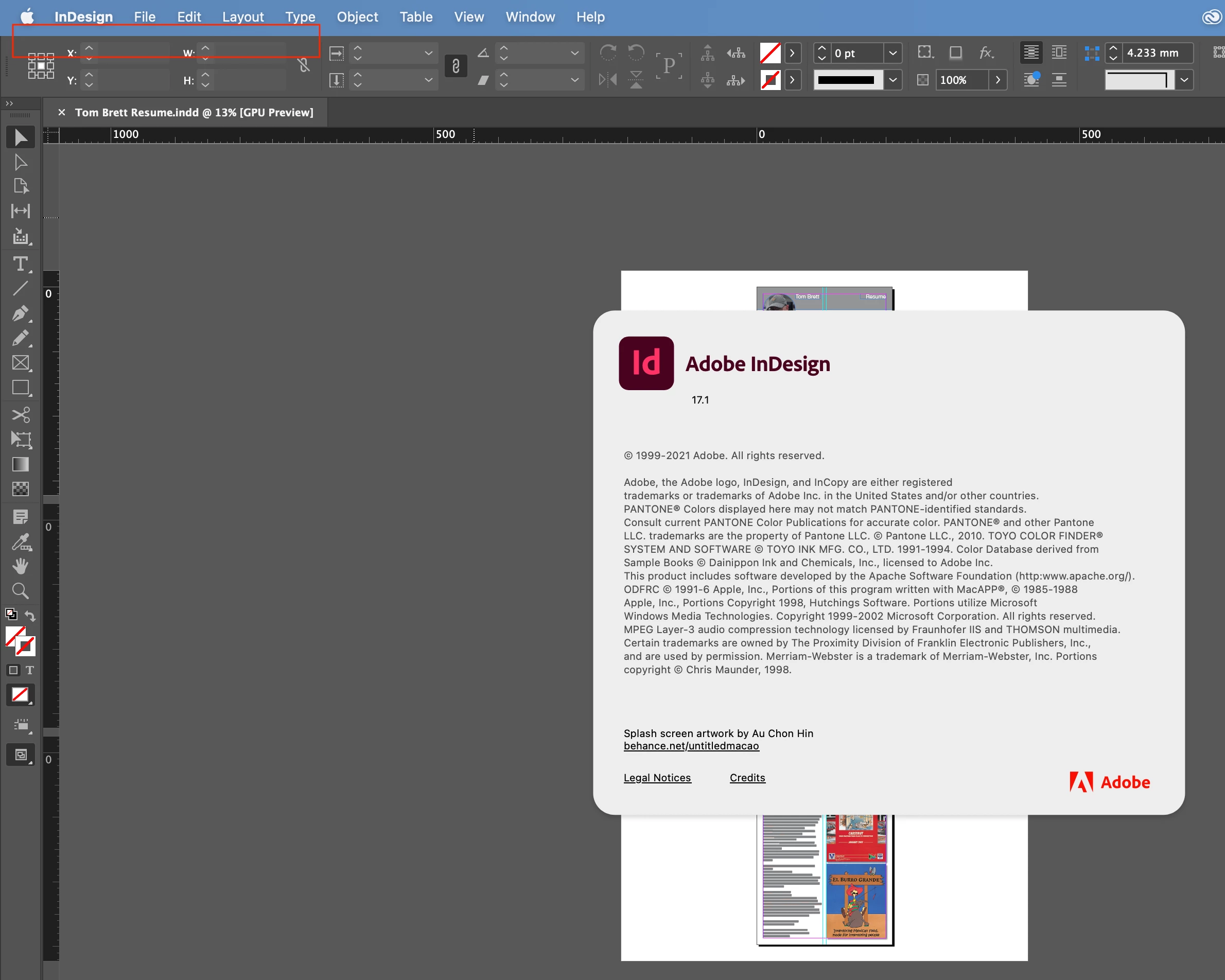
When I switch off the Application Frame, the close/minimise/expand buttons are available on the work space, not the program window.
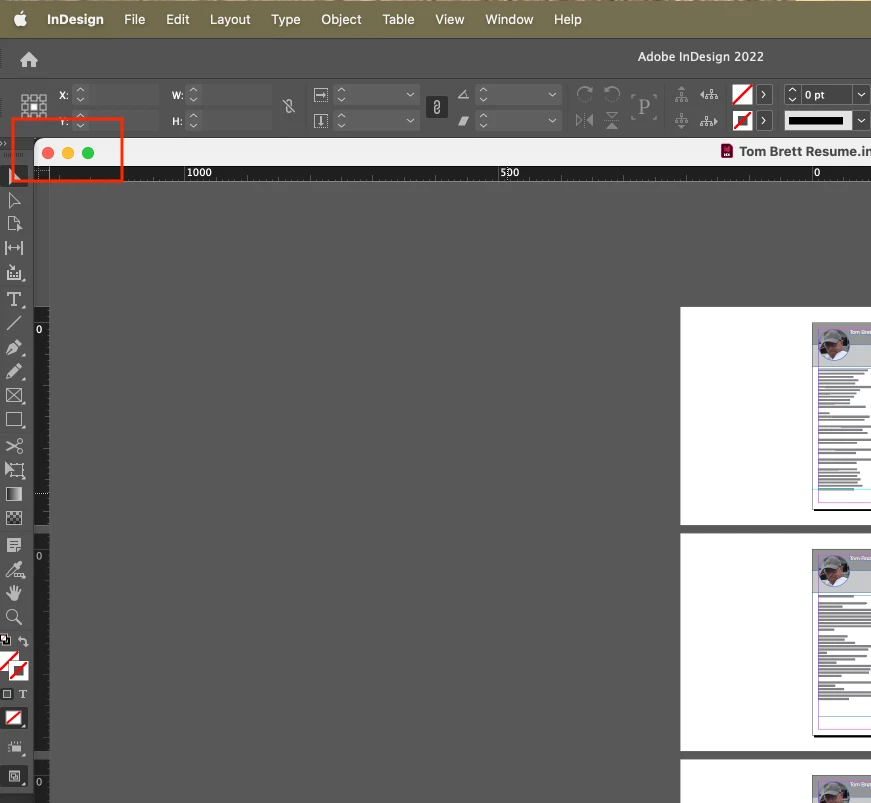
2021 Indesign v 16.4.1 had them on the program window,
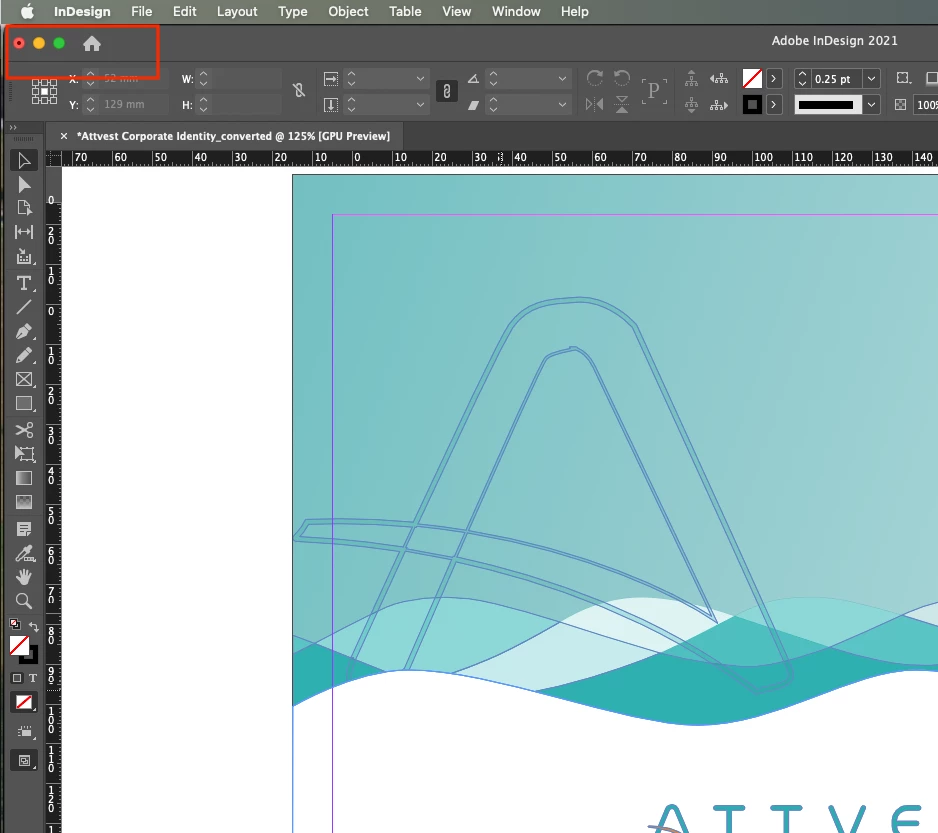
so how do I get them in the latest version of Indesign?

I use these buttons to move the program to different monitors.


<Title renamed by moderator> 
Correct answer Elizabeth Jade5CAC

I tried your link but that did not fix the problem.

As I said, Liz's change might have fixed it but I needed to see screen shots of what she did.
Dot


Hi Dot,


This was a little while ago, and my desk setup has changed. Also, I think my wording may have been a little confusing.


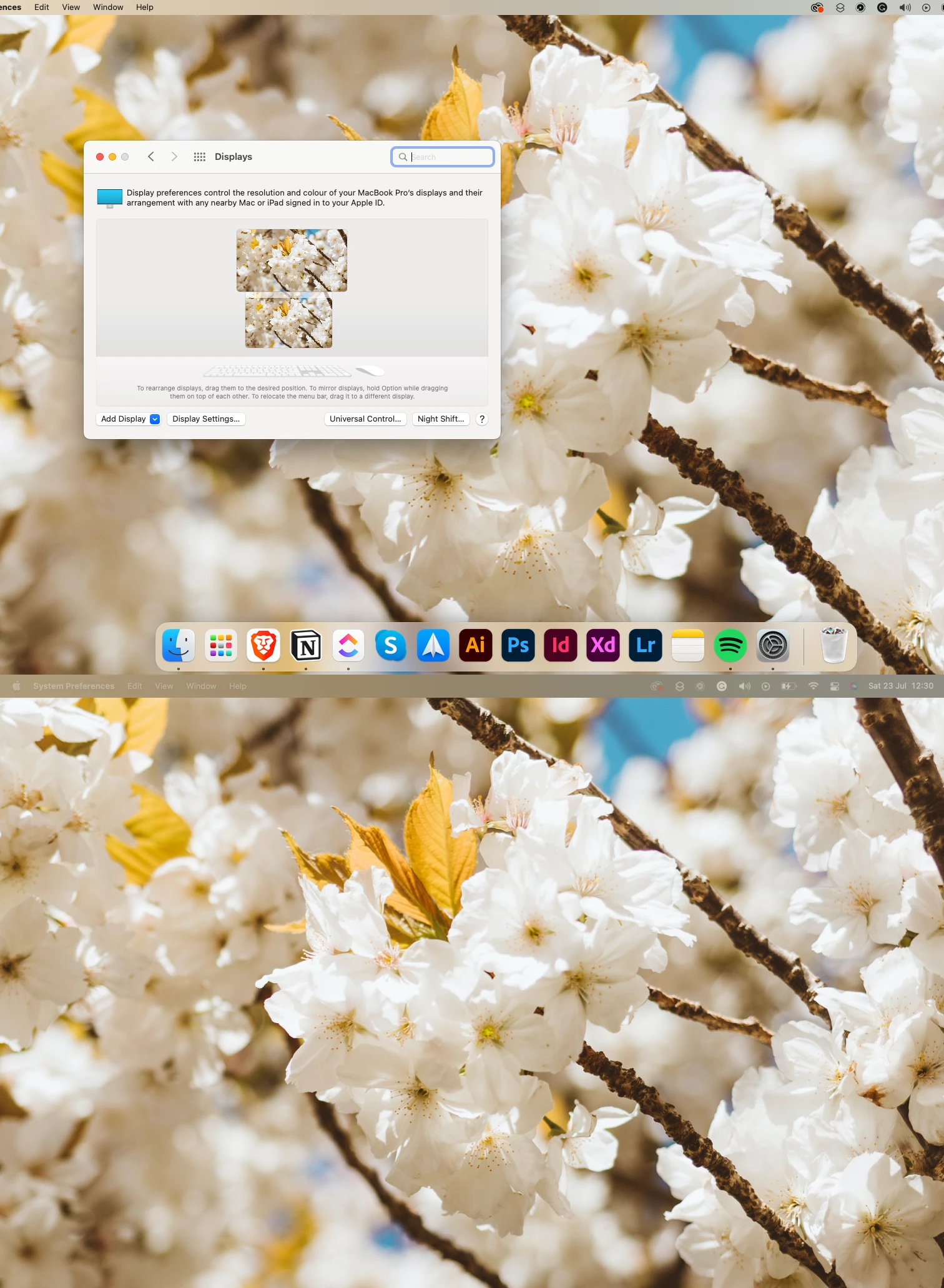
The dock was at the bottom of my upper screen (monitor) not at the top of my laptop screen. You can get the dock to move screens by hovering the cursor over the bottom of the screen that you want it on. As the monitor is wider, I was able to get the dock to move when hovering the mouse of the very bottom right corner, where it won't move onto the lower (laptop) screen. So the dock was set to bottom the whole time.


The menu bar (where wifi, the date etc. sit) moved to the top of the monitor when the dock shifted screens, so it cleared the space where the minimise/hide/expand buttons are on the InDesign window.


Hope that helps!

Liz 🙂

2 replies

Jumpenjax
Community Expert
Community Expert
July 24, 2022

Did you try to hit the escape button on the keyboard.

Lee- Graphic Designer, Print Specialist, Photographer
Anshul_Saini
Community Manager
Community Manager
January 30, 2022

Hi there,


Sorry to hear about your experience. It seems you have moved the InDesign window above the system menu bar like the below screenshot. InDesign Home button & minimize, Maximize and close icons are not visible.

I closed the app and reopened it. Still no icons.

But then I saw a dark line as highlighted in the above screenshot. I moved the mouse above that dark line and clicked hold & dragged my cursor down, and I was able to see my icons again. I checked, and it is replicable with InDesign v16.4.1 & v15.1.4 running on macOS Monterey 12.2.


I hope this helps!


Regards,

Anshul Saini

tomb30347099
Participating Frequently
January 30, 2022

Hi Anshul


Thanks for the help, but there is no black line on this version of Indesign. BTW, it opened this way. I didn't move any panels around.

Anshul_Saini
Community Manager
Community Manager
January 31, 2022

Thanks for checking that @tomb30347099. I would suggest you try the following steps and let us know how it goes:

  • Try running the app in Safe Mode  (Mac) & Root (Mac)?
  • Close all Adobe applications and manually reset preferences by renaming the folders from the following locations:
    ~/Library/Caches
    ~/Library/Preferences
    Rename Adobe InDesign and com.adobe.InDesign to Adobe InDesign.old and com.adobe.InDesign.old.
    Launch InDesign from the Creative Cloud Desktop app.
  • Rename the CEP folder to CEP.old from the following location:
    /Library/Application Support/Adobe
  • If that doesn't help, rename the UXP folder to UXP.old from the following locations:
    /Library/Application Support/Adobe
    ~/Library/Application Support/Adobe
  • If that doesn't help either, uninstall the application using the CC Cleaner tool and reinstall from the Creative Cloud Desktop app.


I'll be looking forward to your response.


Thanks & Regards,

Anshul Saini