

Transparency "edge case" (pun intended)
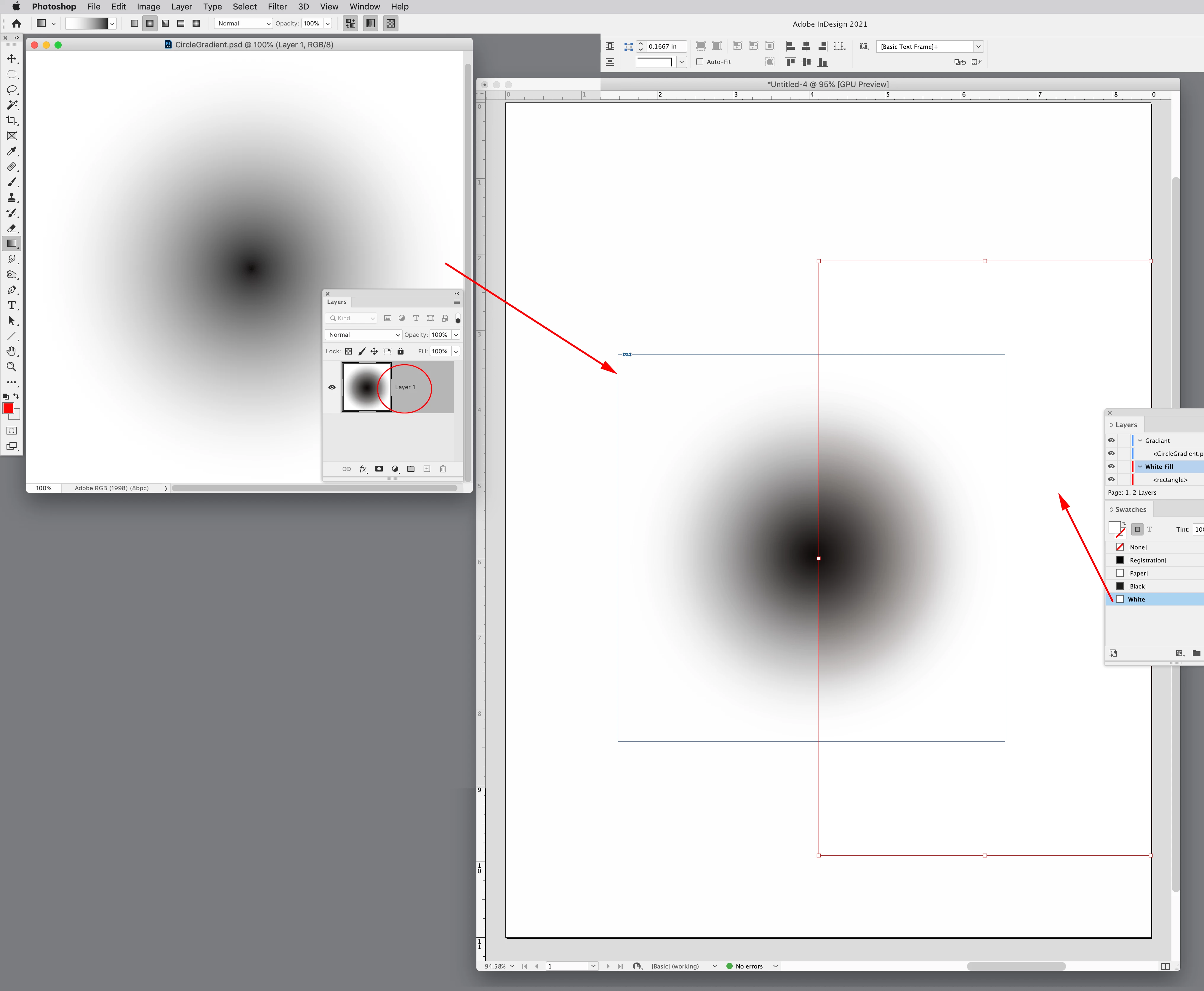
For a book cover, I have created the images in Photoshop but assembled the final thing in InDesign to work with the text more easily. A small part of a scifi character overlaps the book title to add depth, so I need to keep the background graphics and foreground graphics separate so that the title layer can be between them. I didn't think that would be a problem. But the semi-transparent fur of the character, which has highlights to indicate rim light from glowing objects in the background, ends up with dark edges in InDesign (and the resulting PDF), and I can't figure out why or what to do about it.
Originally I was saving a TIFF file from Photoshop, but after I noticed this problem, I placed the Photoshop file (with only the needed layers for this character) directly in InDesign. I even tried merging all the layers first, in case there was something about the darker base layer that was coming through the rim light layer due to the reduced transparency in that area of the image. But even after doing that, it still looks fine in Photoshop (and in TIFF, if I use that method) but not in InDesign or any exports from there. At one point I thought the cause might be that the Photoshop image is 600dpi but the exported PDF reduces the images to 300dpi, but even if I don't downscale in the PDF export, the dark edges are still there. Thoughts? If I should be posting in the Photoshop community instead, for tricks at that stage to prevent this from happening, let me know, but I thought I'd try here, since it's in InDesign where the problem appears.
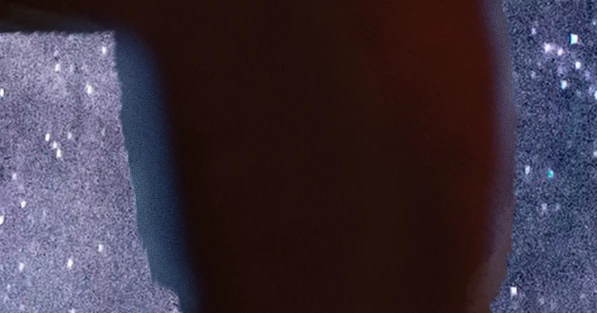
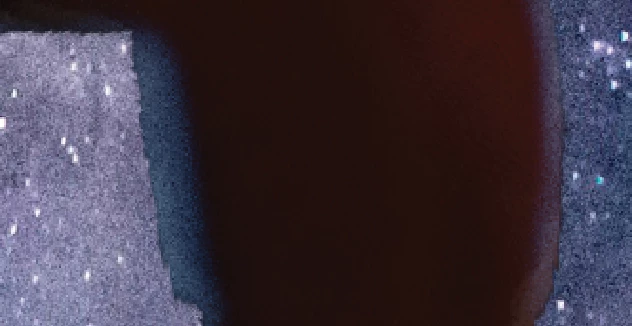
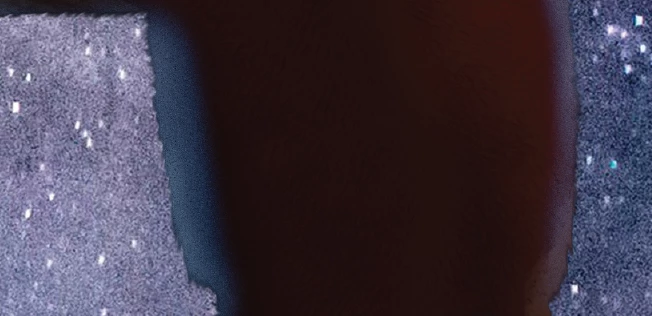
Here are screenshot snippets of the same zoomed-in area (the back of the alien's head, as he stands in a dark room but looks out into space with bright stars and other stuff that cast light on him) in three apps. Look at the left and right sides of the head.
First, in Photoshop:
Next, viewed in InDesign:
And finally, in the resulting PDF viewed by Acrobat Pro:


 AdChoices