
Participant
February 26, 2018
Answered

Transparency Fill Effect Not Working, White Boxes with Bitmap Font

  • February 26, 2018
  • 1 reply
  • 926 views

I can't get Transparency effects to work as they should. When I make the fill of my object even slightly less than 100%, my text disappears.

This concerns my own bitmap font, made using Fontself.

It would be good if my text on Layer 1 could be superimposed directly on my photo on Layer 2.

At the moment my bitmap font has white boxes around all of the characters, which I don't want.

How can I remove these?
    This topic has been closed for replies.
    Correct answer franz_h

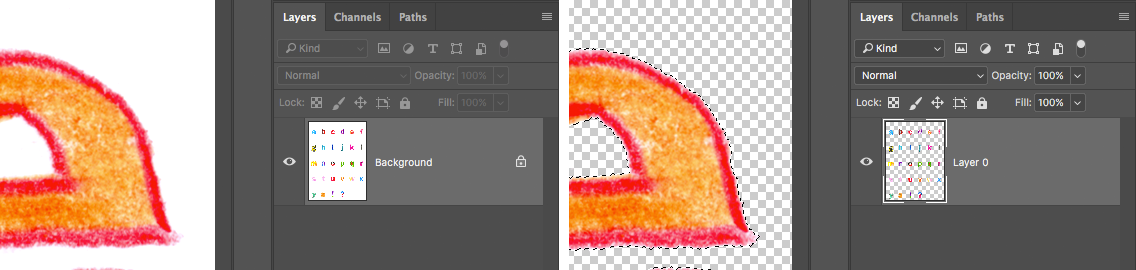
    Hi, it sounds like your letters retained a white background, so you can do 2 things to fix this:

    • Either you remove the white background from your original lettering image and recreate the font from scratch (you can use the Magic Wand or any other tool to delete the white areas - see this tutorial https://help.fontself.com/making-fonts/create-a-color-bitmap-font-step-by-step )
    • Or you could just try assigning a Multiply or Darken mode to your font layer so the white blends with the underlying layer.

    1 reply

    franz_h
    franz_hCorrect answer
    Inspiring
    February 27, 2018

    Hi, it sounds like your letters retained a white background, so you can do 2 things to fix this:

    • Either you remove the white background from your original lettering image and recreate the font from scratch (you can use the Magic Wand or any other tool to delete the white areas - see this tutorial https://help.fontself.com/making-fonts/create-a-color-bitmap-font-step-by-step )
    • Or you could just try assigning a Multiply or Darken mode to your font layer so the white blends with the underlying layer.
    Participant
    March 3, 2018

    DearFranz,

    I’vebeen trying to follow the instructions in the article create-a-color-bitmap-font-step-by-step.

    NowI drew my letters in pencil. When using the third eyedropper and adjusting withthe right-side slider, if I make my image lighter so the unwanted backgroundpixels get fainter, the letters themselves get too faint.

    SoI used the dodge tool to lighten the background instead. I’m wondering if that’sOK or not.

    AfterI used the magic wand tool with a Tolerance of 10 and the Contiguous optionunchecked, and inverted the selection, I pressed Select & Mask in thetoolbar.

    However,this just previewed each letter, and didn’t actually extract it.

    SoI clicked Layer > Layer Mask > Reveal Selection to remove the background.

    Eachof the letters was already on its own layer, ‘a’ was on layer a, ‘b’ on layer band so on, from when I tried to make a font before.

    However,when I select all the layers from a to z and in Fontself click the a-z button, the same as before, it doesn’t work. Fontself gets stuck with creating the glyphs.

    Pleasehelp me with this, as I’m not sure what to try next.

    Bestwishes,

    Tamara

    On Wednesday, 28 February 2018, 01:58:37 GMT, franz_h <forums_noreply@adobe.com> wrote:

    Transparency Fill Effect Not Working, White Boxes with Bitmap Font

    created by franz_h in InDesign - View the full discussion

    Hi, it sounds like your letters retained a white background, so you can do 2 things to fix this:

    - Either you remove the white background from your original lettering image and recreate the font from scratch (you can use the Magic Wand or any other tool to delete the white areas - see this tutorial https://help.fontself.com/making-fonts/create-a-color-bitmap-font-step-by-step ) https://cdn-images-1.medium.com/max/2000/1*Nv7f2BJ_du0C_FHFcdg1KA.png

    - Or you could just try assigning a Multiply or Darken mode to your font layer so the white blends with the underlying layer.

    If the reply above answers your question, please take a moment to mark this answer as correct by visiting: https://forums.adobe.com/message/10209183#10209183 and clicking ‘Correct’ below the answer

    Replies to this message go to everyone subscribed to this thread, not directly to the person who posted the message. To post a reply, either reply to this email or visit the message page:

    Please note that the Adobe Forums do not accept email attachments. If you want to embed an image in your message please visit the thread in the forum and click the camera icon: https://forums.adobe.com/message/10209183#10209183

    To unsubscribe from this thread, please visit the message page at , click "Following" at the top right, & "Stop Following"

    Start a new discussion in InDesign by email or at Adobe Community

    For more information about maintaining your forum email notifications please go to https://forums.adobe.com/thread/1516624.

    This email was sent by Adobe Community because you are a registered user.

    You may unsubscribe instantly from Adobe Community, or adjust email frequency in your email preferences