Answered
Type on a Path measurements
Is it possible to measure the distance between the end of the letters and the end of the line on type on a path?

Is it possible to measure the distance between the end of the letters and the end of the line on type on a path?
Hi
Initial note: Optical margin might be an issue if you want great precision.
CASE 1
Text aligned to left. No tab. Check left indent
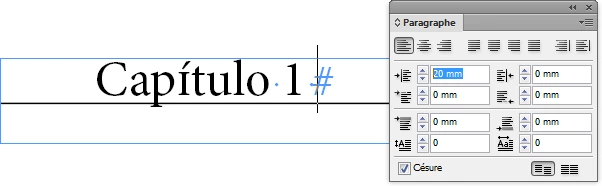
CASE 2
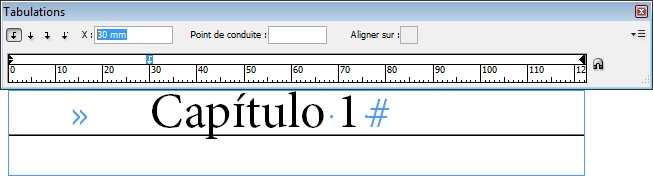
Text aligned to left. No left indent but tab inserted. Check tab panel.
Click on the tab mark and check X position.
(If there’s no tab mark, default value is 12,7 mm [0.5”])
CASE 3
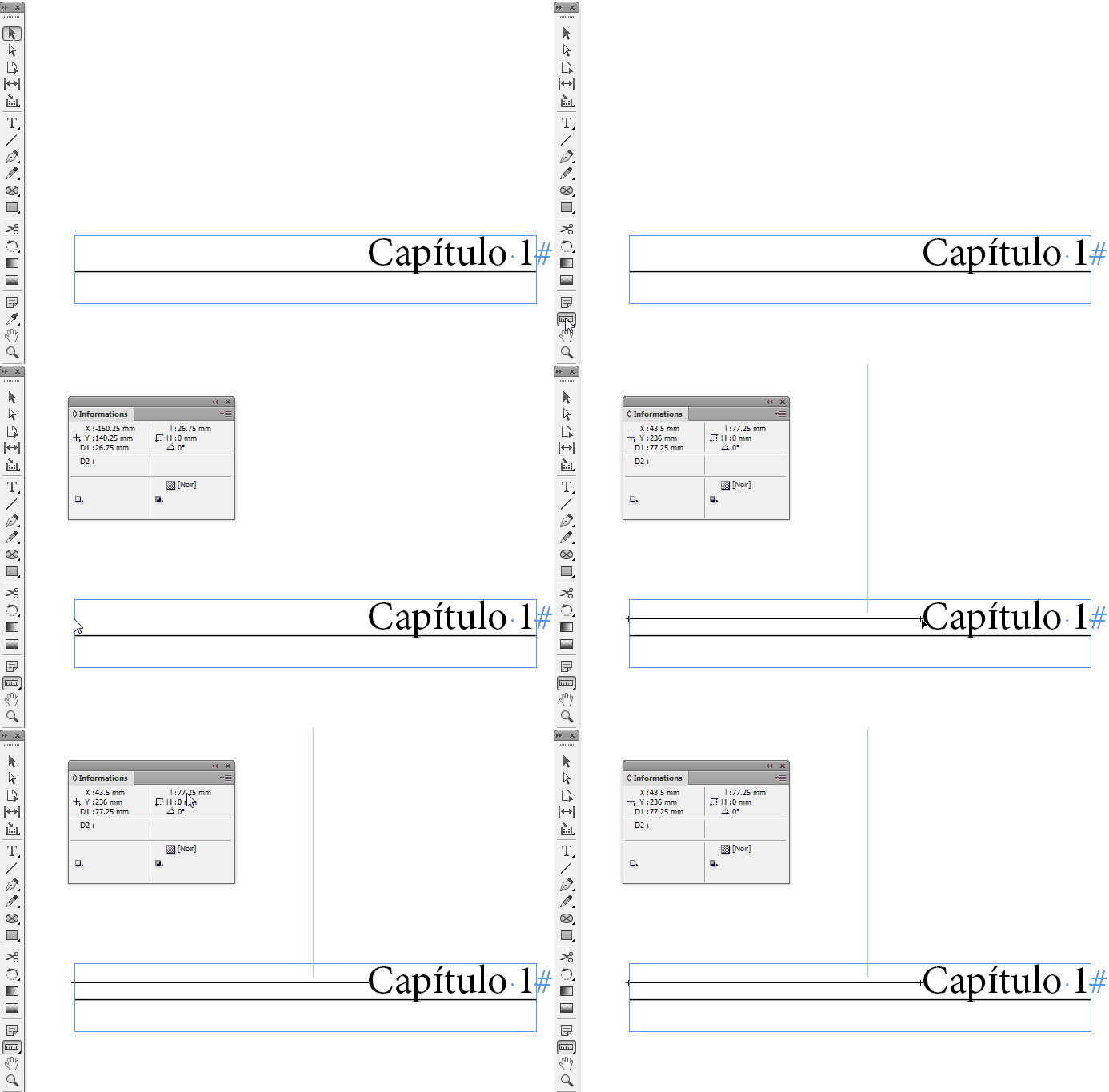
Text aligned to right (or right tab inserted).
In the tool panel, select Measurement tool (long click on Eyedropper tool to access it).
Double click the Measurement icon (or Window > Info) to open the info panel. Click and Maj+Drag to measure distance. See Info panel:
Already have an account? Login
Enter your E-mail address. We'll send you an e-mail with instructions to reset your password.
 AdChoices