
ashimg23377171
Inspiring
May 27, 2020
Question

unable to apply 'Fill' option in 'Table Styles'

  • May 27, 2020
  • 8 replies
  • 2126 views

Hello


I have created a table style. Now in this table i want some of the rows to have a fill and some to have no fill. So i thought of using the Fill option under 'Table Styles.'


But i find that when i am using this option, the table does not yield any results. Screenprint below:
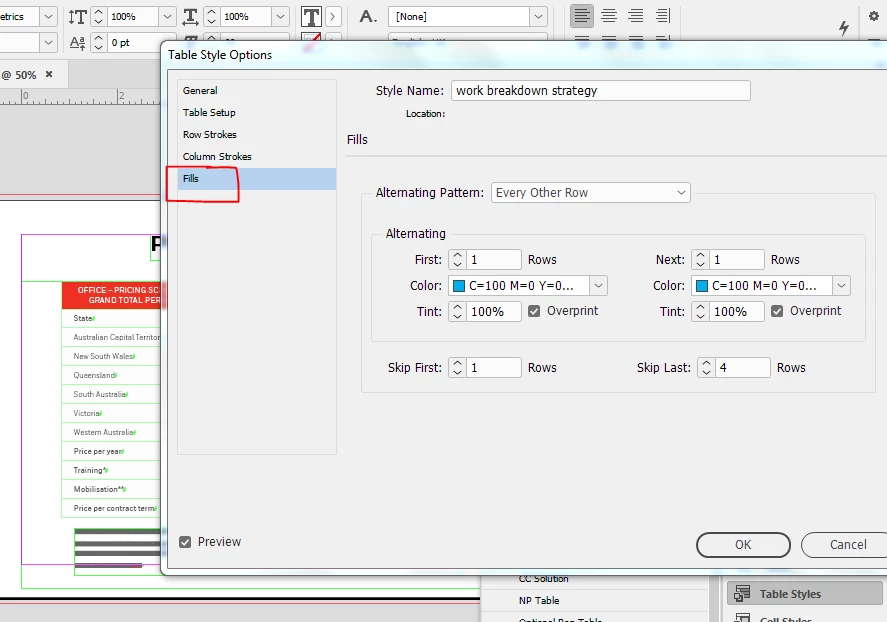


Please let me know where i am going wrong here.

Thank you.

This topic has been closed for replies.

8 replies

Community Expert
July 10, 2020

No. I used the menu command from the Table Styles panel.

The whole table was selected at that moment.


Regards,
Uwe Laubender

( ACP )


ashimg23377171
Inspiring
July 15, 2020

Hi Uwe

I followed the instructions and it worked. the table fills were showing.

However, as soon as a i applied the original cell styles by selecting all the cells in the table, i again lost the table fill. What could i be missing here.

Thanks for your time.

brian_p_dts
Community Expert
Community Expert
July 15, 2020

Change the Fill on your 'lifecycle - body cell' Cell Style from None to Ignore (at the bottom of the list). I did this on the raw test file you sent and the alternates showed up. None was wiping out the Table Style format. 


Likes

 
Community Expert
July 10, 2020

Hi Ashim,

did some additional tests with the problem table. Some results:


[1] Did a duplicate of the applied table style.

[2] Applied that duplicated style to the table.


[3] Removed the applied table style and substituted it with the [No Table Style] style.

Removed all overrides of the table style.


[4] Set all cell styles to cell style [None]

Removed all overrides of the cell style.


[5] Applied the original table style again.


Alternate fills are showing up.

Applied the right cell styles on the selected header row.

Applied the right cell styles to the selected body rows.


Result:


FWIW: I tried to apply the right cell styles through the table style.

This did not work. The formatting of the cells did not change.

I had to apply the cell styles by selecting the cells.


Regards,
Uwe Laubender

( ACP )

ashimg23377171
Inspiring
July 10, 2020

Hi Uwe


When you say "Removed all overrides of the table style." do you mean by running the script?


Community Expert
July 10, 2020

Hi Ashim,

after writing this I will unmark my reply from above as Correct Answer.

Why? Because Gregor's script is not working on your sample table.


I try to find a different solution, but I think with this specific table it cannot be done with all the means available in the user interface of InDesign. Perhaps another script will solve the issue, but I cannot promise anything.


Regards,
Uwe Laubender

( ACP )

Community Expert
June 30, 2020

Hi Ashim,

if someone wants to solve this riddle you have to make the table available for inspecting.

Not the whole document, just one page with the table.

Best use Dropbox or a similar service and post the download link for the document here.


Thanks,
Uwe Laubender

( ACP )

ashimg23377171
Inspiring
July 2, 2020

Sure Uwe.


Please find below the link to the file.

https://easyupload.io/r463qh


filename - test.indd


Thank you for your time and help.

ashimg23377171
Inspiring
July 10, 2020

Hi Uwe

I was wondering if you had a chance to look at the file that i uploaded.

Thanks and regards

Community Expert
June 18, 2020

Regarding your other problem, the one with your table:


Please show the table before you are running the script by Gregor Fellenz.

Also show the settings you do in the script's UI.

Plus: Show the table after you ran the script.


Thanks,
Uwe Laubender

( ACP )

ashimg23377171
Inspiring
June 19, 2020

Sure Uwe.

Please find below the details.

The table before running the script. There are no cell fill styles:

The table fill style that i am trying, but which is not taking effect:

The table after running the script:


ashimg23377171
Inspiring
June 30, 2020

Hi Uwe

I was wondering if you could weigh in on why i am unabel to apply the fill option in table styles. I have attached the screenprints as you had requested.

Regards

Community Expert
June 18, 2020

Hi Ashim,

if you see "ss" in text variable instances, Current Page markers, footnote number instances you updated to InDesign 15.1.0.25 and you are using one of the two paragraph composers:

Adobe World-Ready Single-line Composer
Adobe World-Ready Composer


This is a known bug.


Currently the only known workaround is to use one of the following paragraph composers:


Adobe Single-line Composer
Adobe Paragraph Composer


Adobe Japanese Single-line Composer
Adobe Japanese Paragraph Compose


If you do text composition with Hebrew or Arabic then this is no option at all.

In that case revert back to InDesign 15.0.3 until the issue is fixed.


Vote for fixing the bug here or vote that you get a notification when a fix is out:

ID 2020 15.1 - All text variables (including page numbers) replaced by "ss" text

https://indesign.uservoice.com/forums/601180/suggestions/40675342


Regards,
Uwe Laubender

( ACP )

ashimg23377171
Inspiring
June 18, 2020

Thank Uwe. i rolled back to 15.0.3.

Also, can you please weigh in on why i am not able to use the table fill option even after executing the override script.

Thanks

Community Expert
May 28, 2020

Hi Ashim,

then I guess that some style overrides are in place.

After you removed the overrides all should work as expected with alternate rows.


If you are on InDesign 2020 version 15.0.3 you could use a script in the new Community section of your Scripts panel to get rid of the overrides in your table: ClearStyleOverrides.jsx by Gregor Fellenz.


When not on 15.0.3 the script ClearStyleOverrides.jsx is available at the link below with a detailed description how to use it:

https://github.com/grefel/clearOverrides


Regards,
Uwe Laubender

( ACP )

ashimg23377171
Inspiring
June 18, 2020

Hi Uwe

I updated to the latest version, but it still does not work, i am afraid. Also my page numbers are now all messed up - all i see is "ss"


Community Expert
May 27, 2020

Hi Ashim,

from your screenshot I can see no difference in fill color for First and Next Rows.

So every row will get that C=100 M=0 Y=0 K=0 fill color.


From my German InDesign where I defined:

Alternate

First: 1 Rows to Yellow

Next: 1 Rows to None:


Note:

Skip First: 1 Rows

Skip Last: 4 Rows

as well.


Hope your table has enough body rows so that all the settings can go into effect.


Regards,
Uwe Laubender

( ACP )

Scott Falkner
Community Expert
Community Expert
May 27, 2020

Also note that if you're using Cell Styles the cell fills will override the table fills.