Participant
January 5, 2019
Answered

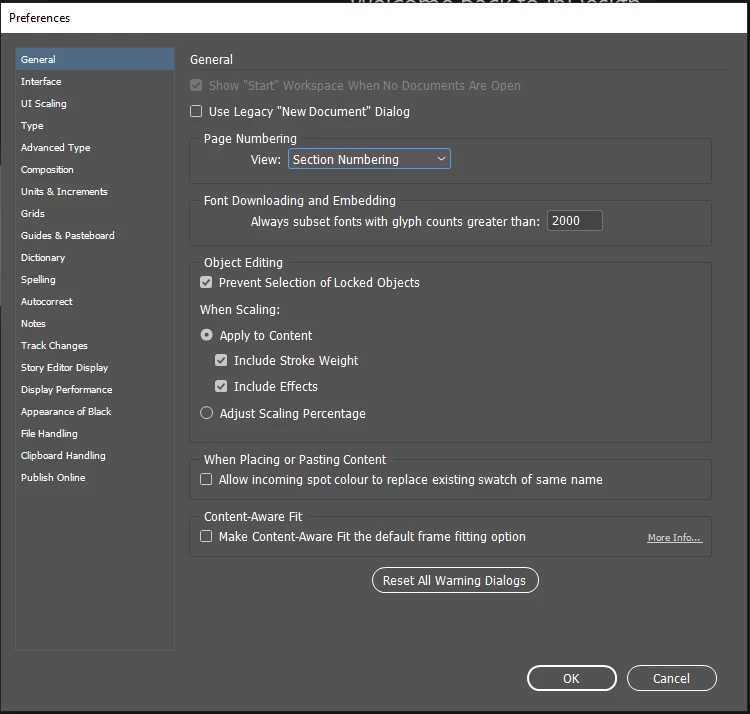
Unable to uncheck "Start" workspace in InDesign CC 2019

  • January 5, 2019
  • 6 replies
  • 7700 views

Hi! I can't disable the "start" workspace in InDesign CC 2019. It's greyed out. What should I do?

Correct answer davidhmorgan

None of the above worked for me so I wrote this AppleScript:

tell application "Adobe InDesign 2020"

set show whats new on startup of general preferences to false

set show start workspace of general preferences to false

set GG to properties of general preferences

end tell

6 replies

davidhmorganCorrect answer
Inspiring
August 6, 2020

None of the above worked for me so I wrote this AppleScript:

tell application "Adobe InDesign 2020"

set show whats new on startup of general preferences to false

set show start workspace of general preferences to false

set GG to properties of general preferences

end tell

Known Participant
May 12, 2021

Perfect

Zen Agency
Participant
October 23, 2019

You don't need to reset your preferences.


You know when you have document open, there's the workspace switcher in the top right hand corner? Just change your workspace to something other than 'start'. It should then bring back the greyed out option in preferences. 


Worked for me anyway.

alirezaa89377132
Participant
February 21, 2020

It worked. Thank you so much! 🙂

Community Expert
February 11, 2019

Are you running InDesign CC 2019 in trial mode?

If yes, I fear you can do nothing about this.

Regards,
Uwe

Participant
January 6, 2019

I tried both methods, but none of them worked. Maybe I should accept the "start" screen.

Bill Silbert
Community Expert
Community Expert
January 6, 2019

If resetting preferences doesn't work try deleting your InDesign cache files. This can be helpful for problems within the interface. To do so:

For Macintosh Users: The User Library folder in which InDesign’s cache files are stored is hidden by default on most Macintoshes. To access it make sure that InDesign is closed and click on the desktop to launch a Finder Window (Command-N).With this window in column view follow the path User>Home folder (it’s the folder with an icon that looks like a house—it may have the user’s name rather than “Home”) and click on the Home folder. With the Option Key pressed choose Library from the Finder Go Menu. “Library” will now appear within the Home folder. Within the Library folder find the “Caches” folder. Within the Caches folder find and delete the entire folder “Adobe InDesign”. I find that deleting the InDesign cache folder completely leads to a lasting change. 

For Windows Users: On Windows 7 and above the caches files are hidden. To find them go to the Control Panel and open Folder Options and then click the View tab. Then select “Show hidden files and folders” or “Show hidden files, folders or drive options” in Advanced Settings. Then delete (or rename) the folder at the end of this path: C:\Users\[User Name]\AppData\Local\Adobe\InDesign\Version [#]\<Language>\Cache.

Participant
February 5, 2019

no one method does not solve the problem

Steve Werner
Community Expert
Community Expert
January 5, 2019

Restore your preferences as described here:

Set preferences in Adobe InDesign