dzgnr89
Inspiring
May 6, 2020
Answered

Unwanted microthin white lines along the edges of the colour fills in imported illustrator files
  • May 6, 2020
  • 10 replies
  • 28365 views

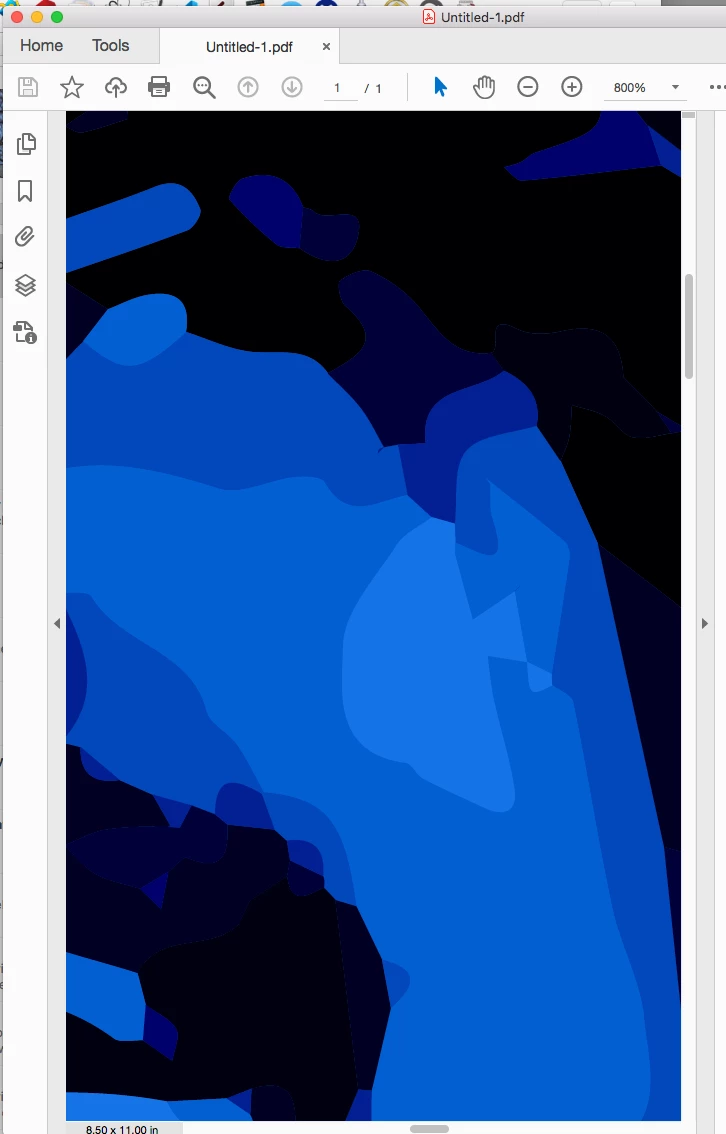
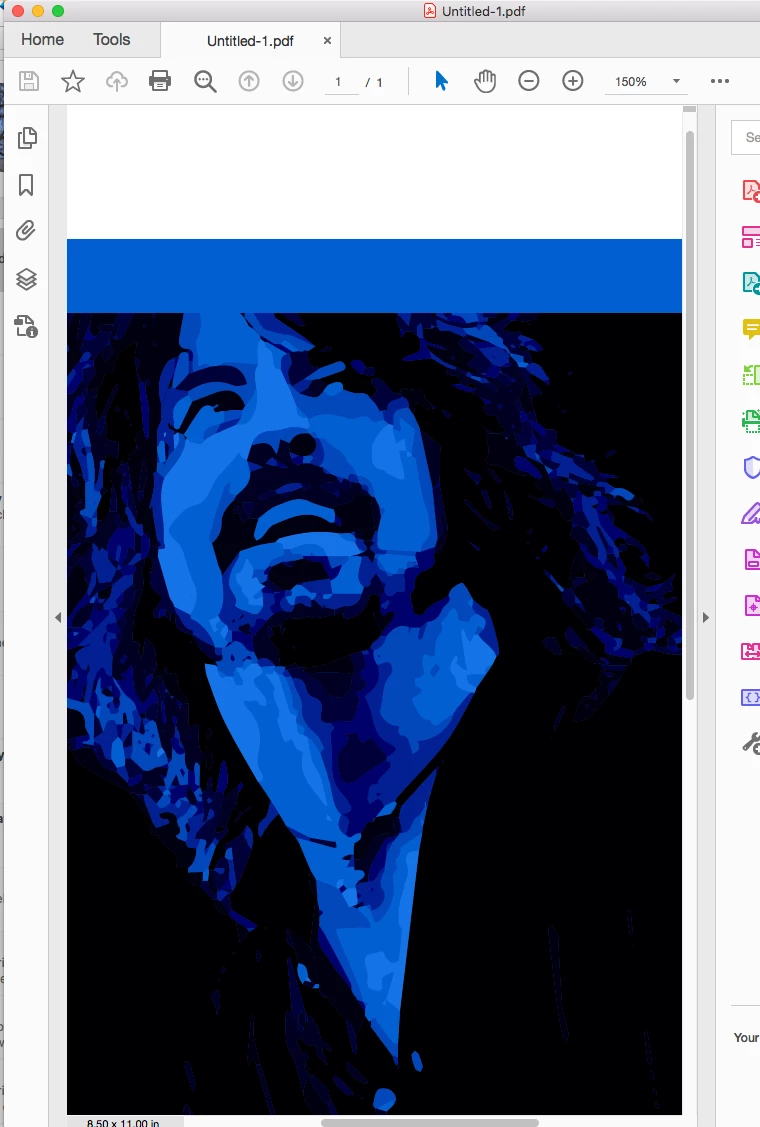
I'm getting these unwanted microthin white lines along the edges of the colour fills in my imported illustrator file in Indesign CC 2020. When I export is as a jpeg, these white lines don't show up, resulting in a perfect output. What should I do to fix this trouble?


I think it's a display tweak in InDesign that would surely help me out.
This topic has been closed for replies.
Correct answer rob day

Also, if I put a rectangle filled with blue behind the art, the anti-aliasing display artifacts go away:


10 replies

Participant
December 20, 2022

My suggestion is to use just the print command, you find this option file tab and scroll all the way the bottom, it will remove those danglling type of borderline around the objects when you export it to pdf.

Participant
November 24, 2020

I think I know the problem, I had the same issue for a while and it is a very easy fix: 


Quick answer: (see image below)

Select your artboard > under the properties tab make sure your transform is an integer (ex. instead of 92.3 use 92), just make sure there are no decimals. DONE!


Long Answer:

If I'm right, each artboard in your document has a specific location in the form of transform coordinates- if the location is not an integer (see image below) Illustrator will automatically round it off on export resulting in a thin white line (The line is the 1 added pixel it substitutes in on any given edge). All you need to do is make sure the artboard transform is an integer- in the example below that would be replacing the "X" transform from 926.93 with 926.


Hopefully this solves your problem, I found this fix on youtube a while back and it has always solved the curse of the white line.


Participant
December 22, 2020

Amazing! Thank you so much! I was trying to export a seamless horizontal pattern as a png and several solid stripes that spanned the complete width of the artboard with their x positions at 0 would export with a transparent pixel to the left of all of the stripes even when exporting as a png with art optimized anti-aliasing on. Turning off anti-aliasing would fix the problem but ruin all of the vector artwork. 

The problem turned out to be the artboard which was resized at some point and caused it's x&y position to be fractions instead of whole numbers. Luckily, with all my layers unlocked, I chose the upper-left corner for the artboard's transform origin position and reset it's x & y positions to 0 and illustrator automatically moves the artboard with all of the unlocked content to it's new position. After this artboard fix, no more invisible artifacts!!

rob day
Community Expert
rob dayCommunity ExpertCorrect answer
Community Expert
May 8, 2020

Also, if I put a rectangle filled with blue behind the art, the anti-aliasing display artifacts go away:


dzgnr89
dzgnr89Author
Inspiring
May 9, 2020

You placed a rectangle in InDesign or Illustrator?

rob day
Community Expert
Community Expert
May 9, 2020

It would work in either app.


I don’t think this is an OS version issue. It really is identical to transparency flattener stitching that happens with PDF/X-1a exports. You are not using transparency, but you are drawing shapes with aligned borders, and the vector shapes have to get converted into pixels in order to be displayed—so the anti-aliasing of the shape edges comes and goes depending on the magnification and pixel positions relative to your display’s pixel grid.


As long as the output is to high res print, where there is no anti-aliasing when the page is RIP’d, the lines would not print. When the output is a low res display or low res composite print it will be a problem.

rob day
Community Expert
Community Expert
May 8, 2020

When I export is as a jpeg, these white lines don't show up, resulting in a perfect output.


The Anti-Aliasing choice with a JPEG export does have an affect:


Type Optimized Hinting:


Off

rob day
Community Expert
Community Expert
May 8, 2020

The drawing is made with shapes that share borders as opposed to shapes stacking on top of each other, so the thin lines are a display artifact (assuming the shape edges are perfectly aligned). It doesn’t have anything to do with transparency flattening artifacts, but it is a similar issue, where the vector art preview has to get resampled to fit the screen, and the anti-aliasing or aliasing would affect the preview.


If the output is to a high resolution device like a platemaker there would be no anti-aliasing and the lines wouldn’t show—the problem only happens with "low res" devices like an anti-aliased screen display.


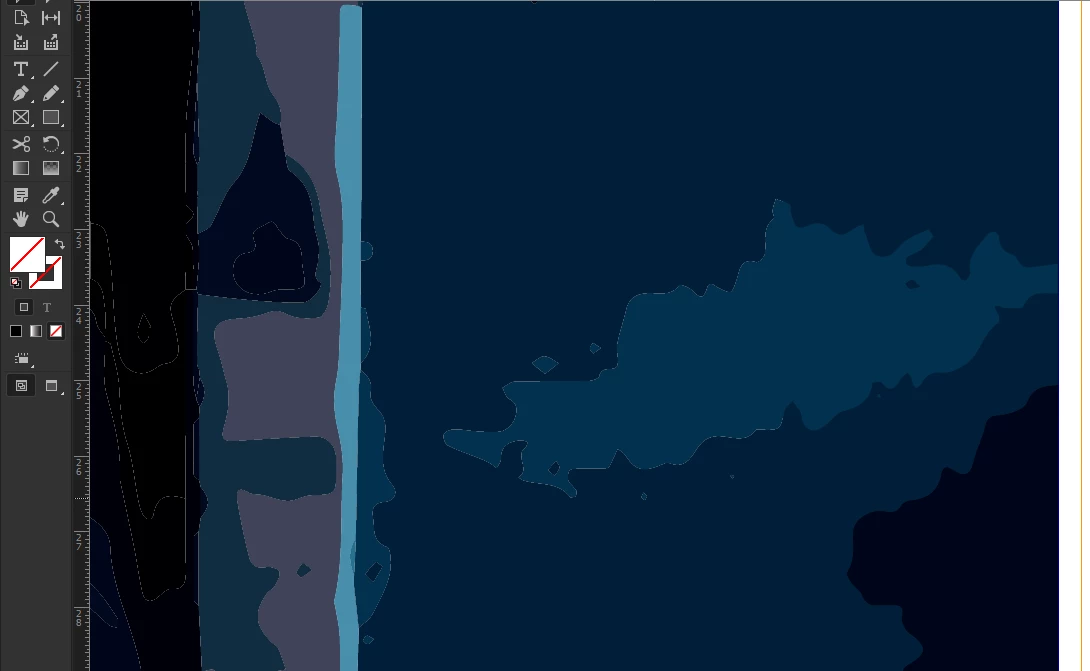
I can see the artifacts in Illustrator without placing in ID and exporting a PDF. Here I have captured the 200% view and applied a slight sharpening, so it is easier to see here:


You can see that the artwork shapes knockout rather than stack:


If I skip InDesign and export directly from Illustrator to PDF, the display edge anti-aliasing is still visible, and the Page Display settings has some affect:


Turning off anti-aliasing improves the edge line a bit:


dzgnr89
dzgnr89Author
Inspiring
May 9, 2020

This is driving me crazy now. I'm on a windows 10 machine and on 6400% zoom in Adobe Acrobat in the pdf directly exported from Illustrator, I don't get any lines. 6400% is the max. zoom limit. 


Moreover, in Illustrator, 200% zoom, 400% zoom, both are clean. Super clean. No artefacts visible. There's definitely some issue with how Adobe makes their products for Mac and Windows. 


rayek.elfin
Legend
May 6, 2020

Isn't this just a display artefact? I know that in Acrobat (Preferences under Page Display, deselect the option "Smooth Line Art") there's a setting to fix this, but I am unsure about InDesign.


Can you save to a PDF, then open in Acrobat and activate that setting?

dzgnr89
dzgnr89Author
Inspiring
May 7, 2020


I cannot find the option of "Smooth Line Art". I toggled with enhance thin lines which didn't make any difference to the output. 

I am using the latest version of Acrobat .


The pdf display setting is not the issue, otherwise the file would have showed up fine in chrome, nitro pdf, etc. It is still showing with white lines which means that the pdf itself has corruption of lines which disappears in jpeg outputs from InDesign. 


rob day
Community Expert
Community Expert
May 6, 2020

Can you share the .AI file?

dzgnr89
dzgnr89Author
Inspiring
May 7, 2020

Sure. 


You can download the file from here. 


https://www73.zippyshare.com/v/K7CZvGXS/file.html

rob day
Community Expert
Community Expert
May 7, 2020

The link wants me to install a plugin.


Can you share via your CC acount? If you put it in your Creative Cloud Files folder and right click, you should get a Share Link option, or you can go to your Creative Cloud web page and get the link there.

BobLevine
Community Expert
Community Expert
May 6, 2020

What were the PDF settings in the Illustrator file? Make sure it's saved with PDF-X/4.

dzgnr89
dzgnr89Author
Inspiring
May 6, 2020

I didn't do any settings in the illustrator file. I imported the direct .ai file. 

Community Expert
May 6, 2020

There could be duplicated shapes that are stacked on top of each other in the art file. Open graphic in Illustrator, and with the direct selection tool select a shape and move or delete, and see if there is an underlying shape.

dzgnr89
dzgnr89Author
Inspiring
May 6, 2020

There are no duplicate shapes stacked over one another. I checked. If that was the case, then the exports would also come with white lines. Exports are coming fine. 

Jeff Witchel, ACI
Community Expert
Community Expert
May 6, 2020

These lines are probably not there. They're not showing up in exported file. Have you tried exporting as a PDF just to see if the lines show up? I doubt they will.


Are you viewing your screen using high performance (View > Display Performance > High Quality Display)? Have you tried unchecking GPU Performance in Preferences?

dzgnr89
dzgnr89Author
Inspiring
May 6, 2020

Lines are showing in pdf. This is surprising. I opened pdf in chrome, adobe acrobat and nitro pdf reader. Everywhere white lines show up! On the other hand the jpeg exports are absolutely fine! Seems like a bug in Indesign? Many people have been facing this trouble for years. I tried the old trick of flattening my work in Illustrator but I still get white lines. 


The display performance is of course high quality. GPU performance setting isn't available in InDesign. 


Checking upon nvidia button in the windows 10 taskbar tray in bottom right, InDesign isn't using GPU acceleration. 


Participating Frequently
November 7, 2023

I am experiencing the same issues in 2023 and had these lines appear on my finished printed products. It is pretty frustrating. How come this has not been fixed yet?