
Participant
August 9, 2017
Answered

Unwanted Text Opacity

  • August 9, 2017
  • 3 replies
  • 4369 views

Hello friends,

So, MacBook Air, Indesign CC 2017 user.

Here is my issue:

Full bleed illustration pages, on which I am placing text boxes. I like the feature of having some opacity on the text box, like 80%, so you can still see the hint of the illustration behind the text box. The problem is, when I set my opacity to 80%, it is also fading my text (black, 100%), too. I have found a workaround, but I'm not crazy about it -- switching the faded black text to "registration", but I'm not a fan of registration because I think it's "too" black. Any ideas?

Cheers,
Jeff Talanian
    This topic has been closed for replies.
    Correct answer winterm

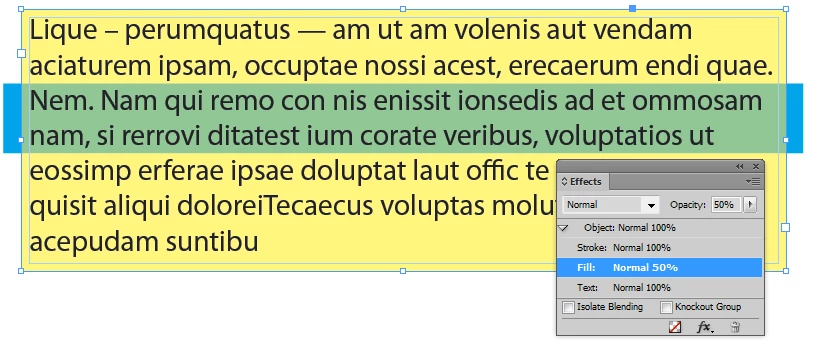
    Adjust Fill opacity only, not the whole Object (Text frame in your case)

    And please don't use registration for text, ever.

    3 replies

    Randy Hagan
    Community Expert
    Community Expert
    August 9, 2017

    Don't use the registration color if you plan to print it, because a four-color rich black will be way too "black" — and cyan, and magenta and yellow too.

    I suspect your problem may be tied to setting a text frame to 80% opacity, which shouldn't affect the text inside the box too.

    First, highlight the text and go to your color panel. With the text highlighted, you should see that the letter "T" in the panel is highlighted.

    Then check the opacity. If you changed it with the Selection tool, you may see it went to 80% too. If that's the case, dial it back to 100% and see if you like it better.

    Another way to do this is to use two frames: one that provides your 80% opacity effect over the underlying elements, then a second with a fill of None to contain your text.

    Good Luck,

    Randy

    Participant
    August 9, 2017

    Randy,

    Check winterm's answer, above. It is the best solution, IMO. In my case, as winterm suspected, the entire object was set at 80% opacity, when in fact it should have simply been the "fill".

    All,

    My situation is resolved, but in closing I will agree that registration is horrible and should be sent to live on an island, but it doesn't have to live alone. We can send Comic Sans MS to keep it company.

    Cheers,
    Jeff T.

    Randy Hagan
    Community Expert
    Community Expert
    August 9, 2017

    I'm glad that you got an answer that worked for you. We all could offer essentially the same solution because it's a problem that a lot of us have run across.

    When I started writing my reply, you had no answers to your question, and by the time I had finished and posted my response, I was the fourth one. That happens. Everybody here wants to help.

    The reason I knew what had happened to you was that I've made the same mistake before. One of the good things about working with text frames using the selection tool is that we can quickly apply global effects to change type attributes. But sometimes, as you discovered, that can work to your detriment. As both I and winterm said, you can correct that by using the text tool to change text attributes ... including opacity.

    BobLevine
    Community Expert
    Community Expert
    August 9, 2017
    winterm
    wintermCorrect answer
    Legend
    August 9, 2017

    Adjust Fill opacity only, not the whole Object (Text frame in your case)

    And please don't use registration for text, ever.

    Participant
    August 9, 2017

    Thank you very kindly, fellows. That's the trick. I've been using this software for years, and there are still little tricks that escape me! I won't forget this one. Many thanks!

    Jeff T.