
dzgnr89
Inspiring
December 22, 2019
Question

Using multiple rows and just one column for page layout?

  • December 22, 2019
  • 5 replies
  • 2968 views

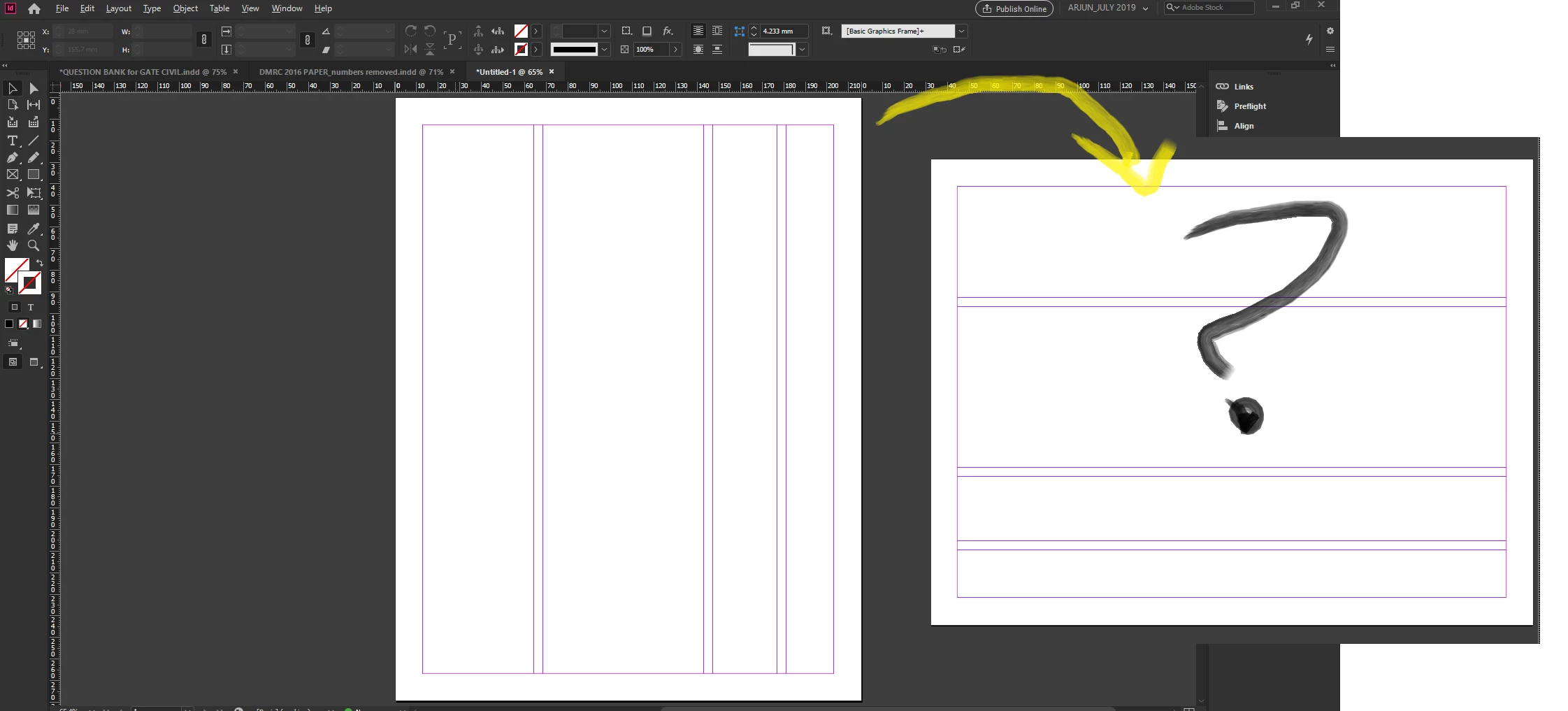
Indesign currently only offers the setting of multiple columns for the layout. How can I add multiple row margins to my pages?


I know how to create guides, however, I want to use multiple margins as seen in the screenshot. 


This topic has been closed for replies.

5 replies

Dave Creamer of IDEAS
Community Expert
Community Expert
December 22, 2019

After creating the grid lines for the rows, you can place text frames on a master page (linked or unlinked). Add in the number of pages you wnat in the document, select all the pages in the Pages panel, go to the panel's menu, and select override all master page items. (If you have actual master items you do not want overridden, put them on a separate layer and lock that layer.)

If you want the different option for other languages, check to see if that language version is available in the Creative Cloud app (install other versions).

David Creamer: Community Expert (ACI and ACE 1995-2023)
maxwithdax
Community Expert
Community Expert
December 26, 2019

Seems like making a Master Page with the frames in the correct places as previously explained would be the best approach.

Also, you could set some failsafe backup "Object styles" with positioning set to ensure that if they got moved somehow, that you could just apply an object style to them to put them back into their appropriate position.


Let us know what direction you went and how it worked out.


Dax

Scott Citron
Legend
December 22, 2019

What do you mean by "multiple row margins"? Multiple rows? Follow the instructions provided by Nigel French.

Steve Werner
Community Expert
Community Expert
December 22, 2019

Since you haven't told us what it is you're laying out, you might also consider creating your layout doing the Tables feature which lets you control rows and columns and text can flow with a table cell.

Community Expert
December 22, 2019

Choose Layout>Create Guides. Add the required number of rows fitted to either the margins or the page. So long as guides are unlocked (View>Grids & Guides) you can move the guides to wherever you want them.

BobLevine
Community Expert
Community Expert
December 22, 2019

You don't.

What you can do is rotate the view of the page but without knowing exactly what you're tying to accomplish, it's hard to offer much else in the way of advice.