Participant
June 2, 2020
Answered

Vertical Text not Appearing via Publish Online

  • June 2, 2020
  • 2 replies
  • 788 views

I recently published using Publish Online. The one page with vertical text does not show the vertical text in the full view, but does show it in the thumbnails (see attached screenshot). I tried a couple times to Publish Online in pdf format, then tried png. Same problems both times. If I export the document to a pdf, it works fine and the vertical text appears correctly. Any ideas? Thanks in advance.

This topic has been closed for replies.
Correct answer Laubender

Hi Greg,

so because text on a path is not working, you have two options:


[1] Do every character in its own frame.


[ 2.1 ] Do rotated text by using the Japanese paragraph composer.

[ 2.2 ] Then rotate the text frame.

I assume that you are not using the Japanese version of InDesign so the Japanese paragraph composer is not directly available through the GUI. But you can apply it to selected text by scripting.


Just did it here to the special character auto page number:

https://community.adobe.com/t5/indesign/make-page-numbers-appear-in-column/m-p/11168048#M188186


The code is below.

Just select all the text you want to rotate by 90° and run the following ExtendScript code on your selection:


// Text selected.
app.selection[0].properties =
{
	characterRotation : 90 ,
	composer : "$ID/HL Single J"
};


After I selected all the text in the frame and running the script the result is this:

( Note: Also set tracking to value -100 )
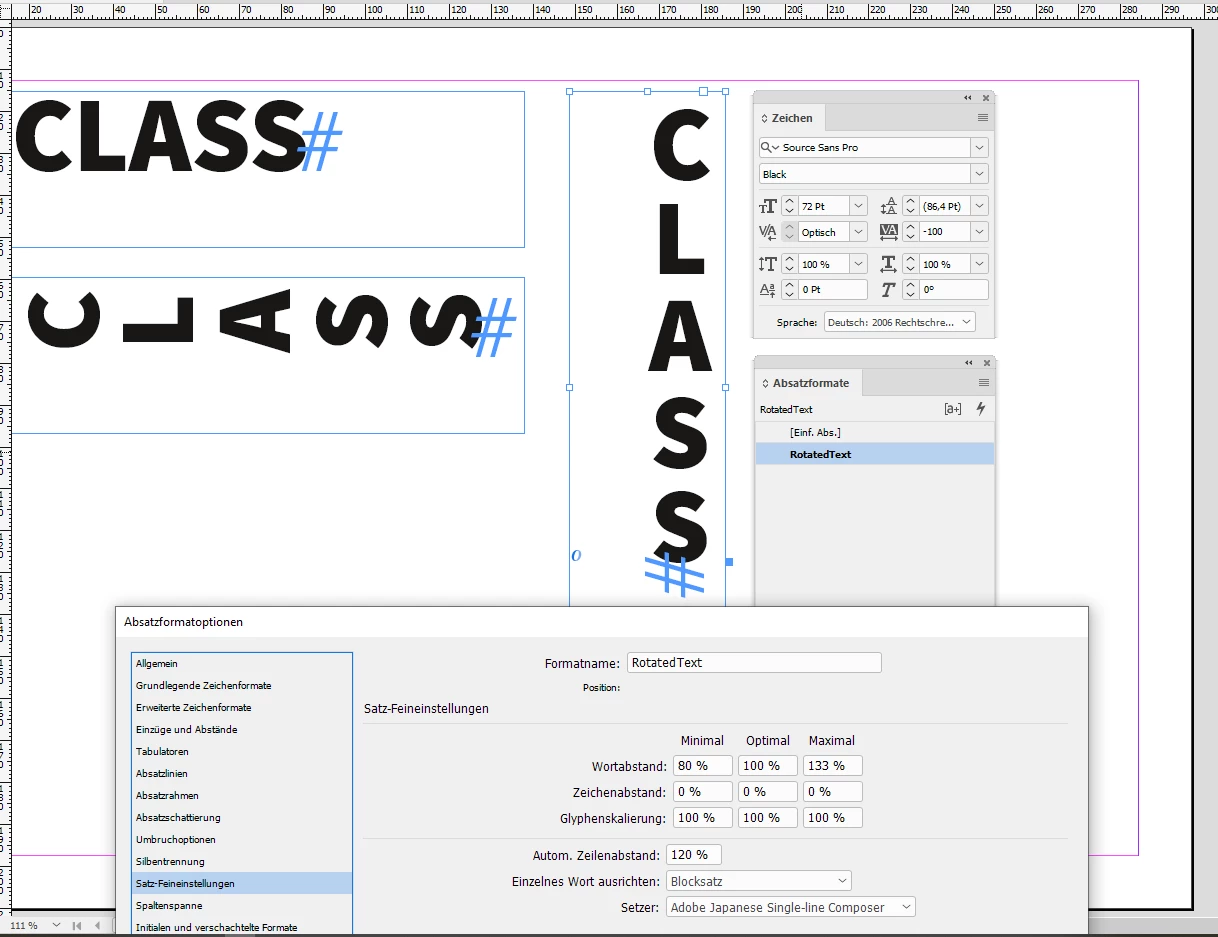


The result can be published online without a flaw:

https://indd.adobe.com/view/c61fe0a3-5981-4ff8-911f-78ca7c4a4a42


By applying baseline shift you could fine-tune the position of single characters like the starting "C" of "CLASS":

( Original position in gray. Did baseline shift with -3 Pt on the 72 Pt "C". )
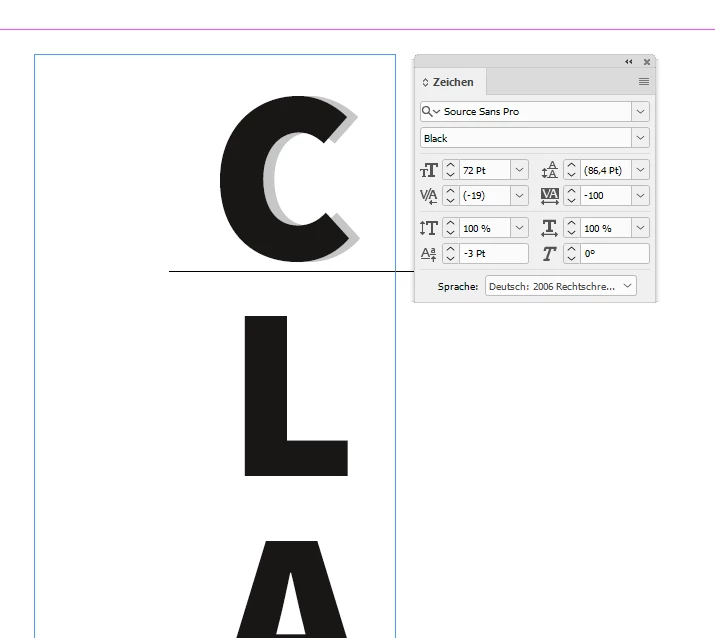


How to work with ExtendScript code, save a script file, install and use it, see Marc Autret:

http://www.indiscripts.com/pages/help#hd0sb2


Regards,
Uwe Laubender

( ACP )

2 replies

LaubenderCommunity ExpertCorrect answer
Community Expert
June 5, 2020

Hi Greg,

so because text on a path is not working, you have two options:


[1] Do every character in its own frame.


[ 2.1 ] Do rotated text by using the Japanese paragraph composer.

[ 2.2 ] Then rotate the text frame.

I assume that you are not using the Japanese version of InDesign so the Japanese paragraph composer is not directly available through the GUI. But you can apply it to selected text by scripting.


Just did it here to the special character auto page number:

https://community.adobe.com/t5/indesign/make-page-numbers-appear-in-column/m-p/11168048#M188186


The code is below.

Just select all the text you want to rotate by 90° and run the following ExtendScript code on your selection:


// Text selected.
app.selection[0].properties =
{
	characterRotation : 90 ,
	composer : "$ID/HL Single J"
};


After I selected all the text in the frame and running the script the result is this:

( Note: Also set tracking to value -100 )


The result can be published online without a flaw:

https://indd.adobe.com/view/c61fe0a3-5981-4ff8-911f-78ca7c4a4a42


By applying baseline shift you could fine-tune the position of single characters like the starting "C" of "CLASS":

( Original position in gray. Did baseline shift with -3 Pt on the 72 Pt "C". )


How to work with ExtendScript code, save a script file, install and use it, see Marc Autret:

http://www.indiscripts.com/pages/help#hd0sb2


Regards,
Uwe Laubender

( ACP )

Community Expert
June 2, 2020

Hi Greg,

how exactly did you do the vertical text?

What's your exact version of InDesign?


Regards,
Uwe Laubender

( ACP )

Participant
June 2, 2020
Thanks for asking.

I used the Type Along A Path tool.

I have version 15.0.3 x64

Greg

--
Greg Rhodes
360-506-8112