
Known Participant
August 28, 2020
Answered

View in RGB mode

  • August 28, 2020
  • 2 replies
  • 24390 views

Hello fellow InDesigners 🙂

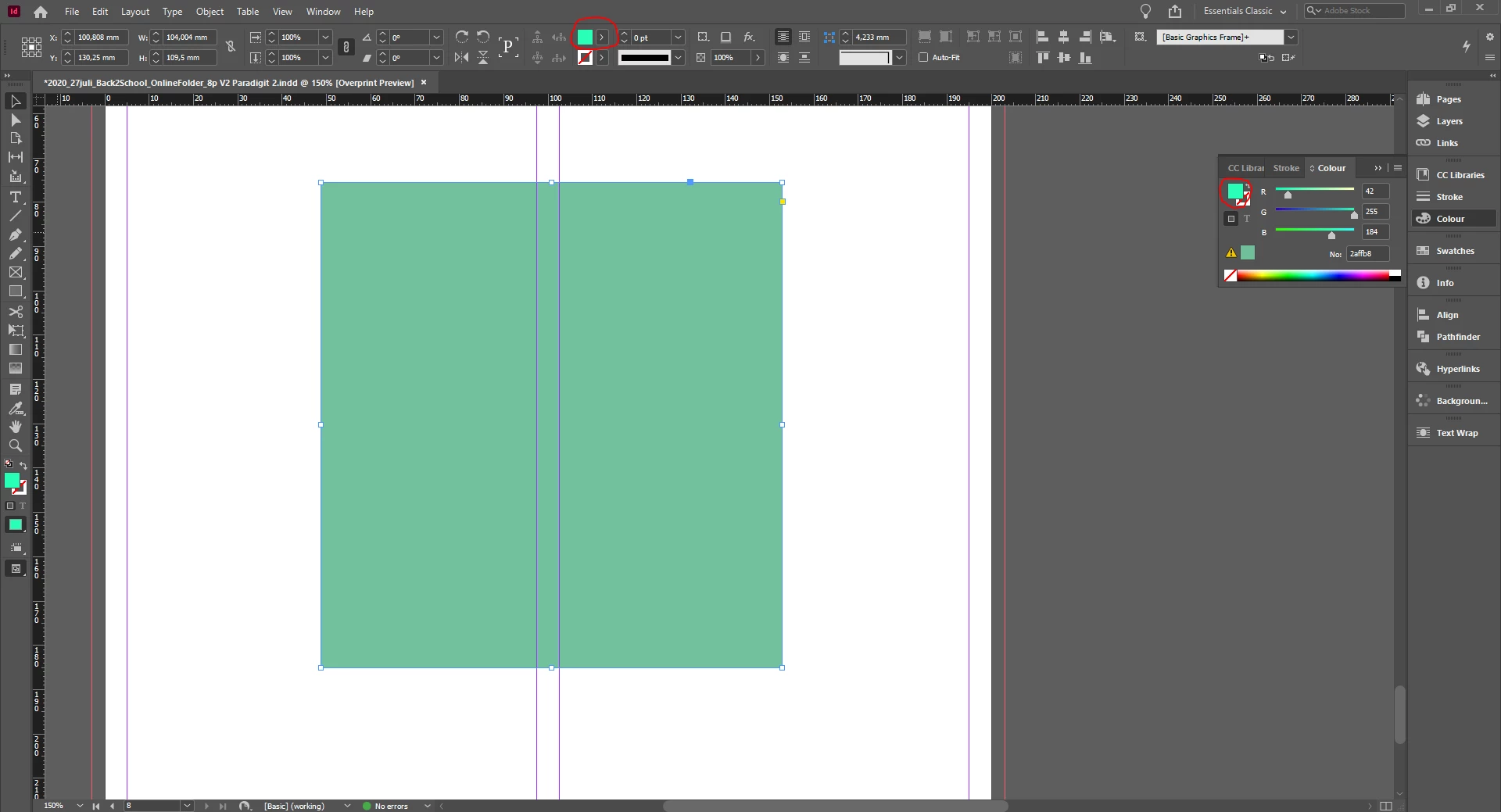
I want to view my colors in RGB mode. As you can see in the screenshot. The 2 colors are bright and in RGB but the square in my workspace is viewed in cmyk mode, it's not that bright. Anybody knows how to watch the colors in my workspace in rgb?

Thank you for your time 🙂
 

Correct answer rob day

Turn off Overprint Preview. When Oveprint or Separation Preview are on, RGB colors are previewed in your document’s assigned CMYK space.


Also, InDesign has a Transparency Blend Space and if it is set to CMYK the spread will preview in the assigned CMYK space when there is any transparency or transparency effect on the spread.

2 replies

rob day
Community Expert
rob dayCommunity ExpertCorrect answer
Community Expert
August 28, 2020

Turn off Overprint Preview. When Oveprint or Separation Preview are on, RGB colors are previewed in your document’s assigned CMYK space.


Also, InDesign has a Transparency Blend Space and if it is set to CMYK the spread will preview in the assigned CMYK space when there is any transparency or transparency effect on the spread.

Known Participant
August 28, 2020

Thank you! So I put "Proof setup" to sRGB and I turned off "Overprint Preview" and changed "Transparency Blend Space" to RGB.

It works perfect!

rob day
Community Expert
Community Expert
August 28, 2020

You don’t need to setup proof colors. Native RGB colors display in the document’s assigned RGB space and you already have that set to sRGB

Randy Hagan
Community Expert
Community Expert
August 28, 2020

Sure. Go to the View>Proof Setup>Custom... menu command and change your proofing setup from the default (in the US, it's SWOP Coated v2, if you're using InDesign outside the country you may have a different default) and change it to the RGB model you'd like.


Hope this helps,


Randy

Known Participant
August 28, 2020

Hi Randy,

Thanks for you quick response. I've changed it to sRGB but it's still very dark and not the correct rgb color. I've also tried other RGB simulations like "Adobe RGB" and "Apple RGB" but it's still nog correct.


Randy Hagan
Community Expert
Community Expert
August 28, 2020

OK. A couple other things you may want to try:


  1. Go to your Preferences and change your Interface>Appearance to Light, and de-select the Match Pasteboard to Theme Color check box. Often lightening the background appears to brighten colors in the foreground. It did dramatically as I tested this just now on my business-style Dell laptop.
  2. Calibrate your monitor. At the top end, that entails about $300-1000 in equipment and developing/maintaining quality standards and consistent lighting in your workspace all the time. That takes a lot of work. But you can approach these standards for a lot less money, if not effort. You can read more about this by checking out this link on Calibrating your Monitor.
  3. Realize the limitations of your setup. Old Cathode-Ray Tube monitors were heavy and fragile, but they were great at faithfully reproducing a wide range of colors. Much better than today's LCD/LED monitors, unless you're willing to up the ante and buy proofing-quality monitors.


Ultimately, you may decide that there's a point of diminishing returns for chasing all of this. That little yellow triangle to the left of your sample swatch on the Color panel defines Out of Gamut for CMYK print reproduction, but it also can indicate that you're pushing the envelope for colors you can get onscreen too. Your setup just may not be able to faithfully reproduce the eye-searing colors you want. Jus' sayin' ...


Good luck,


Randy