

Lynda Boström
Participant
December 20, 2021
Question

View multi-page spreads on pasteboard with gap between each page

  • December 20, 2021
  • 2 replies
  • 246 views

Hello! I feel this should be a simple answer, but I've been trying to find a solution for almost an hour now and I'm at a wall. 

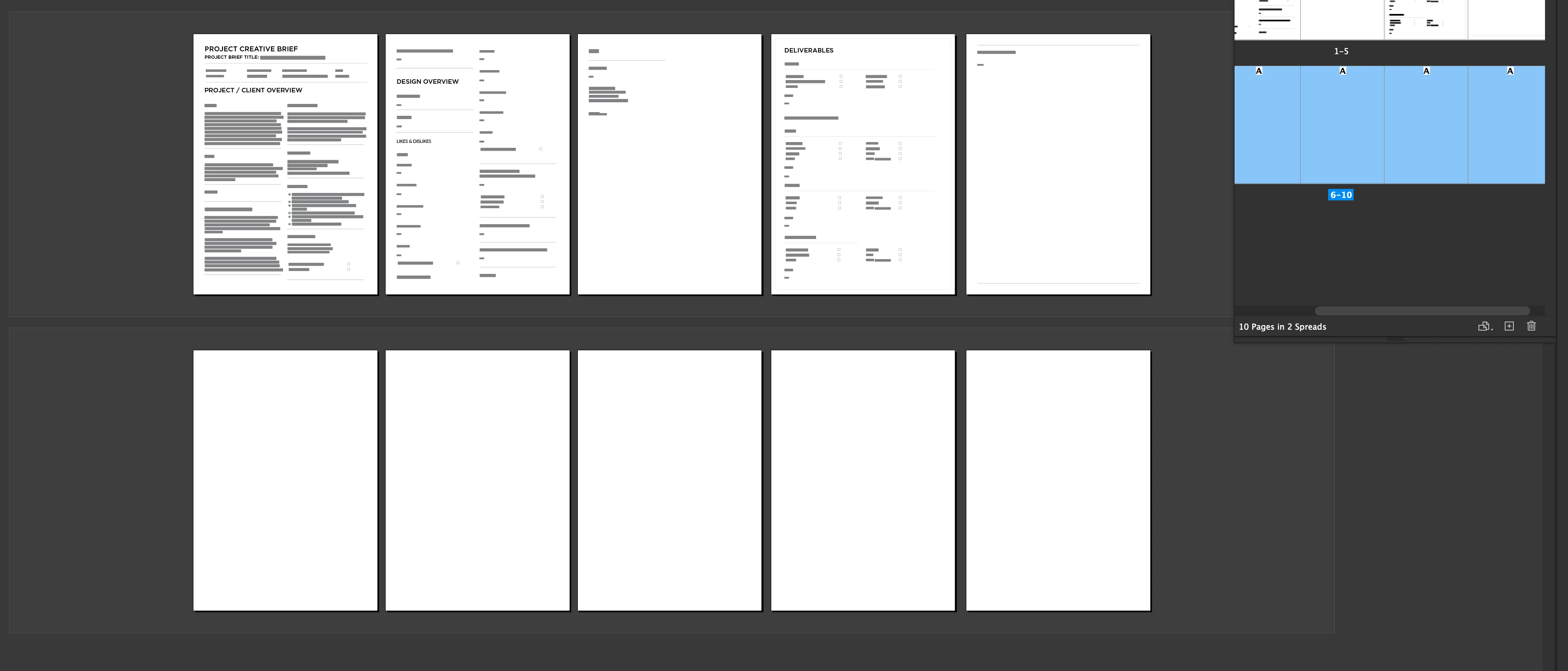
I'm trying to understand how to set up a multiple-page spread on a pasteboard with gaps between the pages, so I can bleed off the edges without spilling into the page beside it. These are all going to be printed as single-page sell sheets, and I just want to see them side-by-side with bleeds.

I know this is possible, because of a downloaded a creative brief template that is set up to view this way (screenshot attached). I'm trying to reverse-engineer the initial document setup, but I can't figure it out. 😛 ::sigh::

Many thanks to any who reply! 
 

This topic has been closed for replies.

2 replies

Barb Binder
Community Expert
Community Expert
December 21, 2021

Hi @Lynda Boström:


David got you almost all the way there. Facing pages off/Allow Doc Pages off/Drag pages 2-5 next to each other and repeat for pages 6-10. 


Then, use the Pages Tool to space the pages out. You can use the Align panel to control the alignment and distribution. 


~Barb


~Barb at Rocky Mountain Training
Dave Creamer of IDEAS
Community Expert
Community Expert
December 20, 2021

In the Pages panel's menu, deselect Allow Document Pages to Shuffle. You can then add up to 10 pages in a spread.

David Creamer: Community Expert (ACI and ACE 1995-2023)