Inspiring
November 28, 2022
Answered

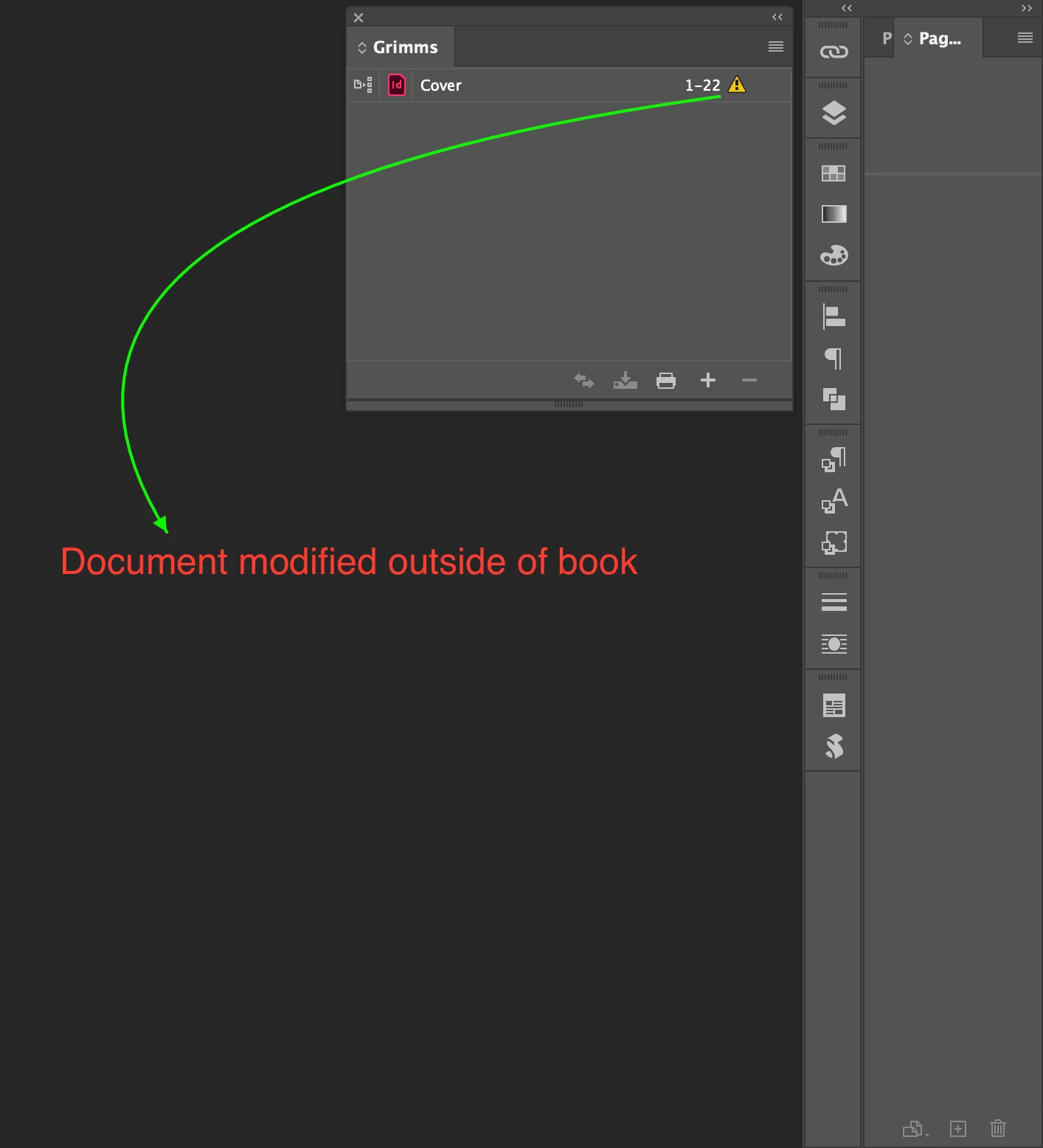
warning sign in book panel

  • November 28, 2022
  • 2 replies
  • 2100 views

Hi,


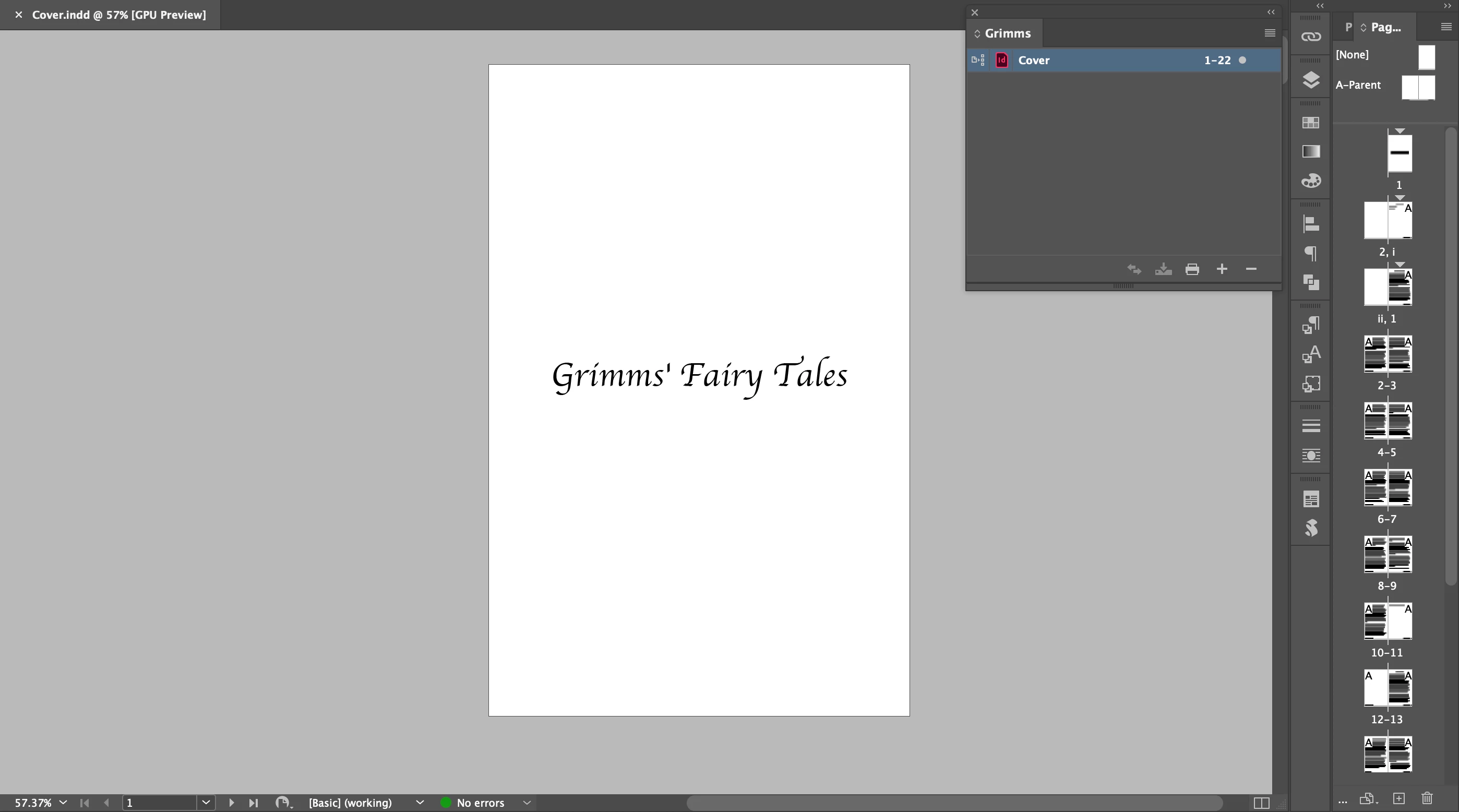
After combining three INDD files into Cover.indd, I reponed Grimms.indb.

I see a warning sign.

After I open Cover.indd, it looks fine.


What's going on?


Hosun
 

This topic has been closed for replies.
Correct answer Scott Falkner

When a book file is open and you modify a file in that book the book file will note the change (number of pages, starting page number, styles, swatches, etc.). This is needed to make sure the book file can keep everything up to date, for example if the second document is supposed to continue page numbering then the book file needs to know how many pages are in the first file and what page number it ends with. If you modify the InDesign document while the book file is not open InDesign will not know what has changed and how that affects the rest of the book, even if nothing significant changed. Open the book file and then double-click on any documents with warning flags. This will open them and update the Book file.

2 replies

James Gifford—NitroPress
Legend
November 28, 2022

Just in case it's not clear, you do not need to use a Book file. A single INDD document is completely standalone for all development, design and export purposes. It does not need to be "enclosed" in an INDB file at all.


Inspiring
November 29, 2022

Hi,


I reduced INDD files into one single file and exported to EPUB.

But the links on the Table of Contents are missing and the EPUB still starts with page 3.


I think I'd rather do over from a single file.


Hosun


James Gifford—NitroPress
Legend
November 29, 2022

I think your current file set might have too many accumulated problems to be worth trying to salvage.


Create a new INDD file with the page layout, margins etc.you have been using. Then cut and paste the content of each of your prior INDD files into it, creating one single text flow from the title through each of the stories. Then adjust the formatting, including page breaks, to get the pages looking the way you wish them to.


THEN use the Export menu to export to EPUB  That won't be the end of your efforts, but you should have a solid start from which to extend the book and learn how to adjust formatting for a clean EPUB result.


But it's essential that the content be one continous text flow. Don't create separate text frames for, say, the title page, and once you have the text laid in, place the generated TOC frame where you want it and then anchor it to the previous paragraph (looks like the title, from your layouts) so that it is included in the export at the right point.


Scott Falkner
Community Expert
Scott FalknerCommunity ExpertCorrect answer
Community Expert
November 28, 2022

When a book file is open and you modify a file in that book the book file will note the change (number of pages, starting page number, styles, swatches, etc.). This is needed to make sure the book file can keep everything up to date, for example if the second document is supposed to continue page numbering then the book file needs to know how many pages are in the first file and what page number it ends with. If you modify the InDesign document while the book file is not open InDesign will not know what has changed and how that affects the rest of the book, even if nothing significant changed. Open the book file and then double-click on any documents with warning flags. This will open them and update the Book file.