
Parksite Karl
Inspiring
May 11, 2020 4:39 PM UTC
Answered

What happened to my pasteboard?

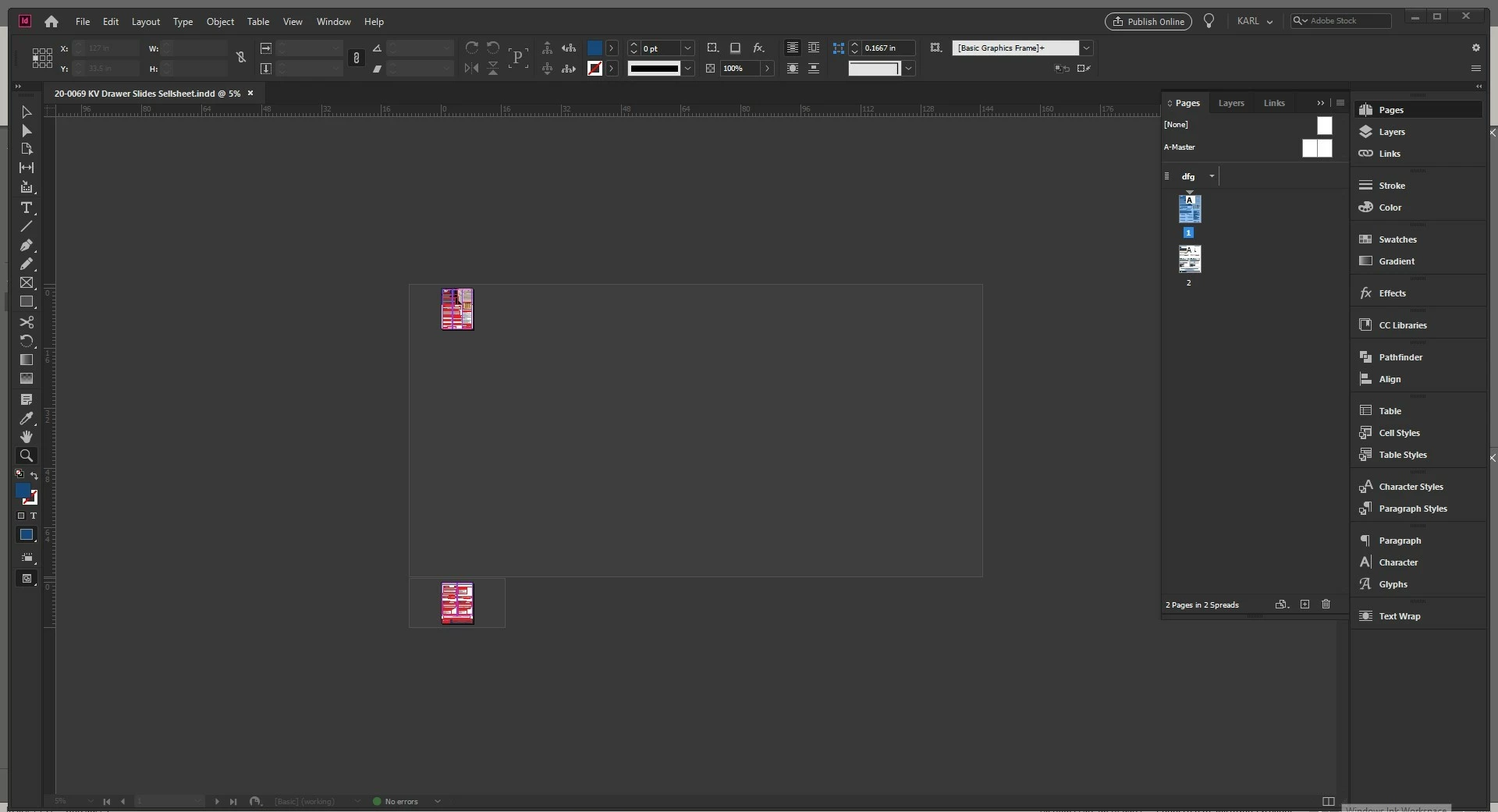
Can anyone explain how my pasteboard got like this and how to get it back to normal size?

There is no object on that page.  The image shows Preview off.


If I try to select everything on the pasteboard, only the page selects.  I checked all links and there is no rogue link anywhere.


What the heck?

Thanks.


Indesign 15.0.2 x64

W10 Machine
 

Parksite Karl
Parksite KarlCorrect answer
Inspiring
May 12, 2020 1:28 PM UTC
Hi BarbBinder,
I did try to adjust the Pasteboard margins. Mine was set for 1” on top and bottom and 8.5” Left and right (defaults, right?) When I tried making it 1” less on the sides, it simply brought it in 1” and did not reset to normal. Very strange. I am assuming it had to do with something I placed, although I do not know what that is and where it went 😊

Ultimately, I luckily only had the two pages, so I pasted in place all of the content into a new document (that had proper pasteboard sizes) and eradicated that bizarre file from my PC!

Thanks!

18 replies

makusvdw
Participating Frequently
Aug 28, 2025 1:39 PM UTC

A very old thread — I just had the same issue happen to me. I've been working in InDesigin since 1999 and QuarkXPress since 1994, so not new to layout apps, but this is the first time I came across this issue.


In my case I had a very large vector that was created in InDesign (created then scaled). I only needed a small part, so I used Pathfinder to remove the parts I didn't need, but I missed a small part. This caused my pasteboard to expand to a rediculous size. When I did ⌘A I noticed that the selection was the size of the pasteboard, but because the bit that was causing the issue was very small and right on the edge of the artboard I couldn't just select it by clicking and dragging close to the edges. The fix was to do ⌘A, then manualy deselect the elements on the artboard and then I could delete the bit causing the issue. I guess an alternative would have been to select everything on the page, paste that on a new spread and then delete the spread with the massive pasteboard.


The way I understand it — if you place a single element that is larger than the pastboard InDesign will just clip it to the pasteboard. But when the element is split in two or more and it extends beyond the pastboard, then the pasteboard will expand to contain the "stray" elements.

Translate
Participant
Jun 7, 2024 6:23 AM UTC

Hi, this is old thread but thought that this could help someone. I had this exact same problem and after all I figured that somehow my page size had changed. Before, I checked everything else in this chat and it didn't even come to mind to look page size. It looked like it was right size (5x15cm) but in Document setup it showed 5 x 297,94cm, or something like that. All I had to do is fix the size and everything got normal.  


Hope this helped someone. 


Katja R.

Translate
Community Expert
Jun 7, 2024 9:14 AM UTC

@katjaruha said: " … I had this exact same problem and after all I figured that somehow my page size had changed. "


Hi Katja,

is it only that you have different page sizes compared to the Document setup?

That is no special condition at all. At any time one could change the size of any page with the Page tool.

If that is done for a particular page a change in Document setup would not affect the size of the page.


Or is it the issue the OP @Parksite Karl had, that no contents on a given page was selectable and the pasteboard color can be seen on the page? Then you could export your document to IDML and open the IDML file as new document. That could resolve any problems with the pasteboard. If that will not help one could try to add new spreads and copy over contents from faulty pages to the new spread.


Regards,
Uwe Laubender
( Adobe Community Expert )

Translate
Participant
Jun 7, 2024 10:55 AM UTC

I had issue with pasteboard as did OP. I had one page with 5x15cm size and pasteboard was looking normal with normal margins. And then one day I opened that same file, with page looking exactly as it should but pasteboard was grazy big. I checked preferences - pasteboard margins were default. There were no content in page. Couldn't figure out why pasteboard didn't match it's margins. But then I noticed that Document setup it said different size that my page actually was and after I changed that - boom - pasteboard also went back to it's normal size/margins. I don't know why that happened in first place.

Translate
Barb Binder
Community Expert
Community Expert
May 13, 2020 1:20 PM UTC

I'm glad you found a solution!


~Barb 

Translate
~Barb at Rocky Mountain Training
Participant
May 3, 2022 9:29 PM UTC

Same problem. My pasteboard went wacko! I tried to reset and it didn't work. Any ideas? My document is 40 pages long. Don't want to redo the whole thing.

Translate
Diane Burns
Inspiring
May 6, 2022 6:12 PM UTC

By reset, do you mean you reset ID Prefs? I'd try that, if Barb's suggestion for changing Pasteboard Preferences back to their original measures doesn't work.

Translate
Barb Binder
Community Expert
Community Expert
May 12, 2020 1:42 AM UTC

That's very odd. 


Are you using Alternate Layouts on purpose? And what are your Edit > Preferences > Guides & Pasteboard > Pasteboard Options > Horizontal and Vertical Margin values? The defaults for 8.5 x 11 are Horizontal [Pasteboard] Margin: 8.5" and Vertical [Pasteboard] Margin: 1". I'm wondering if editing those values (to anything) kicks the first pasteboard back to normal. 


~Barb

Translate
~Barb at Rocky Mountain Training
Parksite Karl
Parksite KarlAuthorCorrect answer
Inspiring
May 12, 2020 1:28 PM UTC
Hi BarbBinder,
I did try to adjust the Pasteboard margins. Mine was set for 1” on top and bottom and 8.5” Left and right (defaults, right?) When I tried making it 1” less on the sides, it simply brought it in 1” and did not reset to normal. Very strange. I am assuming it had to do with something I placed, although I do not know what that is and where it went 😊

Ultimately, I luckily only had the two pages, so I pasted in place all of the content into a new document (that had proper pasteboard sizes) and eradicated that bizarre file from my PC!

Thanks!
Translate
Diane Burns
Inspiring
May 11, 2020 11:29 PM UTC

Did you try resetting your ID preferences?


Translate
Parksite Karl
Inspiring
May 12, 2020 1:29 PM UTC
Hi Diane,
I didn’t want to go that far ☹ I ended up pasting the content into a new document and calling it a day.
Thanks.
Translate
Community Expert
May 11, 2020 7:31 PM UTC

Hm


[3] Then check if something is at the edges of the pasteboard.

Move it inward or remove it entirely.


[4] Alternative:

Select all on the two pages with the mouse by drawing out a selection marquee.

Do this not by using the menu command Select All. Copy the selection to the clipboard.

Add a new spread to the document.


Paste the contents of the clipboard to the new spread.

Use the menu command: Paste In Place


Remove the spread with the gigantic pasteboard.


Regards,
Uwe Laubender

( ACP )

Translate
Community Expert
May 11, 2020 4:46 PM UTC

The how is hard to explain.

That could happen if you placed an asset of a InDesign library file with some guides at very extreme positions.

( Now on the edges of your pasteboard of the first spread. )

Other causes would be possible as well.


You could try the following:

[1] Export document to IDML. Open the IDML as document, save to a new name and work on with that.

[2] Try to change the minimum pasteboard size in the preferences of your document.


Regards,
Uwe Laubender

( ACP )

Translate
Parksite Karl
Inspiring
May 11, 2020 5:01 PM UTC

Thanks Uwe.

Unfortunately neither of those solutions worked.  Tried exporting to IDML but when I opened the IDML file, it brought the gigantor pasteboard with it.  And adjusting the pasteboard size does shrink it, but from its present ginormous form not resetting to actual size.

Translate