DavidSweeneyBear
Inspiring
December 29, 2020
Answered

What is this panel and how do I get rid of it?

  • December 29, 2020
  • 2 replies
  • 562 views

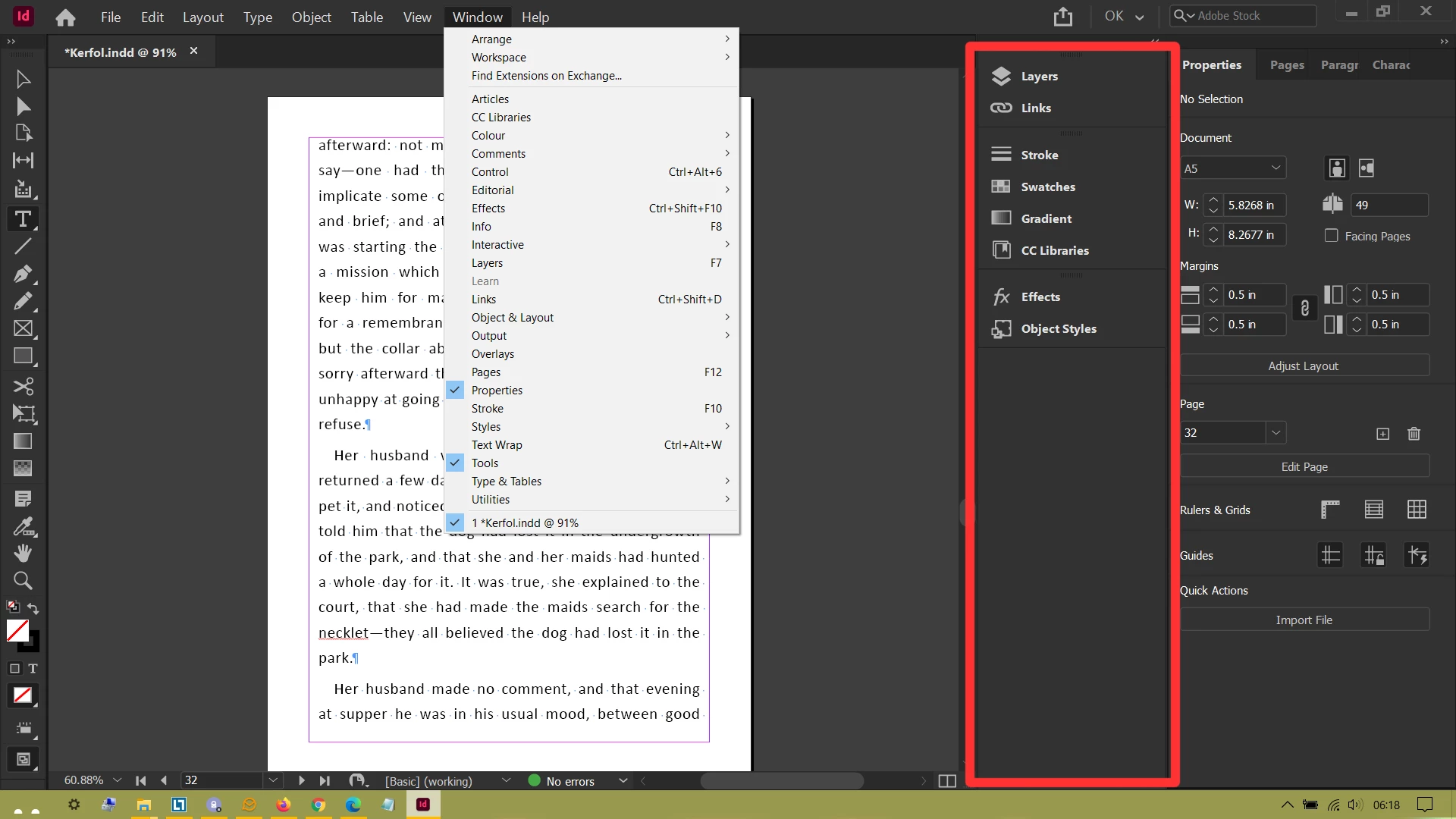
After keying a weird combination by mistake, I ended up with no panels visible.

Somehow, I managed to get things back to roughly how they used to look, but I now have this extra panel and no idea how to get rid of it!

This topic has been closed for replies.
Correct answer tacoeater

Hello Again David,


Shift tab hides palettes, pressing it again will bring them back.

That panel you have highlighted is a series of palettes in icon view, if hover over the left most edge you can increase this or reduce this just to icons. You'll see double arrows up the top of this panel. Clicking on these will bring back the palettes in their true form.

Below this is 2 dark dotted lines clicking and holding on this allows you to drag this panel out and move it somewhere else. Which will also give you the ability to remove them.

You'll notice that there are 3 of them in this panel. So if you want them removed you'll have to do this 3 times.


Recommendation:

Once you have a workspace you are happy with I recommend saving it. Go to Windows > Workspace > New Workspace.


 

2 replies

tacoeaterCorrect answer
Participating Frequently
December 29, 2020

Hello Again David,


Shift tab hides palettes, pressing it again will bring them back.

That panel you have highlighted is a series of palettes in icon view, if hover over the left most edge you can increase this or reduce this just to icons. You'll see double arrows up the top of this panel. Clicking on these will bring back the palettes in their true form.

Below this is 2 dark dotted lines clicking and holding on this allows you to drag this panel out and move it somewhere else. Which will also give you the ability to remove them.

You'll notice that there are 3 of them in this panel. So if you want them removed you'll have to do this 3 times.


Recommendation:

Once you have a workspace you are happy with I recommend saving it. Go to Windows > Workspace > New Workspace.
 

DavidSweeneyBear
Inspiring
December 29, 2020

Hi, thanks again for your help. Now I get how it all works... They're a series of panels "glued" to the right-hand side of the workspace and can basically be detatched and closed, or opened then re-attached by clicking and dragging. Simple really!

<br>~ David Sweeney-Bear ~
Derek Cross
Community Expert
Community Expert
December 29, 2020

Reset your InDesign Workspace.

Window > Workspace > Reset [name of workspace]