Inspiring
February 18, 2024
Answered

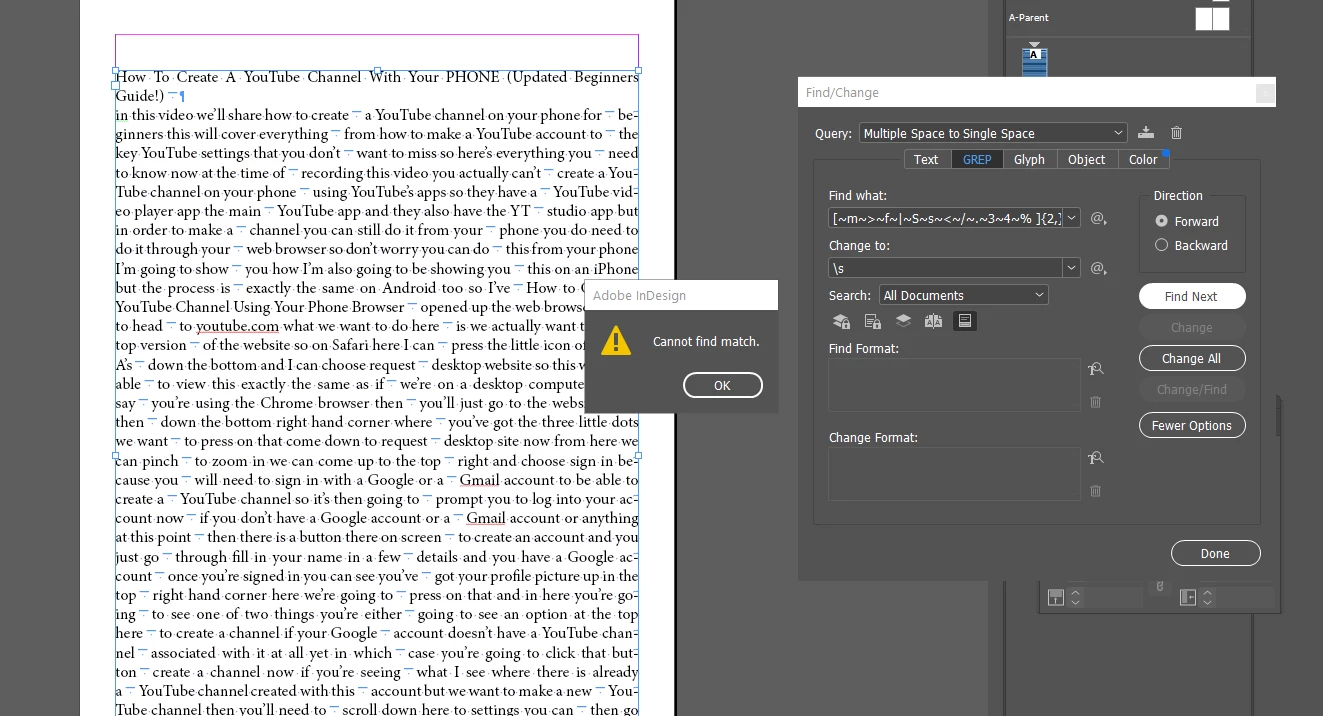
When I use GREP to replace multiple spaces with a single space in InDesign, it says ‘cannot match.’

  • February 18, 2024
  • 2 replies
  • 773 views


This topic has been closed for replies.
Correct answer Barb Binder

Hi @hibru305572725zfd:


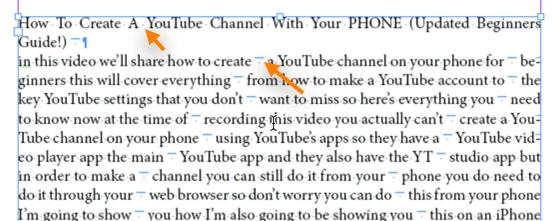
That particular GREP query is looking for multiple spaces that appear in any combination and you aren't showing any. Instead, we see single spacebar spaces (the dots) and seemingly random single em spaces (the dot with the line underneath).
 

Guessing that you are trying to convert them to regular spacebar spaces, you can do this with a regular text Find/Change:
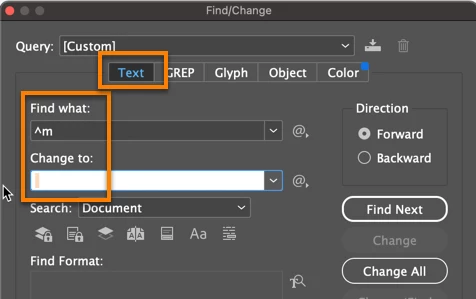


Since spaces don't show up in a text box, I highlighted the space added to the Change to field. Once you convert all of the em spaces to spacebar spaces, you might want to run the Remove Trailing White Space query—there is at least one em space at the end of a paragraph visible. 


~Barb

2 replies

Barb Binder
Community Expert
Barb BinderCommunity ExpertCorrect answer
Community Expert
February 18, 2024

Hi @hibru305572725zfd:


That particular GREP query is looking for multiple spaces that appear in any combination and you aren't showing any. Instead, we see single spacebar spaces (the dots) and seemingly random single em spaces (the dot with the line underneath).


Guessing that you are trying to convert them to regular spacebar spaces, you can do this with a regular text Find/Change:


Since spaces don't show up in a text box, I highlighted the space added to the Change to field. Once you convert all of the em spaces to spacebar spaces, you might want to run the Remove Trailing White Space query—there is at least one em space at the end of a paragraph visible. 


~Barb

~Barb at Rocky Mountain Training
jmendesign
Inspiring
February 18, 2024

It appears that your text does not have double spaces but rather many em spaces. You don't need a GREP.  Just go to find/change in text and replace these em spaces with spaces.