
Participant
July 2, 2026
Question

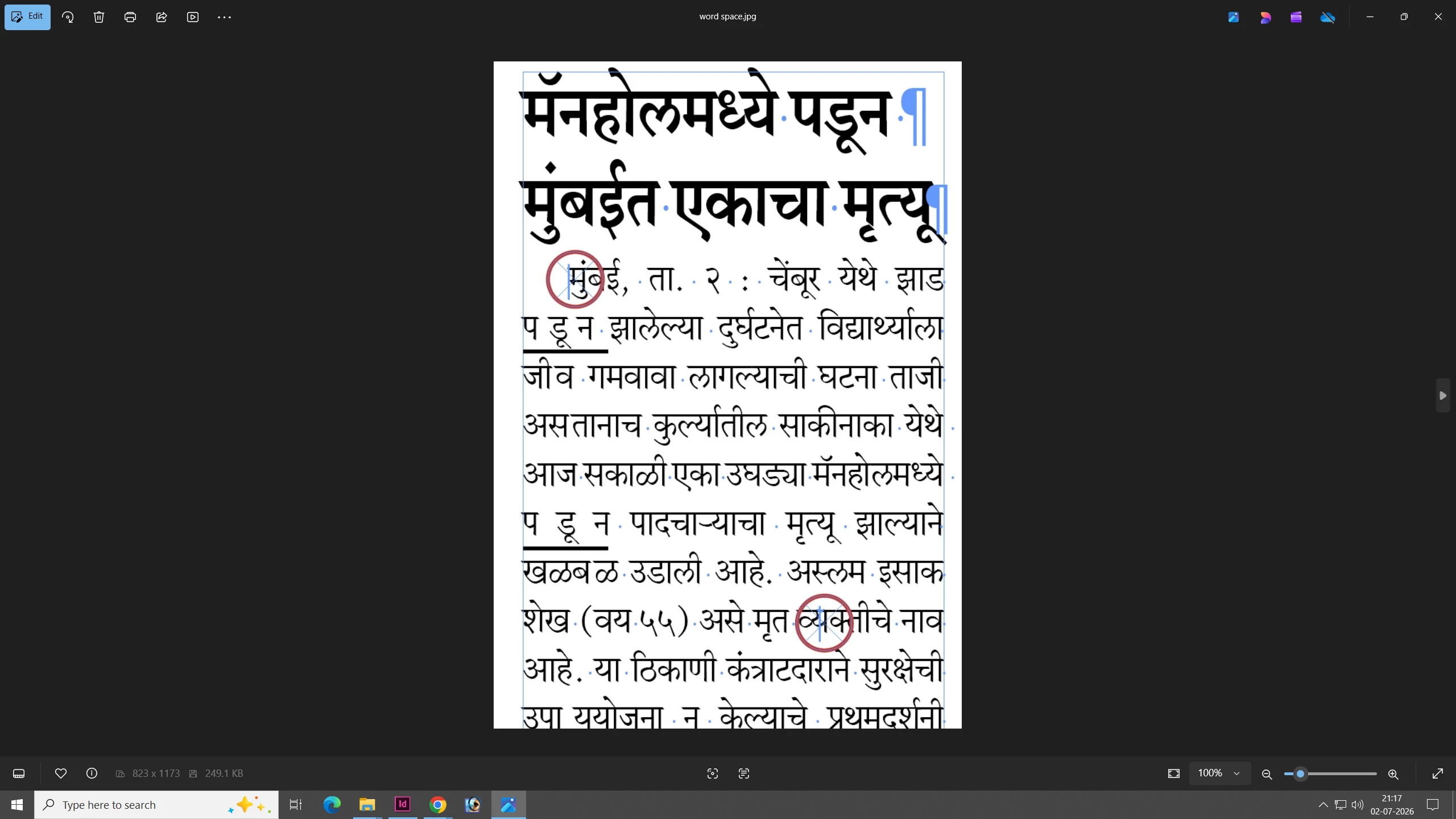
why did come space before words and between words in marathi unicode for indesign CS6 what is solution for error free space
  • July 2, 2026
  • 2 replies
  • 23 views
In red circle space and underling words having space. 


why did come space before words and between words in marathi unicode for indesign CS6 what is solution for error free space. 

    2 replies

    Joel Cherney
    Community Expert
    Community Expert
    July 2, 2026

    I’m not completely certain what you are asking, but you’ve circled a few invisible characters. They aren’t things that InDesign will add automatically to your text, although I frequently see them come in to InDesign through text copied from various sources (Word? Your web browser?) and pasted into InDesign. The technique to avoid such issues is to not use the clipboard to paste text into InDesign, but to use File → Place to place text files directly into your document. Alternately, you could choose to paste raw text only, either by always using Edit → Paste Without Formatting, or by using a third-party tool to convert the contents of your clipboad to raw text. 


    The first invisible, at the beginning of a body paragraph, is a “zero width space” - Unicode U+200B, which is a “Discretionary Line Break” in InDesign. The second one looks like it could be a “Zero Width Joiner” at U+200D, although the little hat looks a little off, so it could be a stacked zero-width space AND a non-joiner (U+200C). That would be just the kind of insane construction of control characters that I’d expect to get from complex script text being copied and pasted into InDesign. 


    However those control characters got in there, it’s not something that InDesign did. Sometimes people who are clumsy at the keyboard (like myself) accidentally hit unexpected key combos? But there aren’t any default keystrokes in InDesign for these Unicode control characters. You can check to see if your install has any shortcuts defined for these glyphs; they can be found in Type → Insert Special Characters → Other.

    BobLevine
    Community Expert
    Community Expert
    July 2, 2026

    You’re using a 14-year old version. You might want to try a trial for the new version and see if it works. There is no way there will be a fix for CS6.

    Participant
    July 2, 2026

    what is option in new version for this problem

    BobLevine
    Community Expert
    Community Expert
    July 3, 2026

    The point is that there is no way for anyone to diagnose or fix an issue is software this old. Sign up for a trial of the new version or try something else to see if it’s the font or the software that’s causing your problem.