


Inspiring
July 27, 2020
Answered

Why does text move to another page but photo remains?

  • July 27, 2020
  • 3 replies
  • 648 views

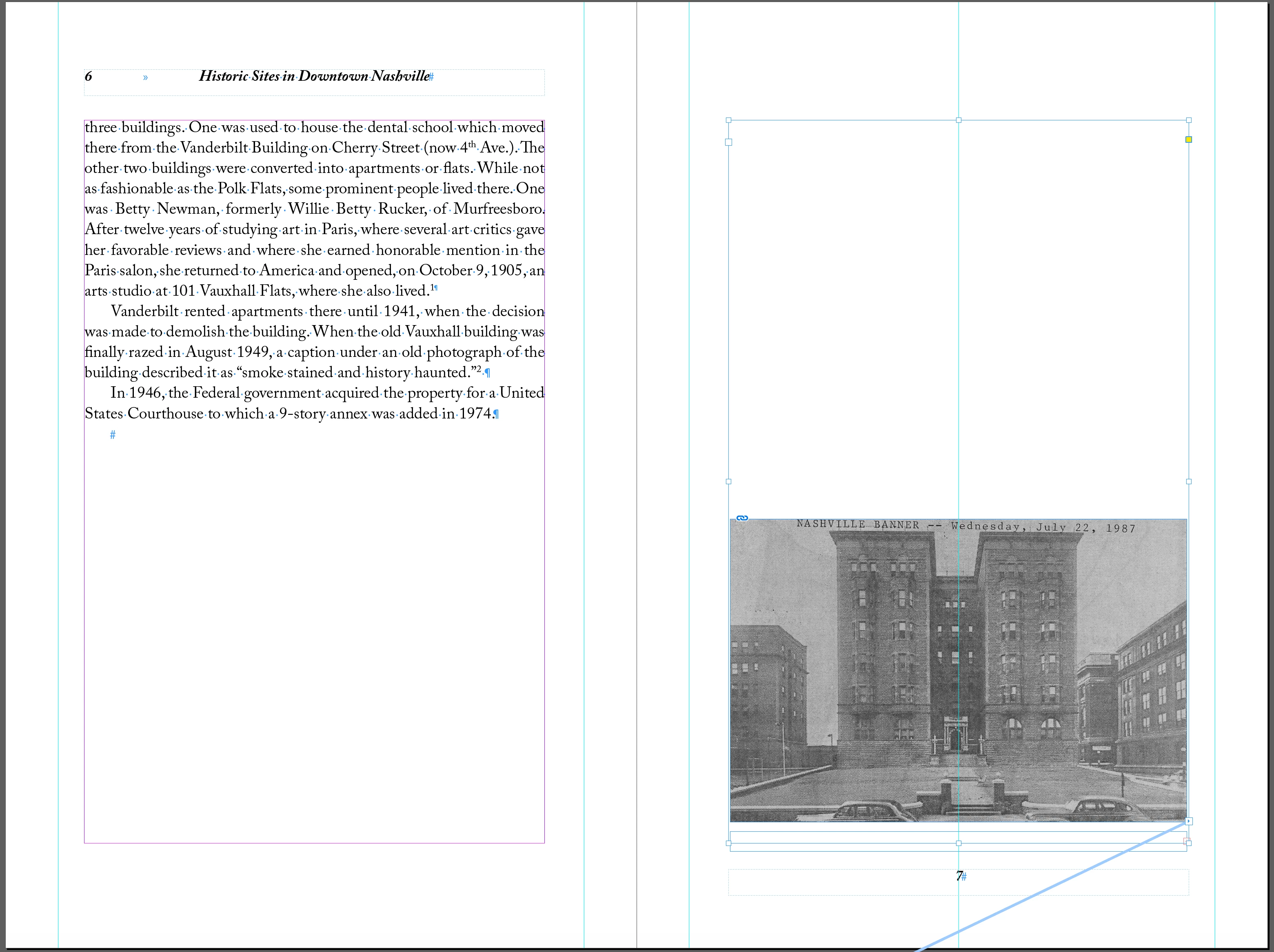
I am using an InDesign layout someone else built. It has chapter-opening master pages and body text master pages, and all chapters are separate, stories in and of themselves. I have Smart Text Reflow on. When I added a photo to one chapter (see attached screenshot, p. 6), the text in the next chapter (p. 7) moved to the next verso page and the photo caption disappeared. I can't figure out how to stop this from occurring.

This topic has been closed for replies.
Correct answer Barb Binder

Hi Parny:


So you are adding this photo to the chapter that begins on page 7, and then the text that was there moves to the next page?


In that case I would look at two specific things:

  1. Does this image have text wrap enabled? If so, disable it and see if the text comes back. Once it is back, you can adjust the text wrap to work the way you need it to. 
  2. Check the Keep Settings for the body paragraphs. Are they set to move together—so if one paragraph no longer fits on the page, it moves the others to the next page with it?


My money is on the text wrap settings.


~Barb 


k.

3 replies

Barb Binder
Community Expert
Community Expert
July 27, 2020

Great, I'm glad that worked for you. 😊


Templates give us a great head start on the layout, but it can be tough if you don't get documentation.


If you get stuck again, just let us know. We are always happy to help.


~Barb 

~Barb at Rocky Mountain Training
Barb Binder
Community Expert
Barb BinderCommunity ExpertCorrect answer
Community Expert
July 27, 2020

Hi Parny:


So you are adding this photo to the chapter that begins on page 7, and then the text that was there moves to the next page?


In that case I would look at two specific things:

  1. Does this image have text wrap enabled? If so, disable it and see if the text comes back. Once it is back, you can adjust the text wrap to work the way you need it to. 
  2. Check the Keep Settings for the body paragraphs. Are they set to move together—so if one paragraph no longer fits on the page, it moves the others to the next page with it?


My money is on the text wrap settings.


~Barb 


k.

~Barb at Rocky Mountain Training
ParnyAuthor
Inspiring
July 27, 2020

Your bet is the winner. Thank you SO MUCH! (Early on I should have listened to my gut and built the template from scratch, instead of only trying to revise the file provided.) Whew! Thanks again, BarbBinder

Dave Creamer of IDEAS
Community Expert
Community Expert
July 27, 2020

Your screen shot shows the "end of flow" symbold on the left page showing there is no more text to flow. 

The text frame on the right is not connected to any prior frames according to the in port. However, that frame does connect to the following page.


Since they are separate text flows, one or both of them are not primary text frames as that requires one, long flow. I'm not exactly sure what you are wanting or expecting, but you can try turning off the "Limit to Primary Text Frames" option. Keep in mind, this could cause problems elswhere depending on how this document is built.

David Creamer: Community Expert (ACI and ACE 1995-2023)
ParnyAuthor
Inspiring
July 27, 2020

Thanks for your time. Turning off "Limit to Primary Text Frames" didn't provide what I need. To chapter 3, I added a page and want chapter 4 (see screenshot) to move forward one page (start on p. 7), but the text above the photo jumped to p. 8.