annekathrinw
Participant
March 21, 2017
Answered

Zoom Factor issue: Linked Graphics from Illustrator vanishes in Indesign. Win7/CC2017

  • March 21, 2017
  • 1 reply
  • 1076 views

Hello,

I wonder if anyone know where this problem come from and how I can fix it:

Since short time I'm using Indesign CC2017 with Win7 on a new Machine with Intel Core i7-6700 CPU 3.4 GHz and NVIDA GeForce GTX 1060 3GB.

I work with placed Illustrator files in Indesign. While working in Indesign (when i change the zoom factor or the reposition the view in another way) my placed graphics vanished or come back. The frame ist still there, they are still linked, but just not visible.

I think, it could be either a problem of the graphic board, or a problem between win7 and cc2017.

Had anyone else this problem?

Thanks in advance,

Anne

This topic has been closed for replies.
Correct answer Laubender

Hi Anne,

did you try the different viewing options?
"Normal", "High Quality"

Did you try with "Overprint View" ?

Maybe you are describing a similar problem to that of Peter Lenz at www.hilfdirselbst.ch with placing AI files in InDesign CC from 2014:

ID CC Darstellungsprobleme oder defekte Grafiken ? - Adobe InDesign - HilfDirSelbst.ch - Forum

Note: The posted problem AI file can be downloaded by members of the hilfdirselbst forum, only.
Because of that I uploaded Peter's test AI to my Dropbox account so you could download the test file:

Dropbox - Abb07_RZ02_Textpfad.ai.zip

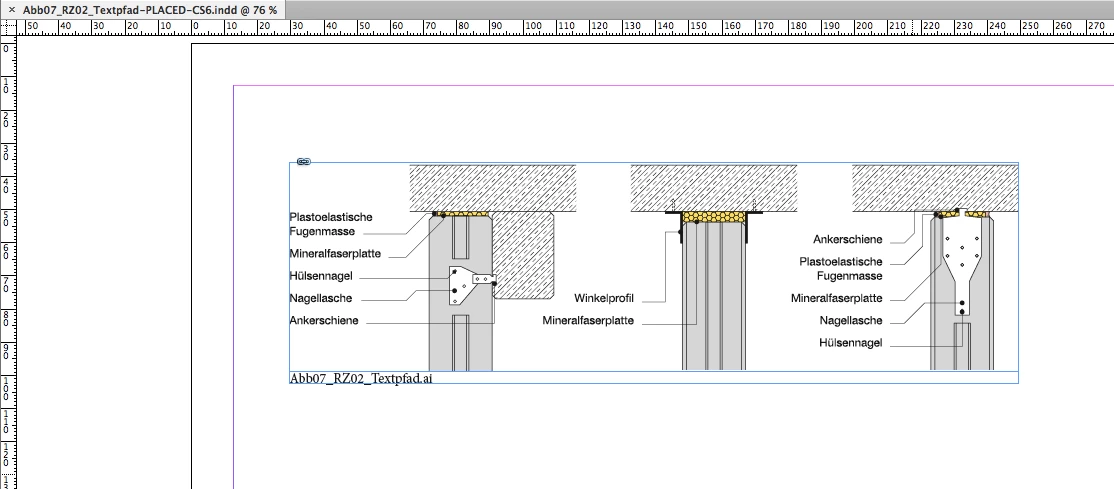
Placed AI file with InDesign CS6 showing view with "High Quality":
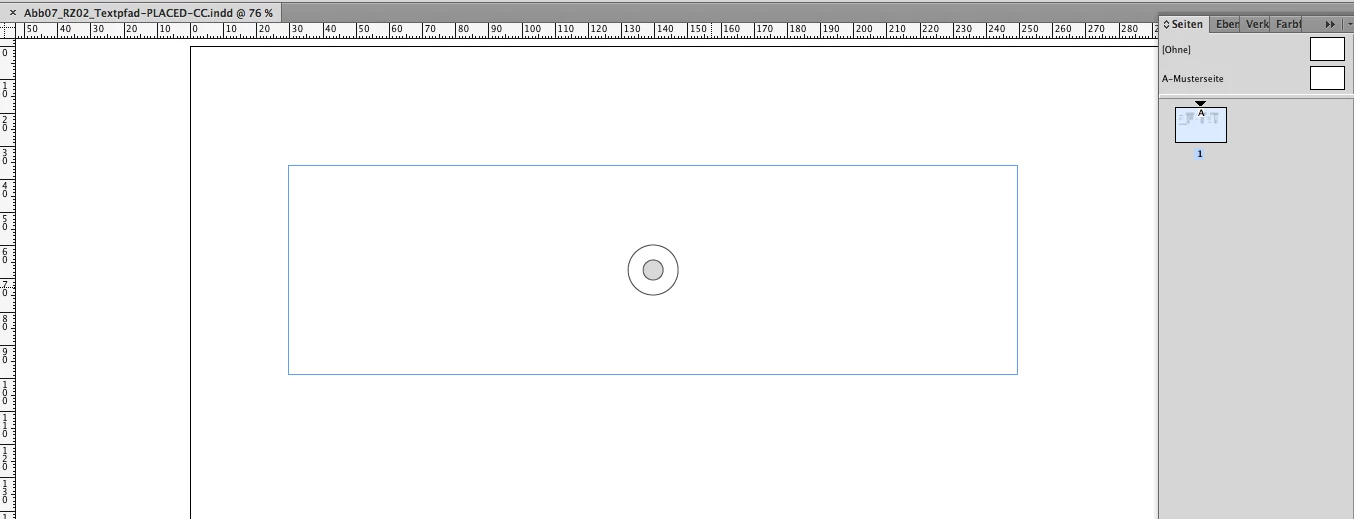
Placed AI file with InDesign CC showing view with "High Quality".

Note: Also the static caption is not visible, that is touching the image frame.
The same InDesign CC document with a different zoom percentage where the graphic is visible:

The cause of the problem was identified by Peter:

Overprinting elements in the Illustrator file.


InDesign CS6 => No problems
InDesign CC and above => Problems that parts or the whole graphic would not show with different zoom levels or different view options.

A workaround to solve this problem:

1. Place an empty rectangle in the background on the page.

2. Fill color "[Paper]"

3. Use the Effects panel: Set opacity to 0 %

It's not necessary that the empty rectangle is touching the graphic frame holding the placed AI :

Obviously introducing transparency to the spread will trigger the graphic to show.

Peter Lenz reported this bug several times over the years.

Unfortunately this bug was never fixed. I did not test with CC 2017, but Peter reported that the bug is still with us.

Here another show case by Peter published with hilfdirselbst for a placed AI file where only parts of the graphic are showing ( I cannot provide the original AI file for this example. Peter did not post it ):
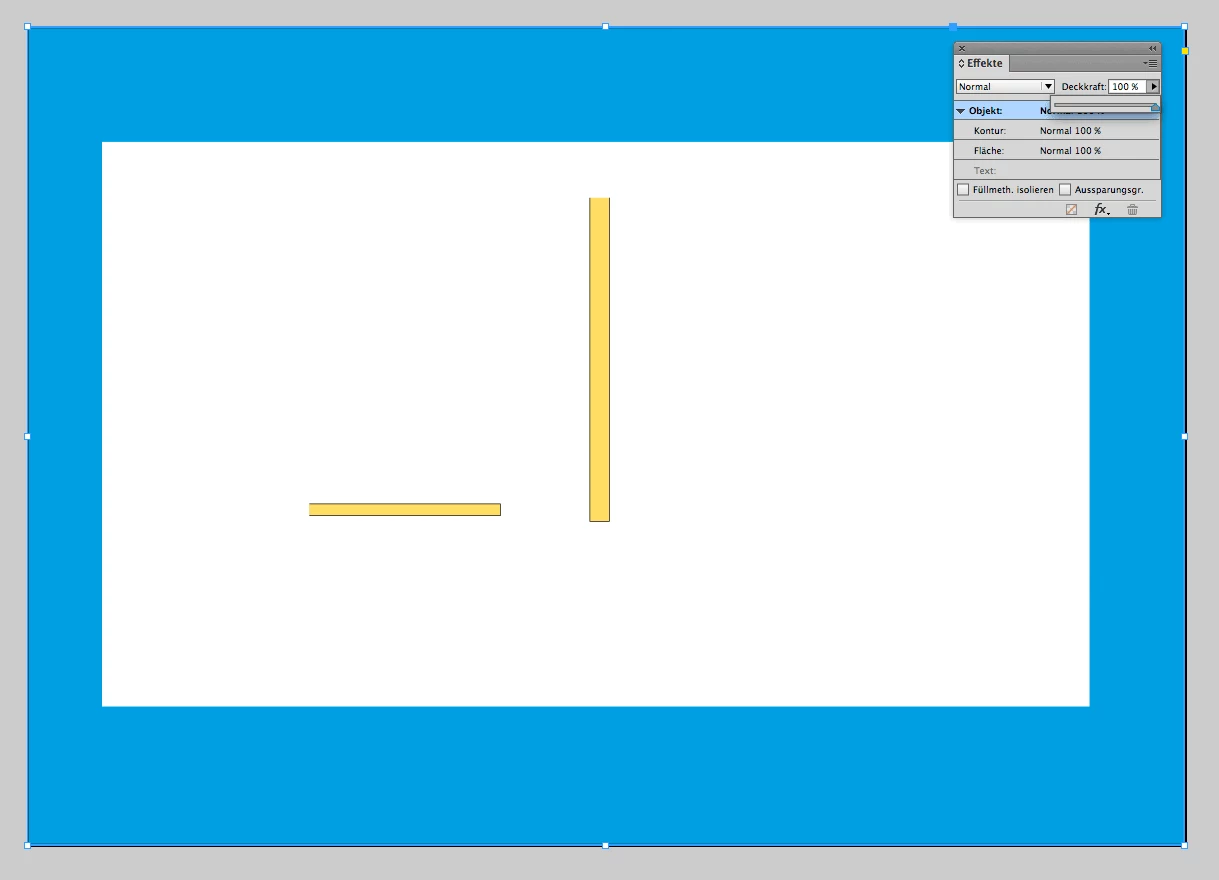
Peter's solution back then was to introduce opacity to a background rectangle:

As I found a simple rectangle with opacity 0 % on the page would do the trick as well.

Hope that helps,
Uwe

1 reply

LaubenderCommunity ExpertCorrect answer
Community Expert
March 22, 2017

Hi Anne,

did you try the different viewing options?
"Normal", "High Quality"

Did you try with "Overprint View" ?

Maybe you are describing a similar problem to that of Peter Lenz at www.hilfdirselbst.ch with placing AI files in InDesign CC from 2014:

ID CC Darstellungsprobleme oder defekte Grafiken ? - Adobe InDesign - HilfDirSelbst.ch - Forum

Note: The posted problem AI file can be downloaded by members of the hilfdirselbst forum, only.
Because of that I uploaded Peter's test AI to my Dropbox account so you could download the test file:

Dropbox - Abb07_RZ02_Textpfad.ai.zip

Placed AI file with InDesign CS6 showing view with "High Quality":

Placed AI file with InDesign CC showing view with "High Quality".

Note: Also the static caption is not visible, that is touching the image frame.

The same InDesign CC document with a different zoom percentage where the graphic is visible:

The cause of the problem was identified by Peter:

Overprinting elements in the Illustrator file.


InDesign CS6 => No problems
InDesign CC and above => Problems that parts or the whole graphic would not show with different zoom levels or different view options.

A workaround to solve this problem:

1. Place an empty rectangle in the background on the page.

2. Fill color "[Paper]"

3. Use the Effects panel: Set opacity to 0 %

It's not necessary that the empty rectangle is touching the graphic frame holding the placed AI :

Obviously introducing transparency to the spread will trigger the graphic to show.

Peter Lenz reported this bug several times over the years.

Unfortunately this bug was never fixed. I did not test with CC 2017, but Peter reported that the bug is still with us.

Here another show case by Peter published with hilfdirselbst for a placed AI file where only parts of the graphic are showing ( I cannot provide the original AI file for this example. Peter did not post it ):

Peter's solution back then was to introduce opacity to a background rectangle:

As I found a simple rectangle with opacity 0 % on the page would do the trick as well.

Hope that helps,
Uwe

Community Expert
March 22, 2017

Now I tested the linked AI file with InDesign CC 2017.
The problem persists. A bit different as shown with InDesign CC 9.3.0: Only parts of the placed graphic were visible.

The good news:
It is sufficient to place the small transparent rectangle somewhere on the pasteboard of the spread to enforce the right redrawing of the placed AI graphic.

Regards,
Uwe

Community Expert
March 22, 2017

If you are using bleed with your InDesign document, place the transparent object on the pasteboard of the used master touching the bleed. That would also work. If no bleed area is defined, the transparent object has to touch the page of a master.

Report the bug here:

Feature Request/Bug Report Form

Provide all the details in written form and a link to a zipped packaged InDesign document where the bug is visible.

Regards,
Uwe