



Melankaya
Known Participant
July 27, 2025
Answered

ACR VS LRC

  • July 27, 2025
  • 2 replies
  • 340 views

I know I'm one of the fewer people who use Bridge + ACR (probably even more of a minority on this forum) but please bear with me. I'm sure I'm missing some easy shortcuts or something.


Here's what I struggle with:
1. In Camera Raw, I am able to crop several images at the same time identically. I am able to make other chnages over a batch of images at a time for example masking/ colors etc. In LRC I seem to need to go to each to do it. If I select 5 images and apply a crop it applies it only to one image.


2. My next qualm is, in ACR I can copy and paste settings with simple crtl+c/ ctrl+v commands. In LRC, I need to right click, develop settings, copy settings and the same process to paste.


3. In Bridge, I can edit settings under edit/ keyboard shortcuts. LRC seems to be a bit more long winded?


I already tried to look for the ansers on google, chatgpt and the forums but Im sure I missed something. Would love to know what keeps you with LRC as Im sure Im missing something.


Observations:

I use LRC for 2 reasons:- organization and watermark. 

My fave discoveries about LRC as a bridge/ ACR user is the sync/read metadata which force syncs LRC to reflect the edits i made in ACR, though it doesn't always seem accurate and I need to test it.


What I loved about LRC before was that you could see all the content within subfolders at one glance and use the filters over everything if you needed to- example is select all 5 star images across multiple folders. Bridge allows that too under view- show hidden subfolders.... (Im not sure if it was recent). Another reason I'm tampering with LRC is because I want to start using a retouching plugin which is easier to do with LRC, straight to plugin whereas with ACR, it will take me to photoshop and then to the plugin.


What I also found interesting was Bridge and Adobe sometimes glitched on windows but then worked perfectly on my mac, which was useful if I needed to quickly just do what I needed to do (for example moving files)

Would be interesting to know if anyone had any similar experiences as me and could share solutions, best practices or workflow ideas.

Correct answer Conrad_C

Both Lightroom Classic and Camera Raw support bulk image edits in these ways:


Select multiple images, do the edit, and see all images update. Both do this but, as pointed out by JohanElzenga, in Lightroom Classic you do have to have Auto Sync enabled for the edits to affect all selected images. I think this is because in Lightroom Classic it’s a lot easier to select many more images than in Camera Raw (Camera Raw only loads the images selected when it was opened), making accidental bulk changes more likely, so they want to make sure you really do want to change them all.


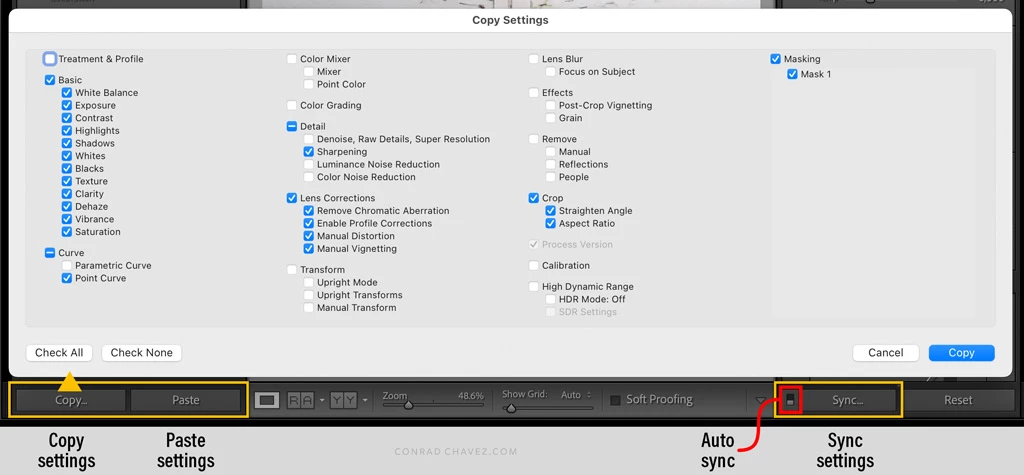
Edit an image, and copy and paste selected settings to other images. Both have this, with commands and keyboard shortcuts. But Lightroom Classic also has very obvious Copy and Paste buttons for this, shown in the picture below. A beginner doesn’t have to hunt around in the menus, memorize any shortcuts, or know about right-clicking. Just hit the big buttons at the bottom, it couldn’t be easier.


Edit an image, and synchronize selected settings to other images. Both have this. Again, Lightroom Classic potentially makes this more discoverable because of the big, obvious Sync button shown in the picture below.


But Lightroom Classic has another time-saving sync feature that I don’t think Camera Raw has:


Paste Settings from Previous. I use this all the time: Edit one image, then select any number of other images and press the shortcut for the command Settings > Paste Settings from Previous. This lets you apply all edits from the image you edited to all of the images you just selected, without having to choose Edit > Copy, so you save a step. Just edit, select other images, and hit the shortcut.


So overall I think Lightroom Classic has the better feature set in this area.

quote

2. My next qualm is, in ACR I can copy and paste settings with simple crtl+c/ ctrl+v commands. In LRC, I need to right click, develop settings, copy settings and the same process to paste.

By @Melankaya


Lightroom Classic does it too, it just uses different keyboard shortcuts for copy/paste settings as shown in the screen shot posted by johnrellis. The right-click method you used is sort of the long way around, because you could have used the Copy and Paste buttons right there in the UI, the command Settings > Copy Settings/Paste Settings on the regular menu bar, or their keyboard shortcuts.


(Actually, I just tested using Command-C and Command-V in the Develop module in Lightroom Classic, and they did copy and paste the settings. I wonder if this is a difference between the Mac and Windows versions, because I’m using a Mac.)


quote

My fave discoveries about LRC as a bridge/ ACR user is the sync/read metadata which force syncs LRC to reflect the edits i made in ACR, though it doesn't always seem accurate and I need to test it.

By @Melankaya


Yes, I use that all the time too, because I use both Lightroom Classic and ACR. Sync/read metadata is useful when editing linked raw Smart Objects in a Photoshop document, especially when you want edits you made in a Camera Raw Smart Object to be sent back to Lightroom Classic. It works but there are some bugs and glitches, especially about updating the Lightroom Classic preview.

2 replies

Conrad_C
Community Expert
Conrad_CCommunity ExpertCorrect answer
Community Expert
July 27, 2025

Both Lightroom Classic and Camera Raw support bulk image edits in these ways:


Select multiple images, do the edit, and see all images update. Both do this but, as pointed out by JohanElzenga, in Lightroom Classic you do have to have Auto Sync enabled for the edits to affect all selected images. I think this is because in Lightroom Classic it’s a lot easier to select many more images than in Camera Raw (Camera Raw only loads the images selected when it was opened), making accidental bulk changes more likely, so they want to make sure you really do want to change them all.


Edit an image, and copy and paste selected settings to other images. Both have this, with commands and keyboard shortcuts. But Lightroom Classic also has very obvious Copy and Paste buttons for this, shown in the picture below. A beginner doesn’t have to hunt around in the menus, memorize any shortcuts, or know about right-clicking. Just hit the big buttons at the bottom, it couldn’t be easier.


Edit an image, and synchronize selected settings to other images. Both have this. Again, Lightroom Classic potentially makes this more discoverable because of the big, obvious Sync button shown in the picture below.


But Lightroom Classic has another time-saving sync feature that I don’t think Camera Raw has:


Paste Settings from Previous. I use this all the time: Edit one image, then select any number of other images and press the shortcut for the command Settings > Paste Settings from Previous. This lets you apply all edits from the image you edited to all of the images you just selected, without having to choose Edit > Copy, so you save a step. Just edit, select other images, and hit the shortcut.


So overall I think Lightroom Classic has the better feature set in this area.

quote

2. My next qualm is, in ACR I can copy and paste settings with simple crtl+c/ ctrl+v commands. In LRC, I need to right click, develop settings, copy settings and the same process to paste.

By @Melankaya


Lightroom Classic does it too, it just uses different keyboard shortcuts for copy/paste settings as shown in the screen shot posted by johnrellis. The right-click method you used is sort of the long way around, because you could have used the Copy and Paste buttons right there in the UI, the command Settings > Copy Settings/Paste Settings on the regular menu bar, or their keyboard shortcuts.


(Actually, I just tested using Command-C and Command-V in the Develop module in Lightroom Classic, and they did copy and paste the settings. I wonder if this is a difference between the Mac and Windows versions, because I’m using a Mac.)


quote

My fave discoveries about LRC as a bridge/ ACR user is the sync/read metadata which force syncs LRC to reflect the edits i made in ACR, though it doesn't always seem accurate and I need to test it.

By @Melankaya


Yes, I use that all the time too, because I use both Lightroom Classic and ACR. Sync/read metadata is useful when editing linked raw Smart Objects in a Photoshop document, especially when you want edits you made in a Camera Raw Smart Object to be sent back to Lightroom Classic. It works but there are some bugs and glitches, especially about updating the Lightroom Classic preview.

Melankaya
MelankayaAuthor
Known Participant
July 29, 2025

Thank you for taking the time for the detailed explanation. I think I kept trying LRC with murphys blinds on not seeing those big copy paste buttons. The toggle next to sync I missed as well. Spent some time on it and figured the ease of copying and pasting settings, thank you.
Also discovered F2 works to batch rename. Im so used to relying on right click to rename.

Thank you

@ m e l a n k a y a
JohanElzenga
Community Expert
Community Expert
July 27, 2025

Applying crop to a batch of images in Lightroom Classic works if you toggle the small switch on the left side of the 'Synchronize' button. Its name will change to 'Auto Sync' and now all edits you apply to the active image will be applied to all selected images.


-- Johan W. Elzenga
johnrellis
Legend
July 27, 2025

[This post contains formatting and embedded images that don't appear in email. View the post in your Web browser.]


"in ACR I can copy and paste settings with simple crtl+c/ ctrl+v commands. In LRC, I need to right click, develop settings, copy settings and the same process to paste."


The Library menu Photo > Develop Settings shows the keyboard shortcuts for Copy/Paste/Sync Settings. As does the Settings menu in Develop.