michael e stern
Known Participant
July 22, 2022
Question

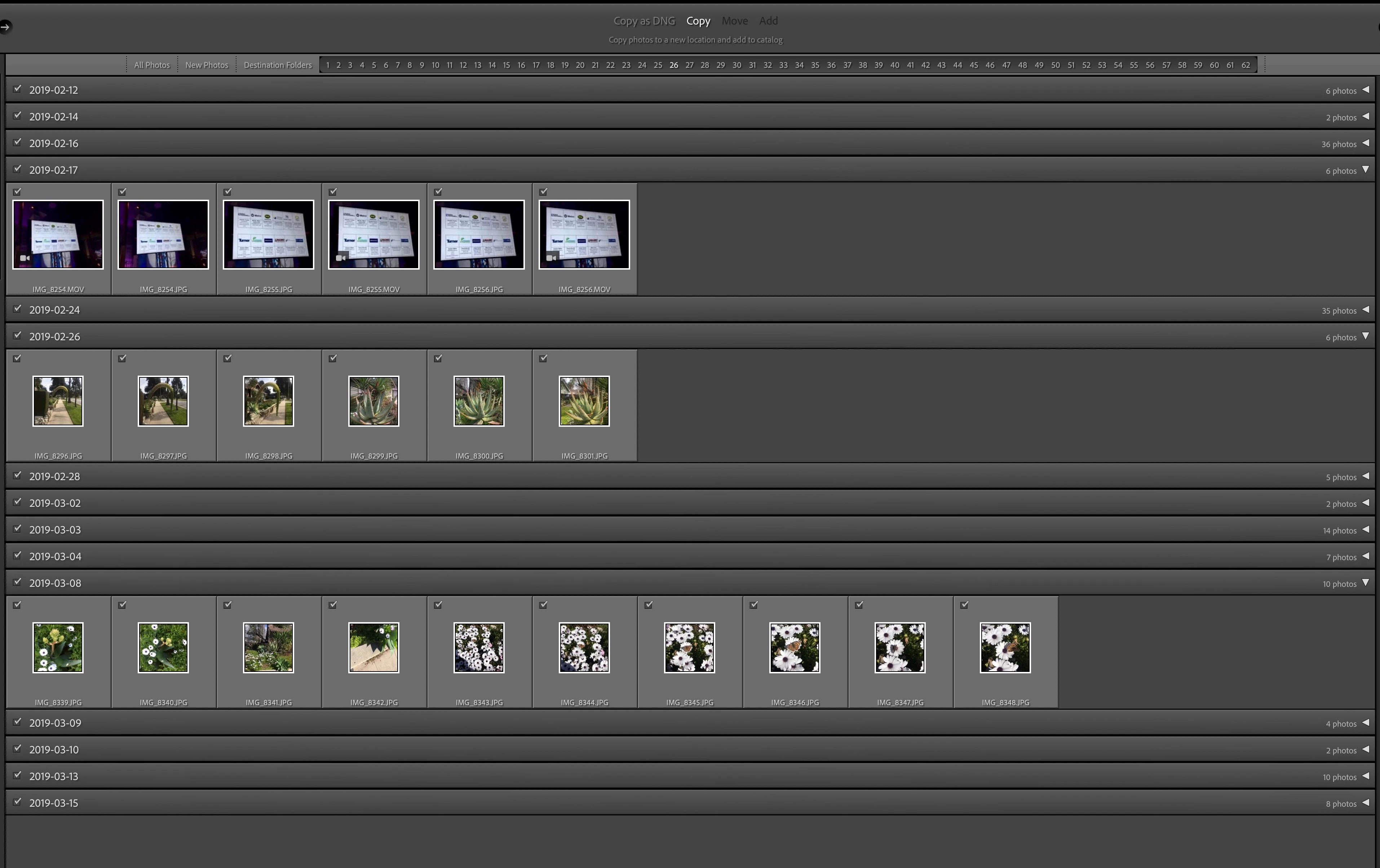
Across the top of the screen are 3 import choices: All Photos, New Photos and Destination Folders.

  • July 22, 2022
  • 2 replies
  • 238 views

Across the top of the import diaslog box are 3 choices: All Photos, New Photos and Destination Folders. I'm trying to import form a mobile device. What are the Destination folders and what do the numbers represent to the right? Screenshot attaached:
Thanks in advance for your help.

This topic has been closed for replies.

2 replies

JohanElzenga
Community Expert
Community Expert
July 31, 2022

If you click on Destination folders, then Lightroom will show you the folders it is going to use for the destination of the imported images. You have checked the option to Organise by date, so Lightroom shows you all dated folders that will be used if you import all these images. Any dated folders that do not exist yet will be created by Lightroom. If you uncheck certain images, for example all images dated today, then todays dated folder will disappear from the list, because it will not be used.


-- Johan W. Elzenga
cmgap
Community Expert
Community Expert
July 22, 2022

The numbers to the right indicate the images that can be imported as indicated by the checkboxes. If you expand each of the rows you will see the number of images that corresponds to that number. For example the first expanded row shows the number 6 and each of the 6 images are displayed with checkboxes. If you see images in the window when it is expanded and they are grayed out and uncheckable, it is because those images have already been imported. Hope this helps.

michael e stern
Known Participant
July 30, 2022

Thanks for the answer. What's interesting is that when I expand or contract the rows by clicking on triangles on the right side, the number of dated folders changes on the left. This makes no senese to me. But I do understand and appreciate your answer.

Rob_Cullen
Community Expert
Community Expert
July 31, 2022

Your screen-clip shows a very unusual view of the import dialog!!

The 'Destination Folders' option at the top of screen is just expanding the files to import into a grid reflecting the Destination folders selected.

Your Import dialog  should rather look something like this-

You may need to reset the Preferences file if your Import screen is not as it should be.

PREFERENCES RESET


Regards. My System: Windows-11, Lightroom-Classic 15.3, Photoshop 27.5, ACR 18.3, Lightroom 9.3, Lr-iOS 10.4.0, Bridge 16.0.3 .