Participant
Dec 18, 2024 7:28 AM UTC
Answered

Adding 1:1 aspect ratio to overlays of crop tool

When toggling through the overlays of the crop tool in develop module with the shortcut 'O', it would be very helpful to have an overlay showing the frame of a crop with the aspect ratio of 1:1.


Often 1:1 crops of a photo will be used as a preview. For example: I want to post a 4:5 portrait shot on Instagram but for the 1:1 gallery grid view the top and bottom of the shot will be cropped automatically. I would love to check in Lightroom how my 4:5 photo will look in the gallery grid view of Instagram without actually cropping it.


There already is an overlay showing different frames like 4:5, 5:7 or 2:3. Please add 1:1, too 🙂


I didn't found a related topic. Also feel free to suggest other solutions to my problem. I would love to learn how other photographers handle this issue 🙂


Kind regards

Richard

This topic is closed to new replies. Start a new post to keep the conversation going.
Rikk Flohr-Retired
Rikk Flohr-RetiredCorrect answer
Dec 18, 2024 1:33 PM UTC

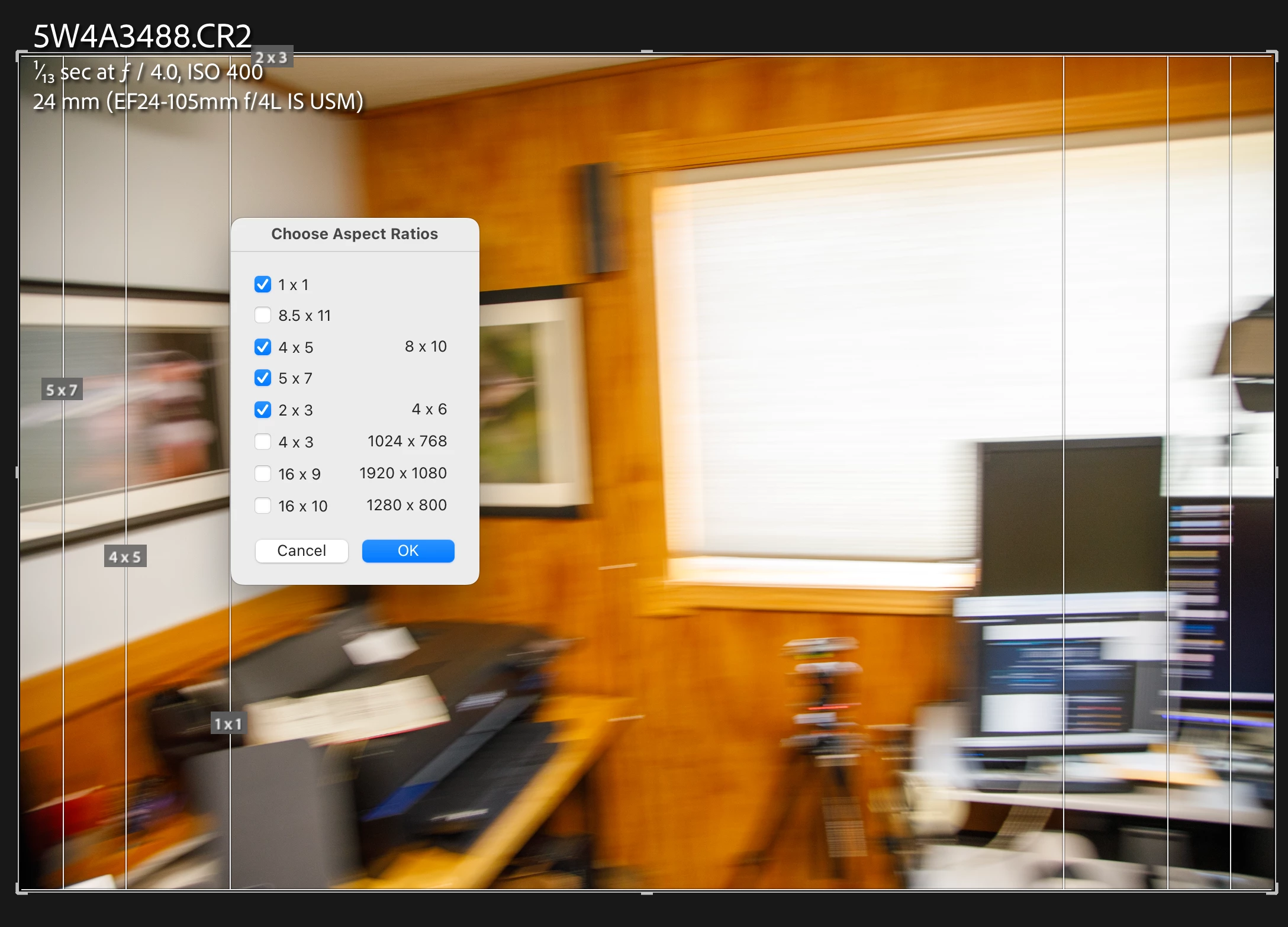
In:Tools>Crop Guide Overlay>Choose Aspect Ratios…
Toggle on the "Print Aspects" you want to see (1:1)
Then in the Crop tool use the [ O ] (overlay) to cycle to the Crop Guide that shows print crops

Rikk Flohr: Adobe Photography Org

2 replies

Rikk Flohr-Retired
Adobe Employee
Rikk Flohr-RetiredCorrect answer
Dec 18, 2024 1:33 PM UTC

In:Tools>Crop Guide Overlay>Choose Aspect Ratios…
Toggle on the "Print Aspects" you want to see (1:1)
Then in the Crop tool use the [ O ] (overlay) to cycle to the Crop Guide that shows print crops

Translate
Rikk Flohr: Adobe Photography Org
Participant
Dec 18, 2024 2:10 PM UTC

Thank you so much for your help and moving the topic into the discussions section! This is exactly what I was searching for - but couldn't find it. Solved 🙂

Translate