
lindsays28318786
Participant
May 11, 2019
Question

Adjustment Brush Issues

  • May 11, 2019
  • 4 replies
  • 290 views

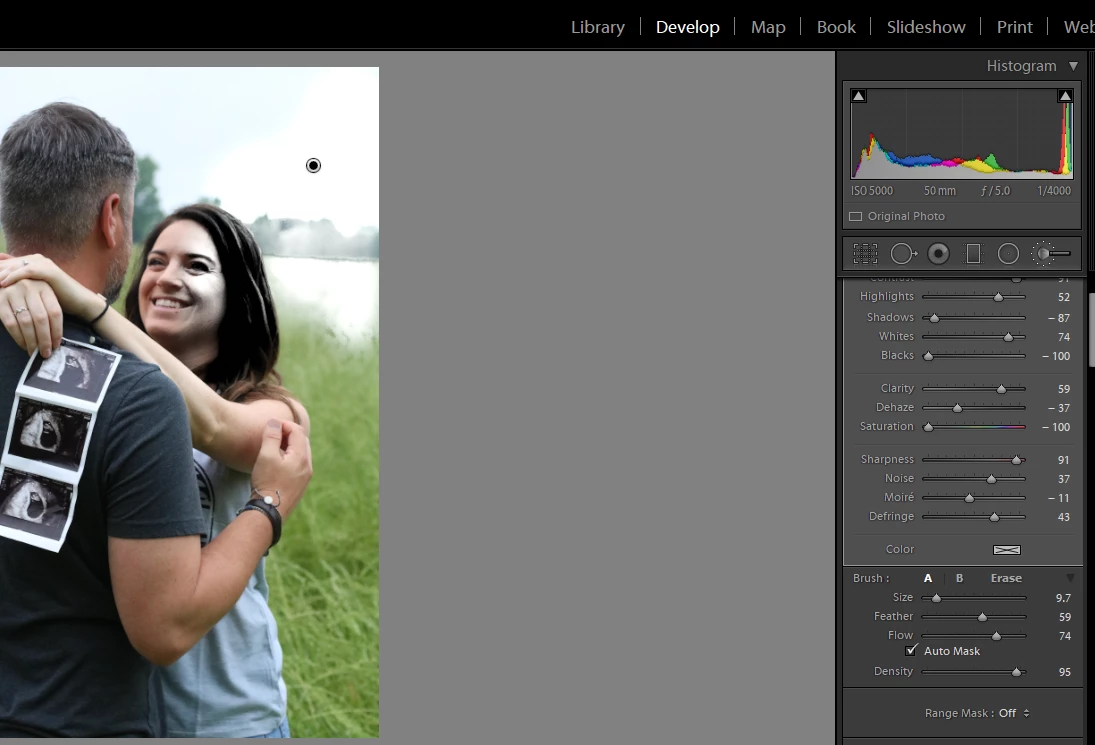
I last used my adjustment brush to create some color splash photos. Now I am trying to use my adjustment brush to blur out the backgrounds of some photos. However, when I go to adjustment brush, set it up, and start working on my photo, all it does is turn my photo to complete white. I noticed the "color" box is set to white but I can't figure out how to change it to multi-color or whatever. What am I missing??? Can anyone help?
This topic has been closed for replies.

4 replies

GoldingD
Legend
May 12, 2019

Consider: https://shootdotedit.com/2018/02/how-to-blur-background-in-lightroom/

note, I cannot find a link arguing to not use auto mask, but using the range mask instead can provide more control.

Ahh, this link about more control (range instead of auto) https://www.digitalphotographyformoms.com/lightroom-range-mask-selections-now-more-accurate/

Rob_Cullen
Community Expert
Community Expert
May 12, 2019

I agree with answers given above!

Your brush settings are 'all over the place' - really mixed and meaningless.

Start with a fresh brush by resetting-

Double-click on the word "Effect:" to set all sliders back to defaults, then use one or two sliders for the effect you want.

Note also that a Brush COLOR will only tint where you paint, AND only add a tint where tones exist (not on white areas)

Regards. My System: Windows-11, Lightroom-Classic 15.3, Photoshop 27.5, ACR 18.3, Lightroom 9.3, Lr-iOS 10.4.0, Bridge 16.0.3 .
GoldingD
Legend
May 11, 2019

A couple of things.

1. As stated by JohanElzenga, sliding Saturation down to -100 will take all color out.

2. Looks like your adjustments in the brush took a previous setting as current default, so many sliders moved around. Just go and reset them all to 0.

3. Now, I would actually recommend that you do not have the Auto Mask turned on for this sort of adjustment. Go and delete the brush and start over, this time without Auto Mask. And before you make any adjustments, go and click on the Range Mask, select color, use the then available selector tool (eyedropper) to select color(s) to include in mask. Show the overlay to see what’s included, adjust as required.

4. For a blur, start with just Sharpness, perhaps as much as -100.

JohanElzenga
Community Expert
Community Expert
May 11, 2019

The Color box is set to no coloring (white with a cross through it). Whites is set to +74 however (and I can’t see Exposure) so that is probably the culprit. And Saturation is set to -100, so this removes all color.

-- Johan W. Elzenga
GoldingD
Legend
May 11, 2019

Yes the Saturation .