hannahr65164008
Participant
May 1, 2017
Answered

After upgrading to Lightroom 6- Develop module causes it to freeze and not respond???

  • May 1, 2017
  • 1 reply
  • 498 views

I recenlty ugraded to lightroom 6 on a PC with windows 8--and I can use the library fine (most times) but when I click on "develop" the program is not responding.  I then have to turn shut down the program and start again...and this continues the same.  I have to use lightroom 4.4 as my backup.  I have tried mulitple times by reinstalling the software.
    This topic has been closed for replies.
    Correct answer Per Berntsen

    Try disabling the GPU.

    Go to Edit > Preferences > Performance, uncheck Use graphics processor.

    If you are unable to uncheck the box, or if LR hangs when you try to, you will have to disable the GPU by editing the preferences file.

    Close Lightroom. With Windows Explorer, navigate to C:\Users\[your username]\AppData\Roaming\Adobe\Lightroom\Preferences

    Open the file Lightroom 6 Preferences.agprefs in a text editor, like Notepad.

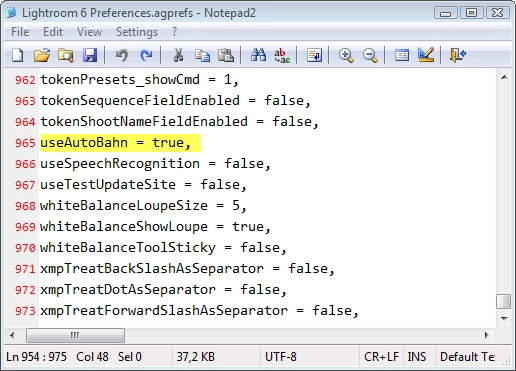
    Close to the end of the file there is a line that says useAutoBahn = true, - change this to useAutoBahn = false,

    Save and close the file. Now launch Lightroom.

    1 reply

    Participant
    May 1, 2017

    I have a similar problem PC based.  LR (latest upgrades installed) running Windows 10 but following latest windows upgrade Development Mode appears corrupted -  when moving from Library mode to Development Mode - get message "Adobe Lightroom has stopped working" - followed by "A problem caused the program to stop working correctly.  Windows will close the program and notify you if a solution is available."  Close program then shuts down. 

    Per Berntsen
    Community Expert
    Per BerntsenCommunity ExpertCorrect answer
    Community Expert
    May 1, 2017

    Try disabling the GPU.

    Go to Edit > Preferences > Performance, uncheck Use graphics processor.

    If you are unable to uncheck the box, or if LR hangs when you try to, you will have to disable the GPU by editing the preferences file.

    Close Lightroom. With Windows Explorer, navigate to C:\Users\[your username]\AppData\Roaming\Adobe\Lightroom\Preferences

    Open the file Lightroom 6 Preferences.agprefs in a text editor, like Notepad.

    Close to the end of the file there is a line that says useAutoBahn = true, - change this to useAutoBahn = false,

    Save and close the file. Now launch Lightroom.

    Sean McCormack
    Community Expert
    Community Expert
    May 1, 2017

    Nice to see my find got out in the wild!

    Sean McCormack. Author of 'Essential Development 3'. Magazine Writer. Former Official Fuji X-Photographer.