
Participant
October 14, 2025
Question

AI edits do not copy/sync correctly to other photos. Needs manual AI edit each time!

  • October 14, 2025
  • 8 replies
  • 348 views

Lightroom Classic v14.5.1 - I tried rolling back to v14.4 (as per some conversation threads on adobe forums), but still no change.
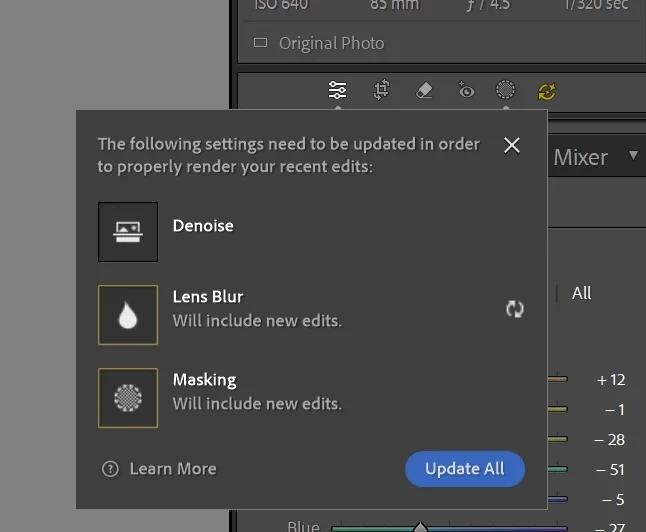
 

I have started noticing this behaviour for the last month or so now, where applying my presets (I even tried with a brand new preset), simply "applies" it to my photos, but until I manually Update AI settings, nothing really happens. Same behaviour even when I sync changes to other photos.


Now if I could mass select and update AI settings consistently, I wouldn't mind. But even that does not seem to work all the time. I will noticed some photos don't have denoise applied, some don't have masks applied, and so on.


And there is no clear indication from grid view on which photos have pending AI updates. It looks okay when I sync, but clicking on an individual photo reveals that either blur or masks or denoise hasn't applied correctly and I need to manually apply to each individual photo.


Previously, I could apply my preset on a 500 image gallery, go to bed, and in the morning it's all done. I cannot sit and manually apply AI edits to 500 images any more, especially during my peak photography season. 

If this is a bug (and I can tell from the various google searches I have seen about 14.5.1) Adobe needs to fix this asap! Please do NOT recommend creating a new catalog and moving over 100k photos as a workaround. This was all working fine until upgrading to 14.5.

Lightroom Classic v14.5.1 (rolling back to v14.4 still has issue)
Windows 11

13th Gen Intel i7-13700K
64 GB Memory
Nvidia GeForce RT 3080

8 replies

Participating Frequently
October 20, 2025

Dropped down to 14.3 from May and got through everything fine. Yeah I had to deal with DNGs but it worked and let me batch apply denoise. I'll wait until they have an update before I try the latest again.

Participant
October 17, 2025

Try a downgrade to v14.3 for now. Yes, if Adobe breaks stuff this big without even acknowledging it, this is a big NO for my $$. 

Participating Frequently
October 17, 2025

It gets worse. Figured out that sync absolutely doesn't work so I was doing each image individually. About 25 in and it crashes. Restarting shows the 25 I did are not back to their crap state where the denoise is shown as applied but obviously isn't and I have to toggle it off then on. Looking at alternatives to LR at this point because this is costing a ton of time.

Legend
October 15, 2025

@firozjokhiphotography 


I have not experienced any problems syncing AI edits to a selection of photos with LrC 14.5.1, including Denoise.


If you deleted <catalog>.lr-data, you may have just made a big mistake and deleted all your AI Masking and AI Removes too.


It seems to me that you might be doing something wrong.


Also, if there are AI Updates to be done after syncing edits, keep the photos selected and either in the Filmstrip or the Library Grid, right-click on one of the synced photos and select Develop Settings > Update AI Settings which will skip any photos not needing updating and update those that do.


JohanElzenga
Community Expert
Community Expert
October 15, 2025

I agree with @drtonyb . This is not the way to solve what you found. It's also not my experience. I can sync AI settings without having to do an update, and also apply them in a preset. That's actually what I always do. After having imported my images, I select them all and apply a preset that includes the Adaptive Profile. Works like a charm. There is one situation that is a known exception: if you apply a preset that includes AI edits on import, either as a Develop preset applied in the import dialog, or as a camera default, then indeed you will need to update AI settings manually for these images. That is as designed, to keep the actual import as fast as possible. For me that was the reason why I apply my present manually on the photos after they have been imported, not during import.


-- Johan W. Elzenga
Participant
October 15, 2025

I had to downgrade to v14.3 (before the AI denoise crap), completely reset all my photos, deleted the <catalog>.lrcat-data, and then could get my edits to sync and copy/paste correctly.

This is such a massive fail on Adobe's part on a paid subscription product for professionals. 

Participating Frequently
October 14, 2025

Figured out too that just unchecking Denoise individually doesn't fix it. Have to check raw details and then denoise for it to actually run it again and fix it. And it's most of the pictures. Just an obnoxious bug that's going to cost me hours.

Participant
October 15, 2025

I had to downgrade to v14.3 (before the AI denoise crap), completely reset all my photos, deleted the <catalog>.lrcat-data, and then could get my edits to sync and copy/paste correctly.

This is such a massive fail on Adobe's part on a paid subscription product for professionals. 

Participant
October 14, 2025

And I am also seeing that once I apply the AI denoise, even 'resetting' the development settings on all images does NOT reset the denoise flag. So once I apply it, I have to uncheck it manually from all 500 images from the session! Geez Adobe!!!

Participating Frequently
October 14, 2025

I'm seeing the same bug and it has to be a bug. The Denoise checkbox is checked after running using Sync but it's clear that it hasn't run and I have to uncheck and recheck it to get it most of the time. There's been a couple where even that doesn't work. I'm also seeing one image a batch that says's it's corrupt and not recognized. I can pull the CR3 into photoshop and it's fine. Really annoying bugs for those of us trying to get our processing done.