
Participant
January 23, 2023
Question

AI Masking not working

  • January 23, 2023
  • 2 replies
  • 1658 views

Hi there!


When I try to use the AI maskign tools this error message appears. The masking tool used to work and sometimes I can get it to work once in a session but then I keep getting this error. Any help would be appreciated!
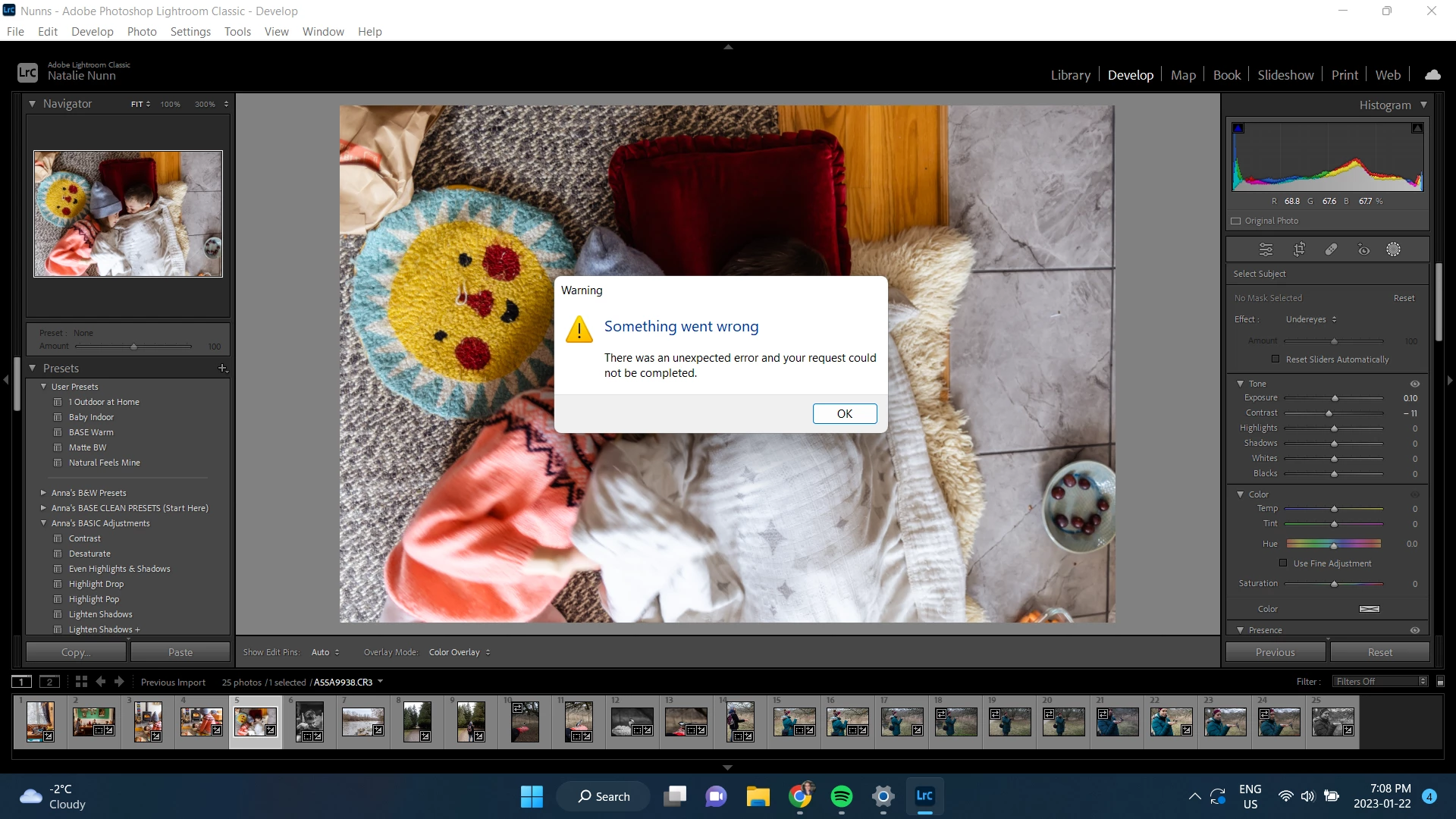
 

This topic has been closed for replies.

2 replies

GoldingD
Legend
January 25, 2023

Typically a problem with your GPU driver.


Please post your System Information as Lightroom Classic (LrC) reports it. In LrC click on Help, then System Info, then Copy. Paste that information into a reply. Please present all information from first line down to and including Plug-in Info. Info after Plug-in info can be cut as that is just so much dead space to us non-Techs.


Interested in this part:


Graphics Processor Info: 
DirectX: NVIDIA GeForce GTX 1070 Ti (31.0.15.1748)
Init State: GPU for Export supported by default
User Preference: Auto


Participating Frequently
October 14, 2023

I'm having a similar problem on my MacBook M1. Did the most recent LR update a day or two ago. Working on some old files. Got everything working on some files from an event in 2012 but similar files from 2011 have a problem. I want to go to develop and click masking, then select background to darken it. 2012 image: 


2011 image:


The AI select subject button in the 2011 image looks a bit darker than the button i the 2012 image, as if it's greyed out. Also, the 2012 image shows people selected while the 2011 image does not. Clicking on the 2011 button does nothing, while clicking on the 2012 button selects the subject normally. Both images are NEF files, from a D3 in 2011 and a D4 in 2012. However, there are other D3 NEF files from 2011 that work normally. The non-AI masks work (brush, gradients) and the Objects don't work where the other AI selections don't. Since some files work and some don't, I don't see that the GPU would be the problem because it's happening in the same session.

Other files before 2012 are spotty. Some work, some don't. Can't see a common denominator. Most everything 2012 et seq works (too many to inspect all of them, but didn't notice anything until I got to 2011).

Open for suggestions.


System info:

Lightroom Classic version: 13.0.1 [ 202310121438-d2af310c ]
License: Creative Cloud
Language setting: en-US
Operating system: Mac OS 14
Version: 14.0.0 [23A344]
Application architecture: arm64
Logical processor count: 10
Processor speed: NA
SqLite Version: 3.36.0
Built-in memory: 65,536.0 MB
Real memory available to Lightroom: 65,536.0 MB
Real memory used by Lightroom: 11,878.2 MB (18.1%)
Virtual memory used by Lightroom: 424,642.8 MB
Memory cache size: 12,511.6MB
Internal Camera Raw version: 16.0 [ 1677 ]
Maximum thread count used by Camera Raw: 5
Camera Raw SIMD optimization: SSE2
Camera Raw virtual memory: 1495MB / 32767MB (4%)
Camera Raw real memory: 1561MB / 65536MB (2%)
Standard Preview Size: 3456 pixels
Displays: 1) 3456x2234

Graphics Processor Info:
Metal: Apple M1 Max
Init State: GPU for Export supported by default
User Preference: Auto

Application folder: /Applications/Adobe Lightroom Classic
Library Path: /Users/smallfarm/Documents/Photo Archive/LrC Master 2023-v13.lrcat
Settings Folder: /Users/smallfarm/Library/Application Support/Adobe/Lightroom

Installed Plugins:
1) AdobeStock
2) Aperture/iPhoto Importer Plug-in
3) Flickr
4) Nikon Tether Plugin
5) Topaz Photo AI

Config.lua flags: None


Sameer K
Community Manager
Community Manager
January 25, 2023

Welcome to the Lightroom Community. I'll need more info to help you figure this out.


 Please share the system info of Lightroom Classic from Help > System info > Copy & paste here or upload to Creative Cloud files (https://assets.adobe.com/files) and share the link with us. There is a pending system update on your computer; try updating Windows too.


Try to reset the GPU caches by following these steps. Please go to the following locations.

  • C:\Users\<Username>\AppData\Roaming\Adobe\CameraRaw
  • Press the Windows > Enter 'Run' > Type %appdata%\Adobe\CameraRaw > Hit OK
  • Rename the GPU folder as 'GPU.old' (add .old at the end)
  • Restart Lightroom Classic again.


Let me know how it goes from here.
Thanks!
Sameer K


Participant
January 26, 2023

Hi there!


Thank you for your suggestions! I went and downloaded the newest Windows update and that seemed to have fixed it for now, thank you!!